# LIFF CLI
## What is the LIFF CLI
LIFF CLI is a CLI tool to help you develop LIFF apps more smoothly.
- [GitHub](https://github.com/line/liff-cli)
- [npm](https://www.npmjs.com/package/@line/liff-cli)
The LIFF CLI allows you to do the following:
- Create, update, list, and delete LIFF apps
- Create a LIFF app development environment
- Debug your LIFF app with the [LIFF Inspector](https://developers.line.biz/en/docs/liff/liff-plugin/#liff-inspector)
- Launch a local develpment server with HTTPS
The [LIFF Mock](https://developers.line.biz/en/docs/liff/liff-plugin/#liff-mock) feature will be added in a future update.
## Operating environment of the LIFF CLI
The LIFF CLI runs on Node.js. You can use either npm or Yarn for package management, but the instructions on this page use npm. The content of this page has been tested with each of the following versions:
| Name | Version |
| --- | --- |
| [LIFF CLI](https://www.npmjs.com/package/@line/liff-cli) | 0.4.1 |
| [LIFF SDK](https://www.npmjs.com/package/@line/liff) | 2.24.0 |
| [Node.js](https://nodejs.org/en) | 22.2.0 |
| [npm](https://www.npmjs.com/) | 10.7.0 |
## Install the LIFF CLI
Open a terminal or command line tool (hereafter referred to as "terminal") and execute the following command:
```bash
$ npm install -g @line/liff-cli
```
The command will install the LIFF CLI and allow you to run the `liff-cli` command.
## Manage channels
The `channel` command allows you to add a channel to be managed by the LIFF CLI or to set the default channel. Note that channels have to be created beforehand in the [LINE Developers Console](https://developers.line.biz/console/).
### Add channels
The `add` subcommand allows you to add a channel to be managed by the LIFF CLI. Pass the channel ID of a channel you want to add to the `add` subcommand and you will be prompted for the channel secret. Enter the channel secret and the channel is added.
```bash
$ liff-cli channel add 1234567890
? Channel Secret?: ********************************
Channel 1234567890 is now added.
```
When passing a channel ID to each LIFF CLI command, the channel with the channel ID has to be added beforehand using the `add` subcommand, as shown above.
### Set the default channel
The `use` subcommand allows you to set the default channel of the LIFF CLI. Pass the channel ID of a channel you want to set to the `use` subcommand.
```bash
$ liff-cli channel use 1234567890
Channel 1234567890 is now selected.
```
The default channel is used when a channel ID is omitted in each LIFF CLI command.
## Manage LIFF apps
The `app` command allows you to create, update, list, and delete LIFF apps.
### Create a LIFF app
The `create` subcommand allows you to create a LIFF app. If the LIFF app is created successfully, the LIFF ID appears in the terminal.
```bash
$ liff-cli app create \
--channel-id 1234567890 \
--name "Brown Coffee" \
--endpoint-url https://example.com \
--view-type full
Successfully created LIFF app: 1234567890-AbcdEfgh
```
#### Options
The following options are available in the `create` subcommand:
| Option | Required | Description |
| --- | --- | --- |
| `-c`, `--channel-id` | | Specify the channel ID of a channel for which you want to create a LIFF app. If the channel ID is omitted, the channel ID of the [default channel](https://developers.line.biz/en/docs/liff/liff-cli/#manage-channels-use) is specified. |
| `-n`, `--name` | ✅ | Specify a LIFF app name. The LIFF app name can't include "LINE" or similar strings, or inappropriate strings. |
| `-e`, `--endpoint-url` | ✅ | Specify an endpoint URL. This is the URL of the web app that implements the LIFF app (e.g. `https://example.com`). Used when the LIFF app is launched using the LIFF URL.
The URL scheme must be **https**. URL fragments (#URL-fragment) can't be specified.
|
| `-v`, `--view-type` | ✅ | Size of a LIFF app view. Specify one of these values:
For more information, see [Size of the LIFF browser](https://developers.line.biz/en/docs/liff/overview/#screen-size). |
### Update a LIFF app
The `update` subcommand allows you to update a LIFF app.
```bash
$ liff-cli app update \
--liff-id 1234567890-AbcdEfgh \
--channel-id 1234567890 \
--name "Brown Cafe"
Successfully updated LIFF app: 1234567890-AbcdEfgh
```
#### Options
The following options are available in the `update` subcommand:
| Option | Required | Description |
| --- | --- | --- |
| `--liff-id` | ✅ | Specify a LIFF ID you want to update. |
| `--channel-id` | | Specify the channel ID of the channel which a LIFF app belongs to. If the channel ID is omitted, the channel ID of the [default channel](https://developers.line.biz/en/docs/liff/liff-cli/#manage-channels-use) is specified. |
| `--name` | | Specify a LIFF app name. The LIFF app name can't include "LINE" or similar strings, or inappropriate strings. |
| `--endpoint-url` | | Specify an endpoint URL. This is the URL of the web app that implements the LIFF app (e.g. `https://example.com`). Used when the LIFF app is launched using the LIFF URL.
The URL scheme must be **https**. URL fragments (#URL-fragment) can't be specified.
|
| `--view-type` | | Size of a LIFF app view. Specify one of these values:
For more information, see [Size of the LIFF browser](https://developers.line.biz/en/docs/liff/overview/#screen-size). |
### List LIFF apps
The `list` subcommand allows you to list LIFF apps. LIFF IDs and LIFF app names are displayed in a list.
```bash
$ liff-cli app list --channel-id 1234567890
LIFF apps:
1234567890-AbcdEfgh: Brown Coffee
1234567890-IjklMnop: Brown Cafe
```
#### Options
The following options are available in the `list` subcommand:
| Option | Required | Description |
| --- | --- | --- |
| `--channel-id` | | Specify a channel ID for which you want to list LIFF apps. If the channel ID is omitted, the channel ID of the [default channel](https://developers.line.biz/en/docs/liff/liff-cli/#manage-channels-use) is specified. |
### Delete a LIFF app
The `delete` subcommand allows you to delete a LIFF app.
```bash
$ liff-cli app delete \
--liff-id 1234567890-AbcdEfgh \
--channel-id 1234567890
Deleting LIFF app...
Successfully deleted LIFF app: 1234567890-AbcdEfgh
```
#### Options
The following options are available in the `delete` subcommand:
| Option | Required | Description |
| --- | --- | --- |
| `--liff-id` | ✅ | Specify the LIFF ID of a LIFF app you want to delete. |
| `--channel-id` | | Specify the channel ID of the channel to which a LIFF app belongs. If the channel ID is omitted, the channel ID of the [default channel](https://developers.line.biz/en/docs/liff/liff-cli/#manage-channels-use) is specified. |
## Create a LIFF app template
The `scaffold` command allows you to create a LIFF app template using [Create LIFF App](https://developers.line.biz/en/docs/liff/cli-tool-create-liff-app/). Passing the project name of the LIFF app to the `scaffold` command will execute Create LIFF App using that project name.
```bash
$ liff-cli scaffold my-app --liff-id 1234567890-AbcdEfgh
```
For more information about Create LIFF App, see [Building a LIFF app development environment with Create LIFF App](https://developers.line.biz/en/docs/liff/cli-tool-create-liff-app/).
### Options
The following option is available in the `scaffold` command:
| Option | Required | Description |
| --- | --- | --- |
| `-l`, `--liff-id` | | Specify the LIFF ID of a LIFF app. |
## Create a LIFF app development environment
The `init` command allows you to create a LIFF app development environment. The `init` command performs the following three processes in order:
1. [Add a channel](https://developers.line.biz/en/docs/liff/liff-cli/#manage-channels-add)
1. [Create a LIFF app](https://developers.line.biz/en/docs/liff/liff-cli/#manage-liff-apps-create)
1. [Create a LIFF app template](https://developers.line.biz/en/docs/liff/liff-cli/#scaffold)
```bash
$ liff-cli init \
--channel-id 1234567890 \
--name "Brown Coffee" \
--view-type full \
--endpoint-url https://example.com
```
For example, the command above adds the channel with a channel ID of "1234567890". Next, the command creates a LIFF app with a LIFF app name of "Brown Coffee", an endpoint URL of "https://example.com", and a view size of "Full" for the channel. Finally, create a template with the LIFF ID of the created LIFF app set.
```bash
liff-cli init \
--channel-id 1234567890 \
--name "Brown Coffee" \
--view-type full \
--endpoint-url https://example.com
? Channel Secret?: ********************************
Channel 1234567890 is now added.
Welcome to the Create LIFF App
? Which template do you want to use? vanilla
? JavaScript or TypeScript? JavaScript
? Which package manager do you want to use? npm
Installing dependencies:
- @line/liff
removed 10 packages in 944ms
22 packages are looking for funding
run `npm fund` for details
Installing devDependencies:
- vite
added 10 packages in 7s
25 packages are looking for funding
run `npm fund` for details
Done! Now run:
cd Brown Coffee
npm run dev
App 1234567890-AbcdEfgh successfully created.
Now do the following:
1. go to app directory: `cd Brown Coffee`
2. create certificate key files (e.g. `mkcert localhost`, see: https://developers.line.biz/en/docs/liff/liff-cli/#serve-operating-conditions )
3. run LIFF app template using command above (e.g. `npm run dev` or `yarn dev`)
4. open new terminal window, navigate to `Brown Coffee` directory
5. run `liff-cli serve -l 1234567890-AbcdEfgh -u http://localhost:${PORT FROM STEP 3.}/`
6. open browser and navigate to http://localhost:${PORT FROM STEP 3.}/
```
### Options
The following options are available in the `init` command. If you omit an option, you will be prompted for the option when the `init` command is executed.
```bash
$ liff-cli init
? Channel ID? 1234567890
? App name? Brown Coffee
? View type? full
? Endpoint URL? (leave empty for default 'https://localhost:9000') https://example.com
```
| Option | Required | Description |
| --- | --- | --- |
| `-c`, `--channel-id` | ✅ \*1 | Specify the channel ID of a channel for which you want to create a LIFF app. |
| `-n`,`--name` | ✅ \*2 | Specify a LIFF app name. The LIFF app name can't include "LINE" or similar strings, or inappropriate strings. |
| `-v`, `--view-type` | ✅ \*2 | Size of a LIFF app view. Specify one of these values:
For more information, see [Size of the LIFF browser](https://developers.line.biz/en/docs/liff/overview/#screen-size). |
| `-e`, `--endpoint-url` | | Specify an endpoint URL. This is the URL to which the LIFF app will be deployed (e.g. `https://example.com`). Used when the LIFF app is launched using the LIFF URL.
The URL scheme must be **https**. URL fragments (#URL-fragment) can't be specified.
|
\*1 You need to specify either the option or the prompt if you don't set the [default channel](https://developers.line.biz/en/docs/liff/liff-cli/#manage-channels-use).
\*2 You need to specify either the option or the prompt.
## Launch a local development server with HTTPS
The `serve` command allows you to launch a local developement server with HTTPS.
Specifying your local development server, where your LIFF app is running, in the `serve` command launches a local proxy server with HTTPS and rewrites the endpoint URL of your LIFF app with the URL of the local proxy server. This makes it easier for you to launch your local development server with HTTPS.
**Don't execute the serve command for a published LIFF app**
The `serve` command rewrites the endpoint URL of the LIFF app with the URL of the local proxy server, so users can't access the LIFF app. Therefore, don't execute the `serve` command for a published LIFF app.
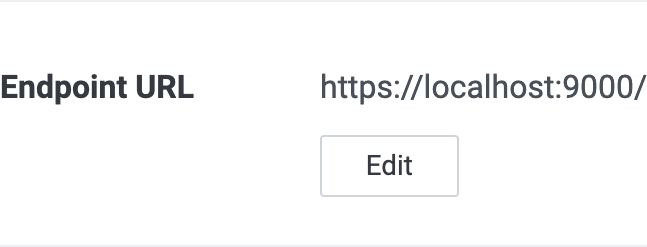
```bash
# If you specify your local development server with the URL
$ liff-cli serve \
--liff-id 1234567890-AbcdEfgh \
--url http://localhost:3000/
Successfully updated endpoint url for LIFF ID: 1234567890-AbcdEfgh.
→ LIFF URL: https://liff.line.me/1234567890-AbcdEfgh
→ Proxy server: https://localhost:9000/
```
```bash
# If you specify your local development server with the host and port number
$ liff-cli serve \
--liff-id 1234567890-AbcdEfgh \
--host localhost \
--port 3000
Successfully updated endpoint url for LIFF ID: 1234567890-AbcdEfgh.
→ LIFF URL: https://liff.line.me/1234567890-AbcdEfgh
→ Proxy server: https://localhost:9000/
```
### Debug your LIFF app with the LIFF Inspector
You can debug your LIFF app with the [LIFF Inspector](https://developers.line.biz/en/docs/liff/liff-plugin/#liff-inspector) by specifying the `--inspect` option to the `serve` command.
The `--inspect` option launches the LIFF Inspector's LIFF Inspector Server with HTTPS. This allows developers to debug their LIFF apps by simply installing the LIFF Inspector Plugin in their LIFF apps. For more information, see [README](https://github.com/line/liff-inspector/blob/main/README.md) of the LIFF Inspector.
```bash
$ liff-cli serve \
--liff-id 1234567890-AbcdEfgh \
--url http://localhost:3000/ \
--inspect
Successfully updated endpoint url for LIFF ID: 1234567890-AbcdEfgh.
→ LIFF URL: https://liff.line.me/1234567890-AbcdEfgh
→ Proxy server: https://localhost:9000/?li.origin=wss%3A%2F%2Flocalhost%3A9222
Debugger listening on wss://192.168.1.6:9222
You need to serve this server over SSL/TLS
For help, see: https://github.com/line/liff-inspector#important-liff-inspector-server-need-to-be-served-over-ssltls
```
When you access the LIFF URL, a URL starting with `devtools://devtools/` appears in the terminal where the `serve` command was executed. If you open this URL with Google Chrome, you can debug the LIFF app on Google Chrome.
```bash
connection from client, id: 1234567890-AbcdEfgh
DevTools URL: devtools://devtools/bundled/inspector.html?wss=localhost:9222/?hi_id=1234567890-AbcdEfgh
```
### Expose your local development server
LIFF CLI supports [ngrok](https://ngrok.com/) as a proxy. To use ngrok, specify one of the following values for the `--proxy-type` option of the `serve` command:
- [ngrok](https://developers.line.biz/en/docs/liff/liff-cli/#serve-proxy-type-ngrok)
- [ngrok-v1](https://developers.line.biz/en/docs/liff/liff-cli/#serve-proxy-type-ngrok-v1) (deprecated)
#### Proxy type: `ngrok`
Specifying `ngrok` for the `--proxy-type` option allows you to use [ngrok](https://github.com/ngrok/ngrok-javascript) instead of a local proxy server. This allows you to expose your local development server. When using ngrok, set the authtoken of ngrok as the environment variable `NGROK_AUTHTOKEN`.
```bash
$ NGROK_AUTHTOKEN={Authentication token} liff-cli serve \
--liff-id 1234567890-AbcdEfgh \
--url http://localhost:3000/ \
--proxy-type ngrok
Successfully updated endpoint url for LIFF ID: 1234567890-AbcdEfgh.
→ LIFF URL: https://liff.line.me/1234567890-AbcdEfgh
→ Proxy server: https://1234abcd.ngrok.example.com/
```
#### Proxy type: `ngrok-v1` (deprecated)
**ngrok-v1 is deprecated**
ngrok v1 is no longer being developed or maintained, so `ngrok-v1` is deprecated. When using ngrok, specify [`ngrok`](https://developers.line.biz/en/docs/liff/liff-cli/#serve-proxy-type-ngrok) as the proxy type.
You can use [ngrok v1](https://github.com/inconshreveable/ngrok) instead of a local proxy server by specifying `ngrok-v1` for the `--proxy-type` option. This allows you to expose your local development server. To use this feature, you need to install [ngrok v1](https://github.com/inconshreveable/ngrok) and [node-pty](https://www.npmjs.com/package/node-pty).
```bash
$ liff-cli serve \
--liff-id 1234567890-AbcdEfgh \
--url http://127.0.0.1:3000/ \
--proxy-type ngrok-v1
ngrok-v1 is experimental feature.
Successfully updated endpoint url for LIFF ID: 1234567890-AbcdEfgh.
→ LIFF URL: https://liff.line.me/1234567890-AbcdEfgh
→ Proxy server: https://1234abcd.ngrok.example.com/
```
### Operating conditions of the `serve` command
For the `serve` command to work, all of the following conditions must be met:
- Create a valid certificate (`localhost.pem`) and private key (`localhost-key.pem`) for localhost
- Execute the `serve` command at the location where you created `localhost.pem` and `localhost-key.pem` (e.g. root directory of the LIFF app project)
Follow these steps to create a valid certificate (`localhost.pem`) and private key (`localhost-key.pem`) for localhost. Use [mkcert](https://github.com/FiloSottile/mkcert) here. For more information about mkcert, see [README](https://github.com/FiloSottile/mkcert/blob/master/README.md) of mkcert.
1. Execute the following command to install `mkcert`:
```bash
# For macOS (using Homebrew)
$ brew install mkcert
# For Windows (using Chocolatey)
$ choco install mkcert
```
2. Execute `mkcert -install` to create a local certificate authority.
```bash
$ mkcert -install
```
3. Execute `mkcert localhost` to create a valid certificate (`localhost.pem`) and private key (`localhost-key.pem`) for localhost.
```bash
$ mkcert localhost
Note: the local CA is not installed in the Firefox trust store.
Run "mkcert -install" for certificates to be trusted automatically ⚠️
Created a new certificate valid for the following names 📜
- "localhost"
The certificate is at "./localhost.pem" and the key at "./localhost-key.pem" ✅
```
### Options
The following options are available in the `serve` command:
| Option | Required | Description |
| --- | --- | --- |
| `-l`、 `--liff-id` | ✅ | Specify the LIFF ID of a LIFF app on your local development server. You can specify the LIFF ID of a LIFF app only in the [default channel](https://developers.line.biz/en/docs/liff/liff-cli/#manage-channels-use). |
| `-u`、 `--url` | ✅ \*1 | Specify the URL of your local development server. |
| `--host` | ✅ \*2 | Specify the host of your local development server. |
| `--port` | ✅ \*2 | Specify the port number of your local development server. |
| `-i`、 `--inspect` | | When specified, the LIFF Inspector is launched. |
| `--proxy-type` | | The type of proxy to use. Specify one of these values:
- `local-proxy`: local proxy
- `ngrok`: [ngrok](https://github.com/ngrok/ngrok-javascript)
- `ngrok-v1`: [ngrok v1](https://github.com/inconshreveable/ngrok) (deprecated)
The default value is `local-proxy`. |
| `--ngrok-command` | | Specify a command to execute ngrok v1. The default value is `ngrok`. |
| `--local-proxy-port` | | Specify the port number on which a local proxy server for your local development server listens. The default value is `9000`. |
| `--local-proxy-inspector-port` | | Specify the port number on which a local proxy server for the LIFF Inspector Server listens. The default value is `9223`. |
\*1 Required if you specify your local development server with the URL
\*2 Required if you specify your local development server with the host and port number