# Add a LINE Official Account as a friend when logged in (add friend option)
You can display an option to add the LINE Official Account as a friend when a user logs in to your app. This is called the **add friend option**. Specify the LINE Official Account to be added as a friend on the LINE Developers Console.
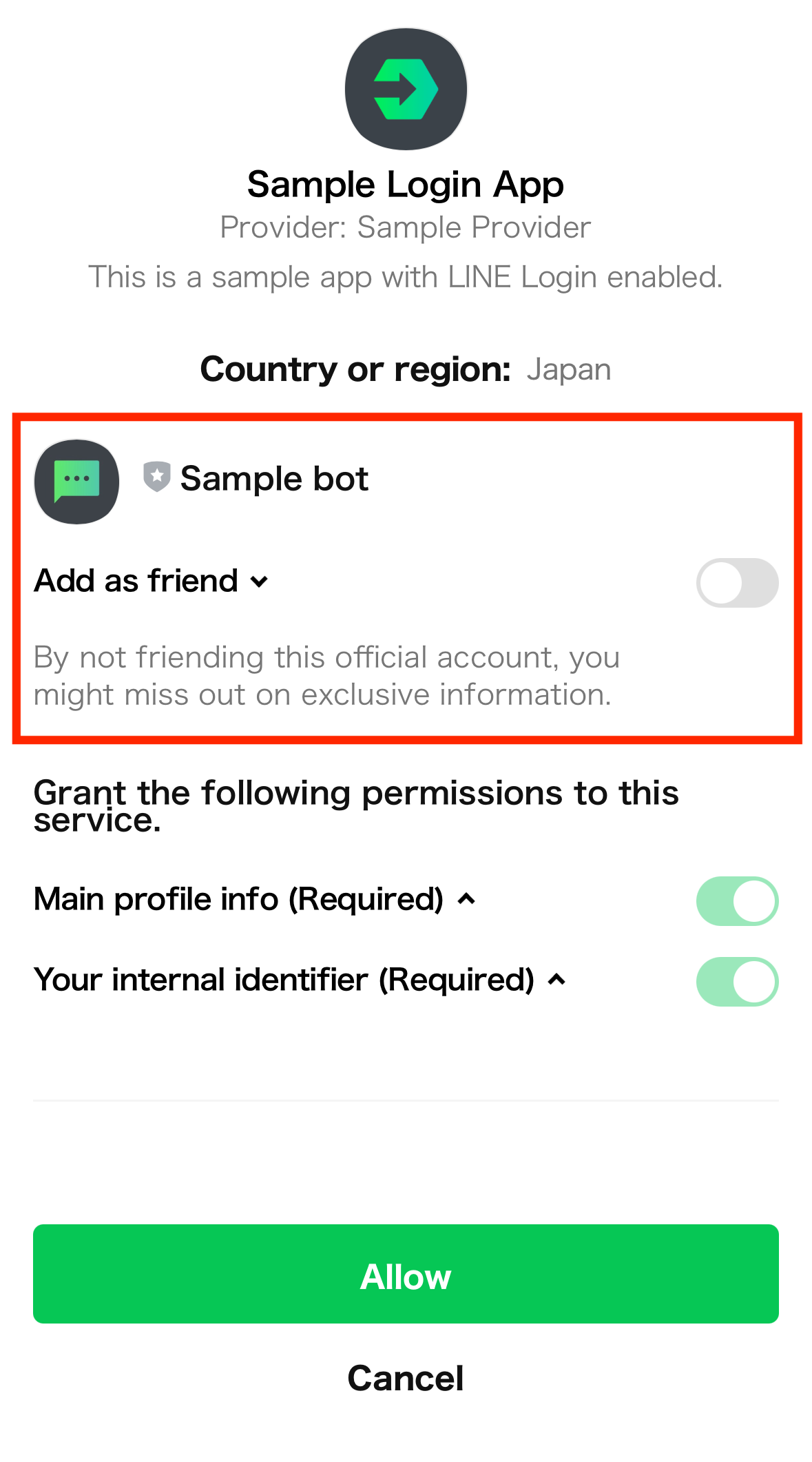
If the user enables **Add as friend** on the above consent screen when logging in, the LINE Official Account will be added as a friend. For more information on creating bots, see [Messaging API overview](https://developers.line.biz/en/docs/messaging-api/overview/) in the Messaging API documentation.
## Displaying the option to add your LINE Official Account as a friend
To display the option to add your LINE Official Account as a friend on the consent screen, configure the settings as below.
1. [Link a LINE Official Account with your channel](https://developers.line.biz/en/docs/line-login/link-a-bot/#link-a-line-official-account)
1. [Redirect users to the LINE Login authorization URL with the `bot_prompt` query parameter](https://developers.line.biz/en/docs/line-login/link-a-bot/#redirect-users)
### Link a LINE Official Account with your channel
Link a LINE Official Account with your LINE Login channel on the LINE Developers Console.
**Note**
These conditions must be met for you to link a LINE Official Account to your LINE Login channel.
- The Messaging API channel associated with the LINE Official Account belongs to the same provider as your LINE Login channel.
- You are an administrator of both the LINE Login channel and the LINE Official Account.
- You can review the administrator privileges for a LINE Login channel with the [LINE Developers Console](https://developers.line.biz/console/).
- You can review the administrator privileges for a LINE Official Account with the [LINE Official Account Manager](https://manager.line.biz).
1. Log in to the [LINE Developers Console](https://developers.line.biz/console/) and click the provider that contains the channel for LINE Login.
1. Open your LINE Login channel settings.
1. On the **Basic settings** tab, under **Linked LINE Official Account**, click **Edit**.
1. Select the LINE Official Account you want users to add and click **Update**.
You can select a LINE Official Account for which you have an administrator role.
You can link only one LINE Official Account to a LINE Login channel.
### Redirect users to the LINE Login authorization URL with the `bot_prompt` query parameter
When you've finished linking a LINE Official Account with your channel, redirect users to the LINE Login authorization URL with the `bot_prompt` query parameter.
```
https://access.line.me/oauth2/v2.1/authorize?response_type=code&client_id={CHANNEL_ID}&redirect_uri={CALLBACK_URL}&state={STATE}&bot_prompt={BOT_PROMPT}&scope={SCOPE_LIST}
```
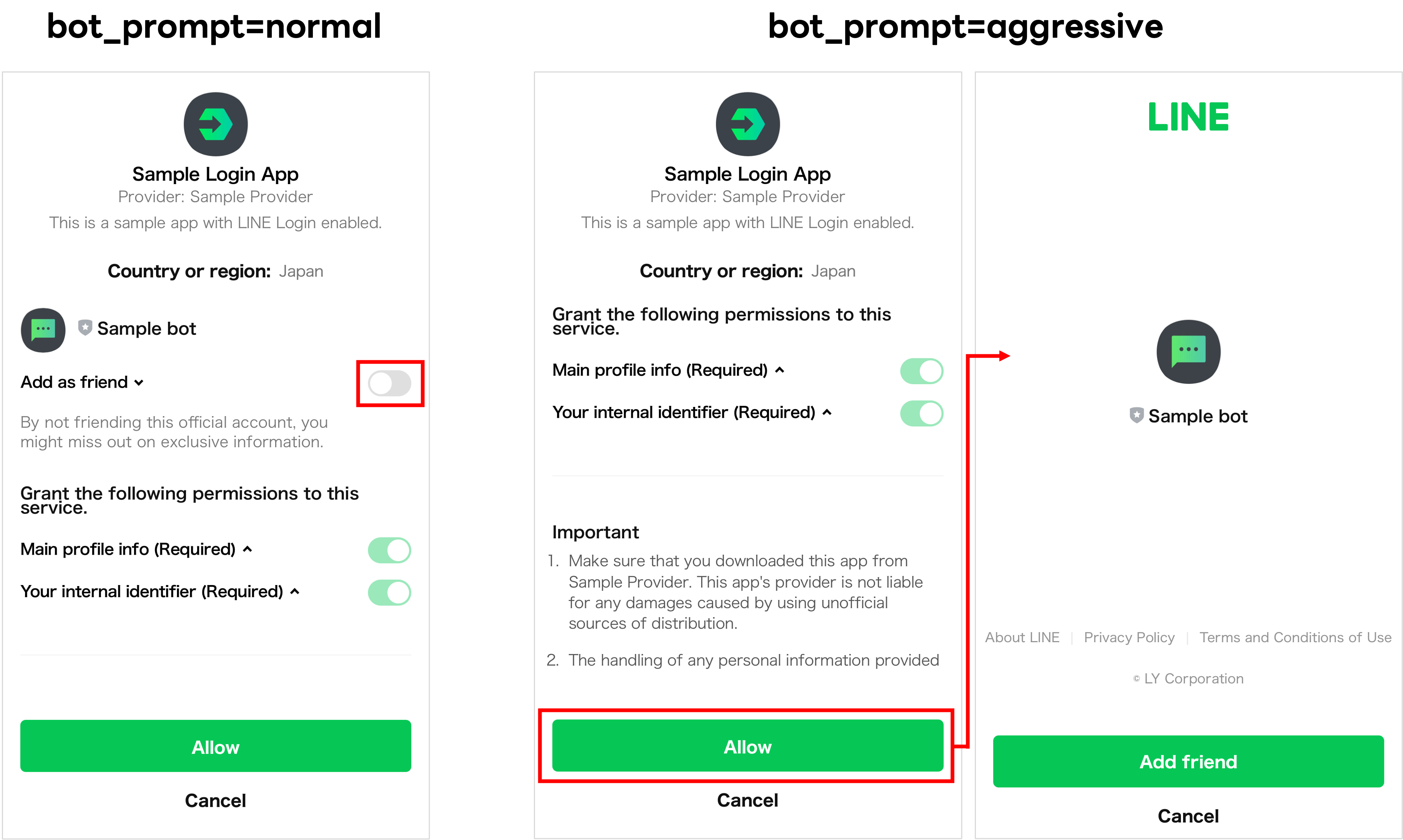
These options are displayed depending on the `bot_prompt` query parameter.
| Value | Description |
| --- | --- |
| `normal` | Display the option to add a LINE Official Account as a friend in the consent screen. |
| `aggressive` | Opens a new screen with an option to add the LINE Official Account as a friend after the consent screen. |
**Tip**
For more information on query parameters other than `bot_prompt`, see [Making an authorization request](https://developers.line.biz/en/docs/line-login/integrate-line-login/#making-an-authorization-request).
#### Display options on the consent screen
The option to add a LINE Official Account as a friend is displayed as follows according to the relationship between the user and the LINE Official Account.
| Friend relationship when consent screen is displayed | Options shown to the user |
| --- | --- |
| Not a friend | Displays the option to add a LINE Official Account as a friend. The LINE Official Account is added as a friend if the user selects the option and continues. |
| Blocked | Displays the option to unblock the LINE Official Account. The LINE Official Account is unblocked if the user selects the option and continues. |
| Added as friend | Shows that the user has added the LINE Official Account as a friend. No option is displayed to add the LINE Official Account as a friend. |
**This option is selected by default if your provider is a certified provider**
If the LINE Login channel is under the certified provider, the option on the consent screen that appears when `bot_prompt=normal` is selected by default.
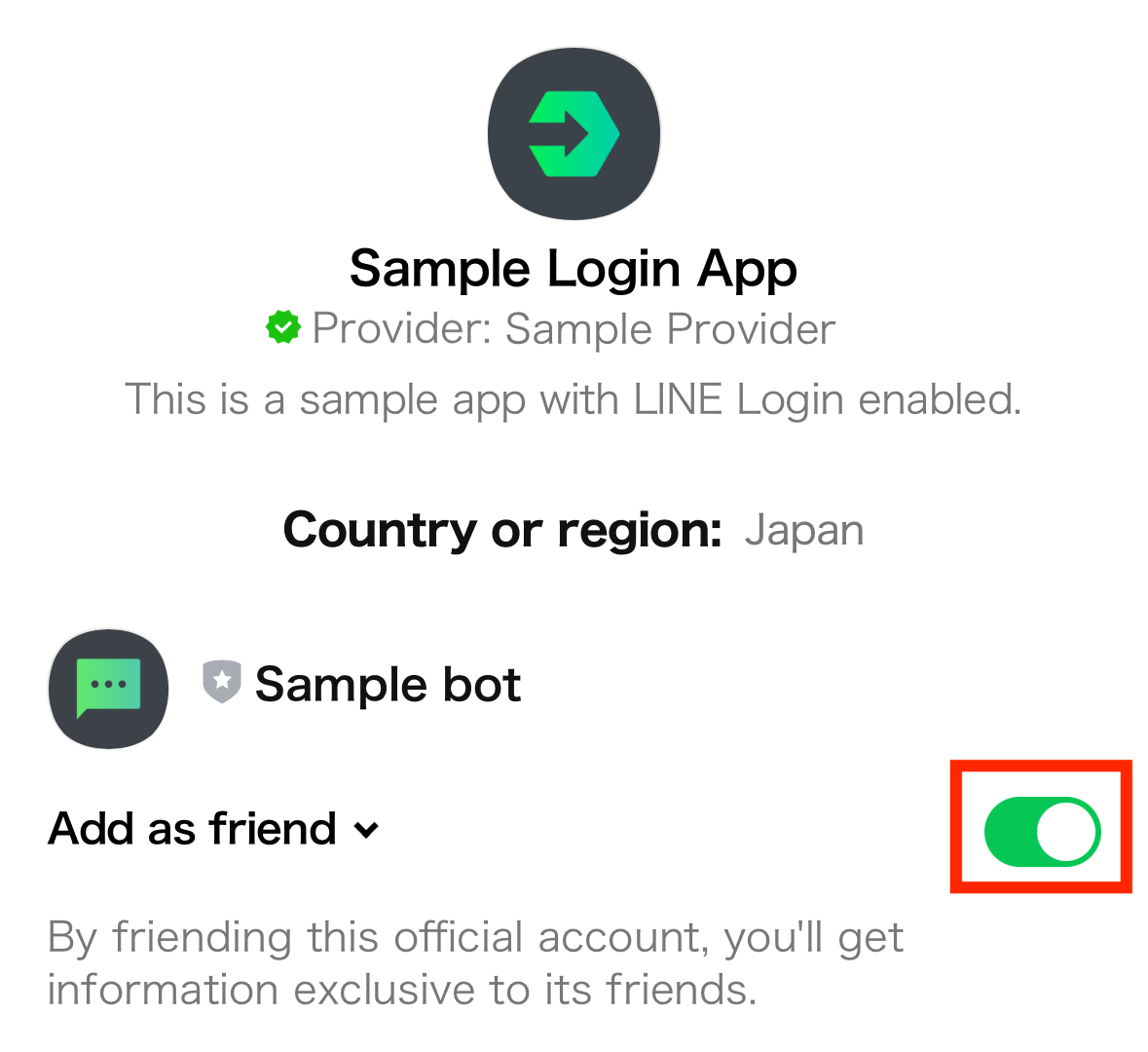
For more information on certified providers, see [Certified provider](https://developers.line.biz/en/docs/line-developers-console/overview/#certified-provider) in the LINE Developers Console documentation.
## Getting the friendship status of the user and the LINE Official Account
When using add friend option, you can get the friendship status between a user and the LINE Official Account linked to your LINE Login channel through one of these methods.
- [Use the `friendship_status_changed` query parameter](https://developers.line.biz/en/docs/line-login/link-a-bot/#use-friendship_status_changed)
- [Use the LINE Login API to determine the friendship status](https://developers.line.biz/en/docs/line-login/link-a-bot/#use-line-login-api)
### Use the `friendship_status_changed` query parameter
If you specify the `bot_prompt` query parameter when you [make an authorization request](https://developers.line.biz/en/docs/line-login/integrate-line-login/#making-an-authorization-request), the user is redirected to the callback URL with the `friendship_status_changed` query parameter once they have been authenticated and have authorized your app.
Example URL of the redirect target:
```
https://client.example.org/cb?code={CODE}&state={STATE}&friendship_status_changed={FRIENDSHIP_STATUS_CHANGED}
```
The `friendship_status_changed` query parameter can take the following values. For more information on the callback URL, see [Receiving the authorization code](https://developers.line.biz/en/docs/line-login/integrate-line-login/#receiving-the-authorization-code).
| Value | Description |
| --- | --- |
| `true` | The friendship status of the user and the LINE Official Account changed during login. This occurs in one of these situations:
- User added the LINE Official Account as a friend
- User unblocked the LINE Official Account
|
| `false` | The friendship status of the user and the LINE Official Account didn't change during login. This occurs in one of these situations:
- User already added the LINE Official Account as a friend
- User didn't add the LINE Official Account as a friend
- User didn't unblock the LINE Official Account
|
**Note**
`friendship_status_changed` query parameter isn't included if the consent screen with the option to add your LINE Official Account as a friend isn't displayed to the user.
### Use the LINE Login API to get the friendship status
You can use [the access token retrieved by your web app](https://developers.line.biz/en/docs/line-login/integrate-line-login/#get-access-token) to get the friendship status between a user and the LINE Official Account linked to your LINE Login channel.
Example request:
```sh
curl -v -X GET https://api.line.me/friendship/v1/status \
-H 'Authorization: Bearer {access token}'
```
Example response:
```json
{
"friendFlag": true
}
```
To learn more, see [Getting the friendship status of the user and the LINE Official Account](https://developers.line.biz/en/reference/line-login/#get-friendship-status) in the LINE Login v2.1 API reference.