# Send Flex Messages
Flex Messages are messages that offer an extensive and interactive layout compared to ordinary LINE messages. Ordinary LINE messages deliver only a single source type, such as text, image, and video. You can customize the layout as you want, based on the [CSS Flexible Box (CSS Flexbox)](https://www.w3.org/TR/css-flexbox-1/) specification.
The building blocks of Flex Messages are containers, blocks, and components. Each Flex Message has a single top element, a container which contains message bubbles. Containers can have multiple message bubbles. Bubbles have blocks and blocks have components.
Flex Messages let you set the direction of the text, left-to-right or right-to-left.
**Flex Message limitation**
The same Flex Message may be rendered differently depending on the environment of the recipient device. Rendering may be affected by the device OS, LINE version, device resolution, language settings, and font.
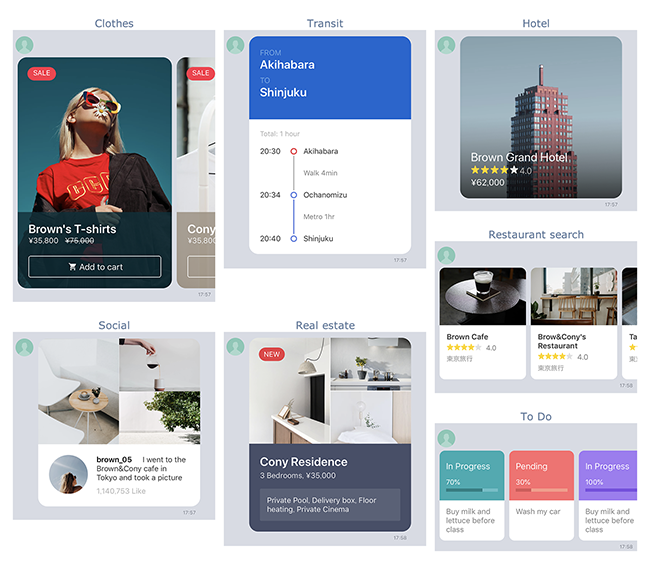
Like other message types, you define Flex Messages in JSON. For more information on Flex Messages, see:
- [Flex Message elements](https://developers.line.biz/en/docs/messaging-api/flex-message-elements/)
- [Flex Message layout](https://developers.line.biz/en/docs/messaging-api/flex-message-layout/)
- [Flex Message](https://developers.line.biz/en/reference/messaging-api/#flex-message) (Messaging API reference)
## Operating environment
Flex Messages are supported in all LINE versions. The features listed below aren't supported in all LINE versions:
| Feature | LINE for iOS
LINE for Android | LINE for PC
(macOS, Windows) |
| --- | :-: | :-: |
| - `maxWidth` property of [box](https://developers.line.biz/en/reference/messaging-api/#box)
- `maxHeight` property of [box](https://developers.line.biz/en/reference/messaging-api/#box)
- `lineSpacing` property of [text](https://developers.line.biz/en/reference/messaging-api/#f-text)
- [Video](https://developers.line.biz/en/reference/messaging-api/#f-video) \*1
| 11.22.0 or later | 7.7.0 or later |
| - The `deca` and `hecto` values in the `size` property of [bubble](https://developers.line.biz/en/reference/messaging-api/#bubble) \*2
- `scaling` property of [button](https://developers.line.biz/en/reference/messaging-api/#button), [text](https://developers.line.biz/en/reference/messaging-api/#f-text), and [icon](https://developers.line.biz/en/reference/messaging-api/#icon)
| 13.6.0 or later | 7.17.0 or later |
\*1 To make the video component in Flex Messages rendered properly on versions that don't support the video component, specify the `altContent` property. The image you specify in this property gets displayed instead.
\*2 If the version of LINE is lower than the version that supports `deca` and `hecto`, the size of the bubble will be displayed as `kilo`.
## Flex Message Simulator
With the [Flex Message Simulator](https://developers.line.biz/flex-simulator/), you can check the layout of Flex Messages without sending messages to see the rendered version.
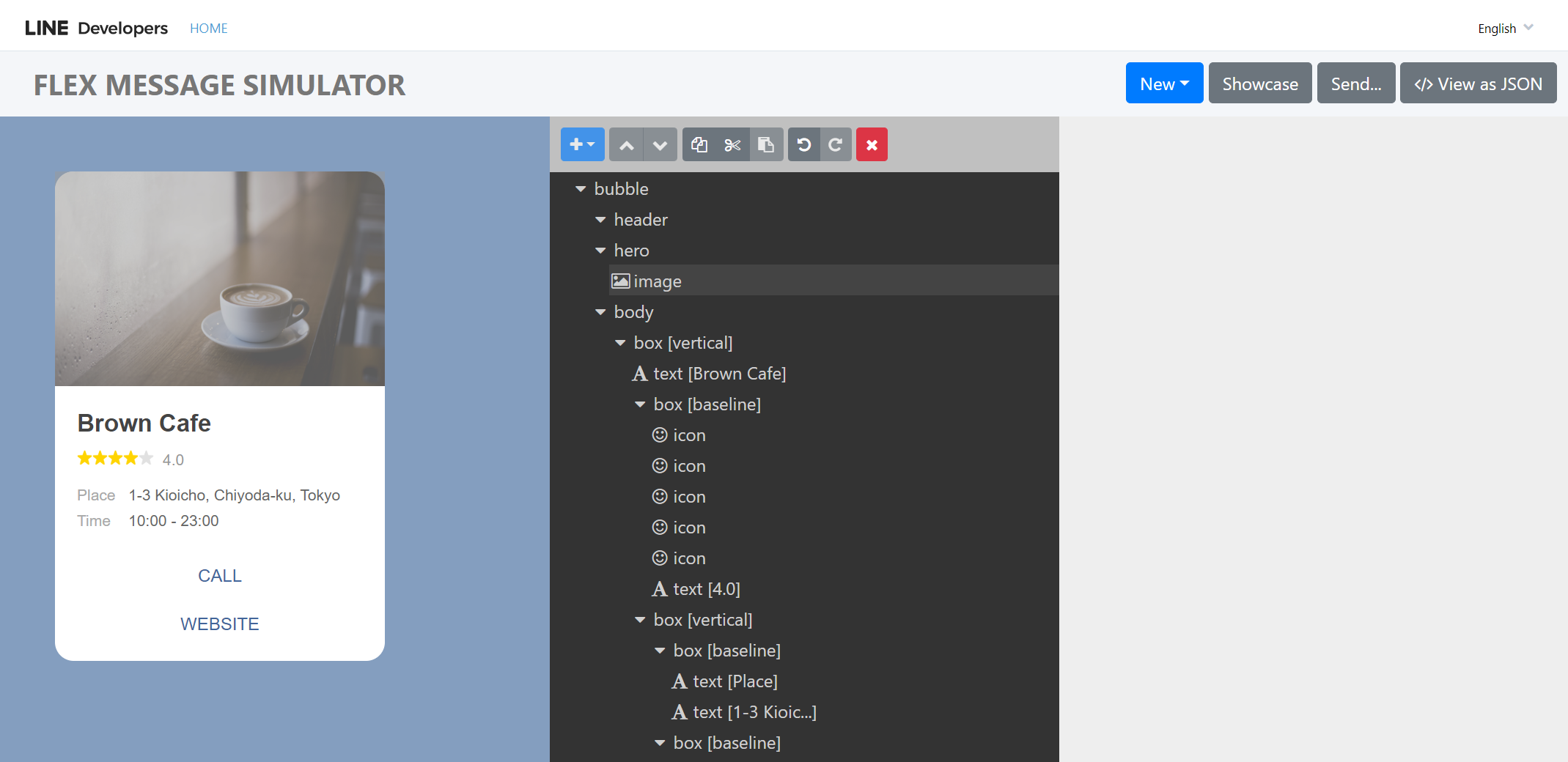
For more information on Flex Message Simulator, see the [tutorials](https://developers.line.biz/en/docs/messaging-api/using-flex-message-simulator/).
## Send "Hello, World!"
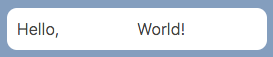
To get started with Flex Messages, try to send "Hello, World!" as a Flex Message. First, [define the Flex Message](https://developers.line.biz/en/docs/messaging-api/using-flex-messages/#preparing-json-data) in JSON and then [call the Messaging API](https://developers.line.biz/en/docs/messaging-api/using-flex-messages/#sending-messages-with-the-messaging-api) to send the message.
### Define a Flex Message in JSON
Before you call the Messaging API to send a Flex Message, define the Flex Message in JSON. This is how you define a Flex Message in JSON, for the "Hello, World!" message. We only need a single message bubble for this Flex Message, so we use the [Bubble container](https://developers.line.biz/en/docs/messaging-api/flex-message-elements/#bubble) type.
```json
{
"type": "bubble", // 1
"body": {
// 2
"type": "box", // 3
"layout": "horizontal", // 4
"contents": [
// 5
{
"type": "text", // 6
"text": "Hello,"
},
{
"type": "text", // 6
"text": "World!"
}
]
}
}
```
See the description for the code comment labels 1 to 6:
| | |
| --- | --- |
| 1 | Create a container for a single message bubble. Thus set the container type to `"bubble"`. |
| 2 | Specify a body to _contain_ the contents of the bubble. We only need one block type show the message, the [body block](https://developers.line.biz/en/docs/messaging-api/flex-message-elements/#block). |
| 3 | Set the body block to a [box component](https://developers.line.biz/en/docs/messaging-api/flex-message-elements/#box). |
| 4 | Set the orientation of the body to horizontal. This arranges the child components in the box horizontally. |
| 5 | Specify the components to place in the box. |
| 6 | Insert two text components, "Hello," and "World!". |
### Call the Messaging API to send a Flex Message
You can send Flex Messages by any of the [messaging types](https://developers.line.biz/en/docs/messaging-api/sending-messages/). In the request body of the message request, set the `messages.contents` property with the [Flex Message](https://developers.line.biz/en/reference/messaging-api/#flex-message) object definition.
Here is an example request to send a push message as a Flex Message:
```sh
curl -v -X POST https://api.line.me/v2/bot/message/push \
-H 'Content-Type: application/json' \
-H 'Authorization: Bearer {channel access token}' \
-d '{
"to": "U4af4980629...",
"messages": [
{
"type": "flex",
"altText": "This is a Flex Message",
"contents": {
"type": "bubble",
"body": {
"type": "box",
"layout": "horizontal",
"contents": [
{
"type": "text",
"text": "Hello,"
},
{
"type": "text",
"text": "World!"
}
]
}
}
}
]
}'
```
## Related pages
- [Flex Message elements](https://developers.line.biz/en/docs/messaging-api/flex-message-elements/)
- [Flex Message layout](https://developers.line.biz/en/docs/messaging-api/flex-message-layout/)
- [Flex Message](https://developers.line.biz/en/reference/messaging-api/#flex-message) (Messaging API reference)
- [Flex Message Simulator](https://developers.line.biz/flex-simulator/)