# Development guidelines for corporate customers
These are the development guidelines for corporate users. Follow these guidelines when developing on the LINE Platform.
**Table of contents**
## About LINE bot
### What is LINE Developers?
LY Corporation provides APIs that enables external companies and developers to link with LY Corporation services. The LINE Developers site provides developers with these LINE API specs, documentation explaining development procedures, and a console for configuration. To learn more, see [About LINE Developers site](https://developers.line.biz/en/about/).
### How LINE bot works
LINE bots use the Messaging API to send and receive information. To learn more, see [How it works](https://developers.line.biz/en/docs/messaging-api/overview/#how-messaging-api-works) in the Messaging API documentation.
### About the relationship between LINE bots and channels
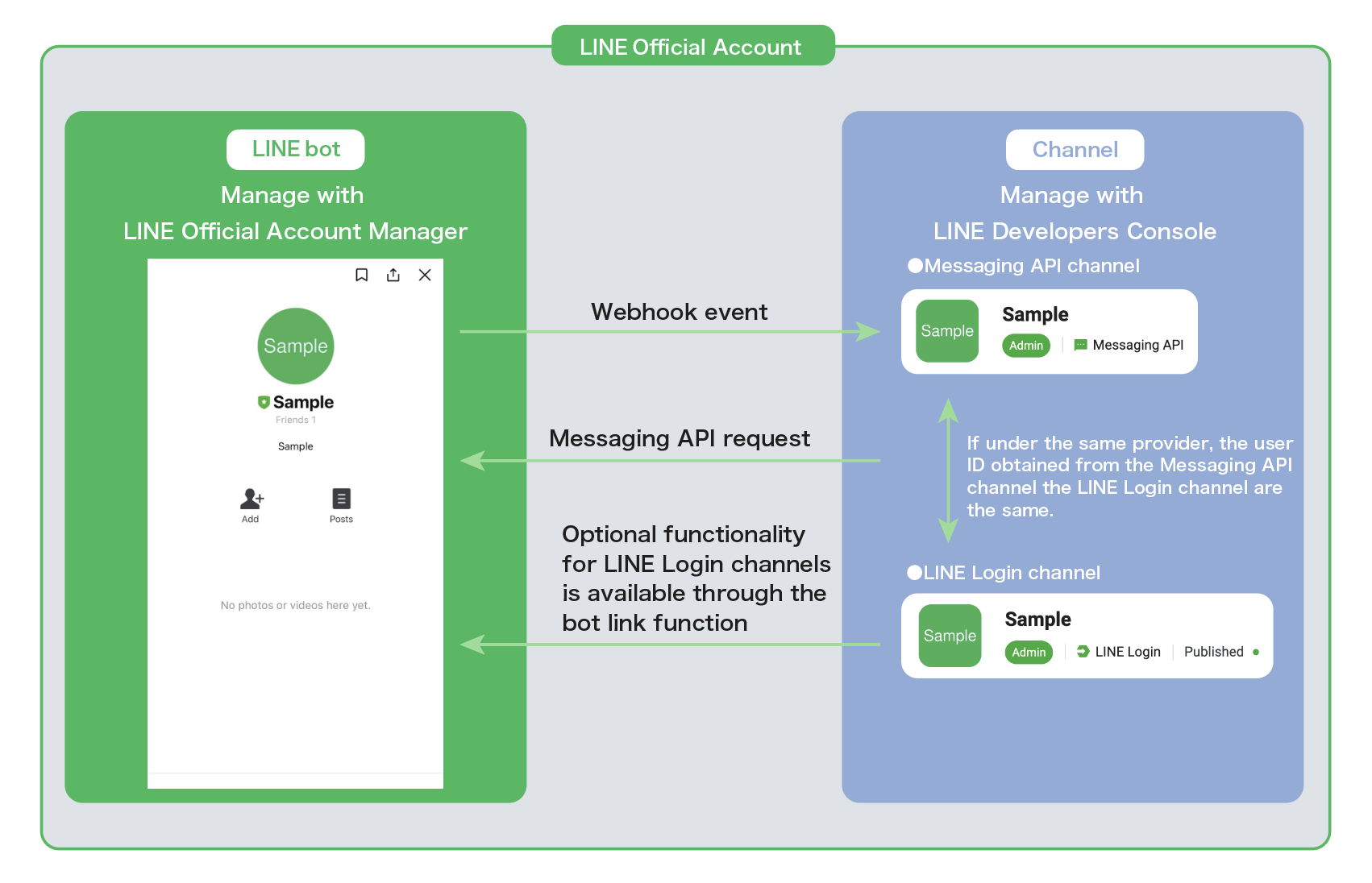
The relationship between bots as a component of the LINE Official Account and the channel is as follows.
### Understanding various terms
See the [Glossary](https://developers.line.biz/en/glossary/) to learn more about the various terms.
### LINE bot development procedure
1. Create a LINE Official Account (bot) and Messaging API channel.
You can create them from one of these sites:
- LINE Official Account Manager
- LINE AGP
For more information on how to create a Messaging API channel, see [Get started with the Messaging API](https://developers.line.biz/en/docs/messaging-api/getting-started/) in the Messaging API documentation.
1. Prepare these systems and mechanisms:
- Environment such as a server that calls the Messaging API that supports [TLS 1.2 or later](https://developers.line.biz/en/docs/partner-docs/development-guidelines/#use-higher-TLS1-2)
- Environment such as a bot server that gets webhook events that support [TLS 1.2 or later](https://developers.line.biz/en/docs/partner-docs/development-guidelines/#https-communication-compatible)
It's not always necessary to prepare separate environments for the environment such as the server that calls the Messaging API and the environment such as the bot server that gets the webhook event.
1. Prepare and implement the bot server to get webhook events.
1. In the LINE Developers Console, go to **Messaging API** > **Webhook settings**, set the bot server URL in **Webhook URL**, and then enable **Use Webhook**.
1. Add the LINE Official Account you created as a friend and check if the bot server is getting webhook events.
### Items to check before releasing the LINE bot
Before releasing a LINE bot, be sure to check the following.
1. Members who need access to the LINE Developers Console are granted channel [permissions](https://developers.line.biz/en/docs/line-developers-console/managing-roles/) and LINE Official Account Manager [permissions](https://www.lycbiz.com/jp/manual/OfficialAccountManager/account-settings_permission/) (only available in Japanese).
1. Confirm that the correct URL is set in **Messaging API** > **Webhook settings** > **Webhook URL** in the LINE Developers Console, and that the bot server can properly process webhook events.
1. The implementation takes into account the precautions described in [Notes on sending API requests](https://developers.line.biz/en/docs/partner-docs/development-guidelines/#send-api-requests).
1. Comply with the security standards in the [LINE BOT security guidelines](https://vos.line-scdn.net/line-developers/docs/media/partner-docs/LINE_BOT_Security_Guidelines.pdf) (only available in Japanese) and [LINE BOT security checklist](https://vos.line-scdn.net/line-developers/docs/media/partner-docs/LINE_BOT_Security_Checklist.xlsx) (only available in Japanese), or establish an environment that is equal or better.
## Notes on receiving webhook events on bot servers
### Secure communication and bot server environment
#### HTTPS communication compatible with TLS 1.2 or later
When the bot server gets webhook events sent from the LINE Platform, it must use HTTPS communication that supports TLS 1.2 or later. Use an SSL certificate issued by a public certification authority for HTTPS communication. You can purchase an SSL certificate, or you can use a certificate issued for free, such as [Let's Encrypt](https://letsencrypt.org/). For more information on setting up webhooks, see [Set a Webhook URL](https://developers.line.biz/en/docs/messaging-api/building-bot/#setting-webhook-url) in the Messaging API documentation.
#### Build an environment that complies with security guidelines
These security guidelines and checklists describe the security standards that must be met when building a bot server. When providing services using a LINE bot, comply with the stated security standards or prepare an environment equal to or better than that.
- [LINE bot security guidelines](https://vos.line-scdn.net/line-developers/docs/media/partner-docs/LINE_BOT_Security_Guidelines.pdf) (only available in Japanese)
- [LINE bot security checklist](https://vos.line-scdn.net/line-developers/docs/media/partner-docs/LINE_BOT_Security_Checklist.xlsx) (only available in Japanese)
### Verification of received webhook events
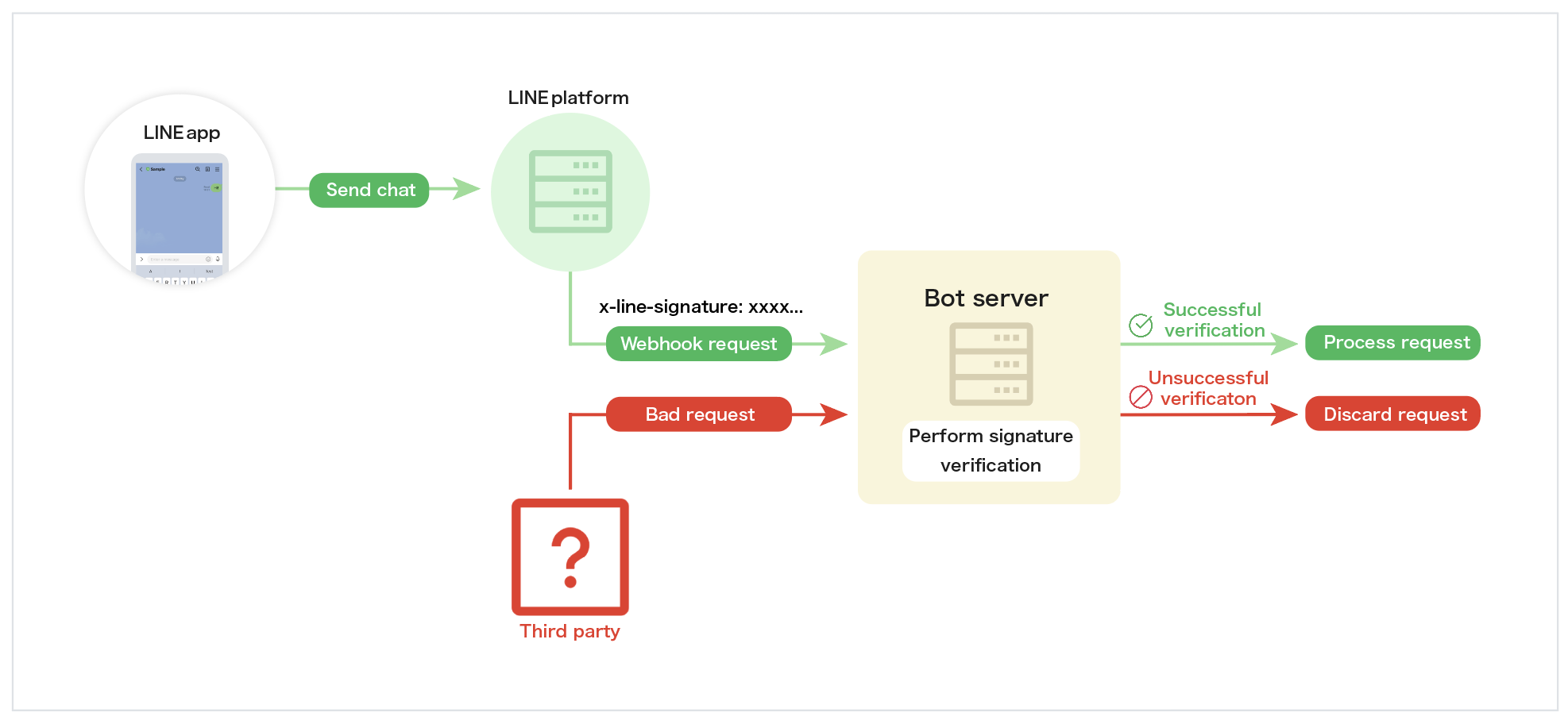
The request header [`x-line-signature`](https://developers.line.biz/en/reference/messaging-api/#webhooks) contains a signature to verify that the received webhook event came from the LINE Platform. The bot server uses a defined algorithm from the received request body to get the digest value and verify that it matches the signature in the `x-line-signature` request header. By verifying that the signatures match, you can verify that the request you got is the correct webhook event sent by the LINE Platform.
The channel secret is used as the calculation key for the signature. Therefore, be careful when handling the channel secret. For more information and code samples, see [Signature validation](https://developers.line.biz/en/reference/messaging-api/#signature-validation) in the Messaging API reference.
**The IP address of the LINE Platform isn't disclosed**
The IP address of the LINE Platform from which the webhook request is sent isn't disclosed. For better security, use [signature validation](https://developers.line.biz/en/reference/messaging-api/#signature-validation) instead of access control by IP address.
### Support for mass and intensive webhook event delivery
Due to the nature of the LINE Official Account, a large amount of access (sending webhook events) may occur unexpectedly. If a webhook request that exceeds the processing capacity of the bot server is sent, messages to users may be delayed or not delivered.
**Examples of cases where access is likely to be concentrated**
- Immediately after setting [Show in search results](https://www.lycbiz.com/jp/manual/OfficialAccountManager/tutorial-step5/) (only available in Japanese) of the LINE Official Account to "Show"
- Immediately after the implementation of measures such as [Sponsored sticker](https://www.lycbiz.com/jp/service/line-promotion-sticker/) (only available in Japanese)
- Immediately after sending a message to all friends at once using [broadcast message](https://developers.line.biz/en/reference/messaging-api/#send-broadcast-message), etc. (especially when including a campaign or other measure)
- Immediately after being featured in the media, such as news or television
Access may be particularly concentrated during the hours of 12:00 noon and 17:00 to 24:00.
**Note**
- LY Corporation doesn't provide an environment for performing load tests on bot servers. Don't perform load testing in a way that includes the LINE Platform.
- If you send an announcement message such as a campaign that's considered to be highly responsive to users on the LINE Official Account with a large number of friends (more than one million), it may affect the performance of the entire LINE Platform. In such cases, avoid sending messages all at once, and take measures such as sending messages in stages so that access from users isn't concentrated.
### Webhook ON/OFF setting
You can turn on or off **Use webhook** from **Messaging API settings** > **Webhook settings** in the LINE Developers Console. You can also turn **Webhooks** on or off in the **Settings** > **Response settings** section of the LINE Official Account Manager.
**Notes on starting to use webhooks**
When enabling Webhook settings, verify the operation in a test environment using a verification account before applying the settings to the target LINE Official Account.
**Synchronize webhook settings**
The webhook settings made in the LINE Developers Console and LINE Official Account Manager are synchronized.
### Webhook ON/OFF and auto reply message settings
This is the combination of the **Webhooks** setting and the **Response mode** and **Greeting message** settings in LINE Official Account Manager.
| **Webhooks** | **Response mode** and **Greeting message** | Setting availability |
| --- | --- | --- |
| Enabled | Enabled | ✅ |
| Enabled | Disabled | ✅ |
| Disabled | Enabled | ✅ |
| Disabled | Disabled | ❌ |
**Combination of unauthorized settings**
For a better user experience, settings that don't use **Webhooks** and the LINE Official Account Manager's **Response mode** and **Greeting message** settings aren't allowed, as this will prevent the LINE Official Account from sending messages to users.
**When the greeting message is sent**
LINE Official Account Manager's **Greeting message** is a message that is automatically sent when a LINE Official Account is added. **Greeting message** is also sent when unblocked.
### Processing flow when receiving a webhook request
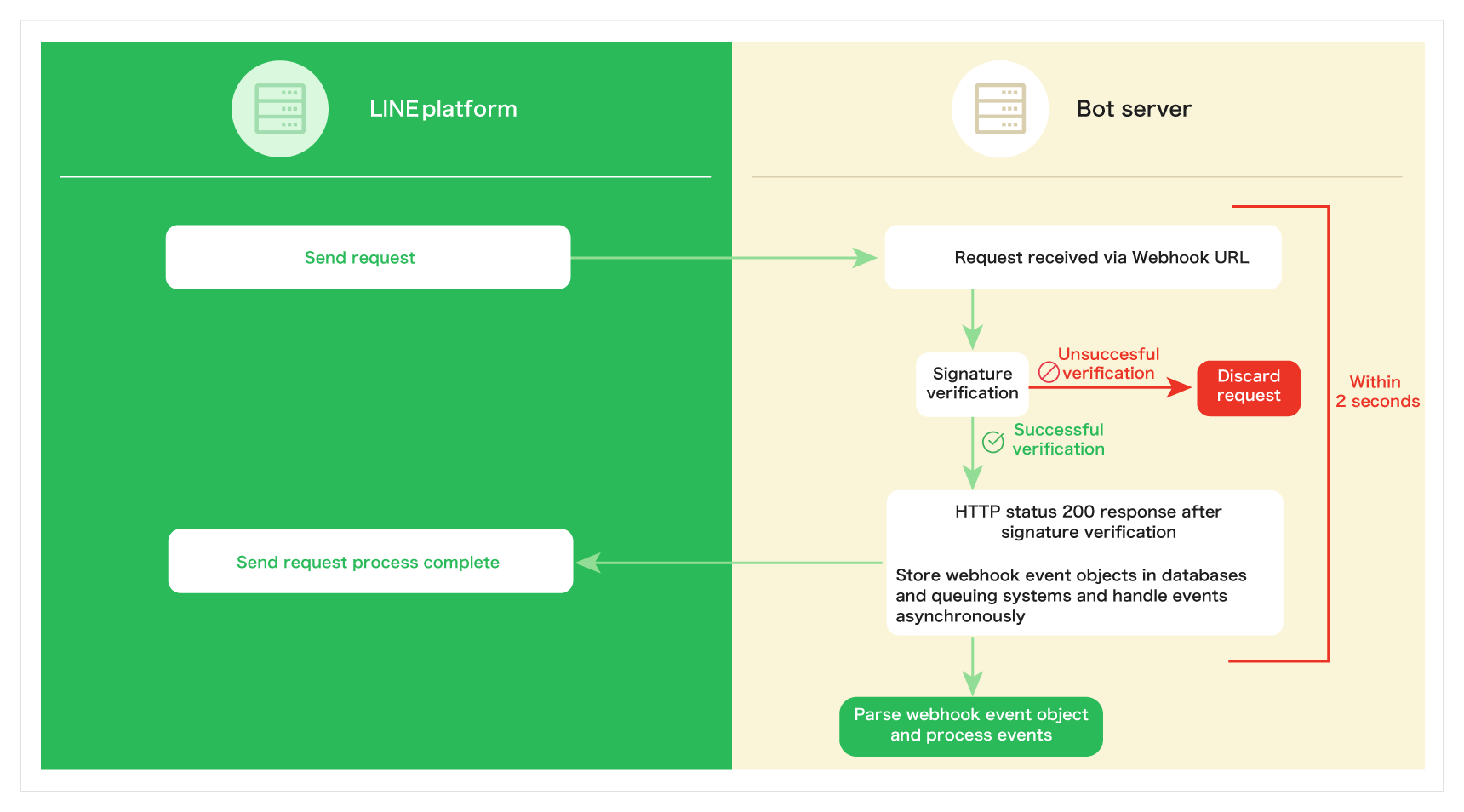
Respond with HTTP status code `200` within 2 seconds after the bot server gets the webhook event.
It's recommended to desynchronize the event processing when the bot server gets the webhook request so that the processing of the webhook request doesn't delay the subsequent processing. If event processing is asynchronous, implement it so that it can be processed while maintaining the context of the event.
This image depicts asynchronized processing.
### If a problem occurs when sending a webhook request
For Messaging API channels under the certified provider, if the HTTP status code `2xx` isn't sent within 2 seconds after getting the webhook event, a [`request_timeout`](https://developers.line.biz/en/docs/messaging-api/check-webhook-error-statistics/#check-error-reason) [error notification](https://developers.line.biz/en/docs/partner-docs/error-notification/) is sent to the channel administrator.
**Use of error notification function**
The error notification feature is only available for Messaging API channels that are under the certified provider.
### Other precautions
#### One webhook can contain multiple webhook event objects
A webhook sent from the LINE Platform may contain multiple webhook event objects. Also, there isn't always one user per webhook, so a [Message event](https://developers.line.biz/en/reference/messaging-api/#message-event) from person A and a [Follow event](https://developers.line.biz/en/reference/messaging-api/#follow-event) from person B may be in the same webhook.
Make sure the bot server can handle everything properly even when it receives a webhook that contains multiple webhook event objects. For more information about webhook event objects, see [Webhook Event Objects](https://developers.line.biz/en/reference/messaging-api/#webhook-event-objects) in the Messaging API reference.
#### Responding to structural changes in webhook event objects
Properties may be added to the webhook event object when there are additions or changes to the Messaging API functionality. Implement the bot server so that receiving a webhook event object with a new property doesn't cause problems. For more information about webhook event objects, see [Webhook Event Objects](https://developers.line.biz/en/reference/messaging-api/#webhook-event-objects) in the Messaging API reference.
#### About the header included in the webhook request
See [Request headers](https://developers.line.biz/en/reference/messaging-api/#request-headers) in the Messaging API reference.
#### About processing unexpected chat transmissions
You can't restrict users from sending chats and corresponding webhook events to your LINE Official Account. If a specific user sends an unexpected chat, implement the system so that the process can be changed depending on the situation.
## Notes on sending API requests
### Issuing channel access tokens
Messaging API requests use a [channel access token](https://developers.line.biz/en/docs/basics/channel-access-token/) to verify that the user has permission to use the channel. We currently provide [four types of channel access tokens](https://developers.line.biz/en/docs/basics/channel-access-token/#channel-access-token-types) with different validity periods and issuance methods.
**About long-lived channel access tokens**
It's possible to issue long-lived channel access tokens with extremely long validity period from the LINE Developers Console, but from a security standpoint, we don't recommend issuing long-lived channel access tokens. When issuing channel access tokens, we recommend using short-lived channel access tokens with a validity period of 30 days, channel access token with a user-specified expiration (channel access token v2.1), or stateless channel access tokens.
### Reissuing channel access tokens
Short-lived channel access tokens, channel access tokens with a user-specified expiration, and stateless channel access tokens have validity periods, and once they expired, they're no longer available. Also, once issued, the validity period of the channel access token can't be extended (renewed). Therefore, it's necessary to consider the remaining validity period and build a process to reissue new channel access tokens on a regular basis.
You can issue multiple channel access tokens, but there's a limit to the number that can be issued depending on the type of channel access token. When using the Messaging API from multiple servers or systems, be sure to correctly manage the channel access tokens used by each.
For short-lived channel access tokens or channel access tokens with a user-specified expiration, after issuing a new channel access token, we recommend that you revoke the old channel access token that you no longer use. For more information, see [Example of channel access token operation](https://developers.line.biz/en/docs/basics/channel-access-token/#how-to-operate-channel-access-token) in the LINE Platform basics.
### Max channel access token issuance limit
The maximum issuance limits for each type of channel access token are as follows:
| Type | Max issuance limit | Behavior when max limit is exceeded | Conditions under which the channel access token is invalid |
| --- | --- | --- | --- |
| Short-lived channel access token | 30 | Invalidate existing short-lived channel access tokens in order of issuance | - Validity period has expired
- Exceed max issuance limit
- Execute revocation of channel access token (revoke API)
|
| Long-lived channel access token | 1 | Existing long-lived channel access tokens are disabled | - Exceed max issuance limit
- Execute revocation of channel access token (revoke API)
|
| Access token with a user-specified expiration (channel access token v2.1) | 30 | API error and unable to issue additional tokens | - Validity period has expired
- Execute revocation of channel access token (revoke API)
|
| Stateless channel access token | limitless | - | - Validity period has expired
|
### Message delivery request
If the message is successfully sent, an empty JSON object is returned with HTTP status code `200` (`202` for the narrowcast API only).
When sending a message fails, a response body containing JSON data such as error messages is returned as [Error responses](https://developers.line.biz/en/reference/messaging-api/#error-responses).
**About error responses**
Error messages contained in the error response aren't guaranteed and are subject to change without notice. When an error occurs, perform exception handling according to the received HTTP status code.
**Save logs**
When you make a request to the Messaging API, save the logs of the requested API and the received response for a certain period of time. For more information on saving logs, see [Save logs](https://developers.line.biz/en/docs/messaging-api/development-guidelines/#save-logs) in the Messaging API documentation.
### Retry message delivery request
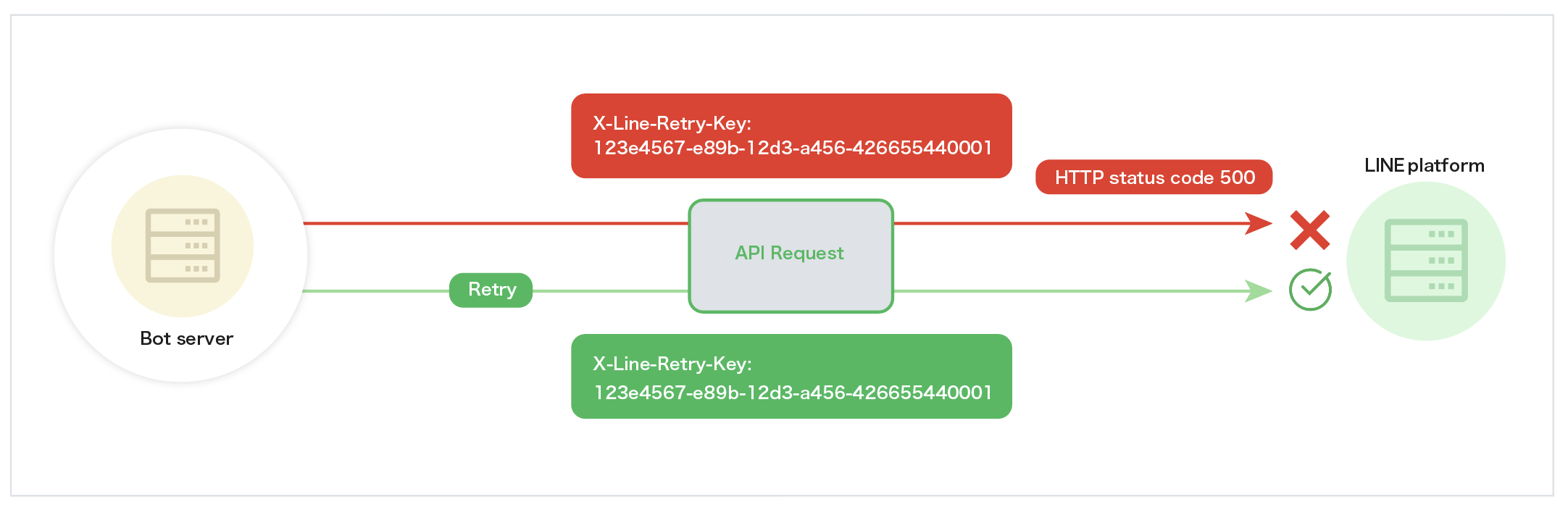
Even when there's no LINE Platform failure, these problems may occur due to the network connection status of the bot server and other factors.
- API request doesn't complete successfully
- Can't get a response from the LINE Platform properly
In such a case, if you make the same API request in succession, the user will get the same message twice if the first API request was successfully accepted. To prevent this, implement a retry key (`X-Line-Retry-Key`) to safely retry requests. For more information on message sending requests, see [Retry failed API requests](https://developers.line.biz/en/docs/messaging-api/retrying-api-request/) in the Messaging API documentation.
### Request limits
There are limits to the length of messages that can be sent by LINE bots in a single request, as well as the number of messages that can be sent within a certain amount of time.
#### Text message limits
The max number of characters that can be specified in [text messages](https://developers.line.biz/en/reference/messaging-api/#text-message) and [text messages (v2)](https://developers.line.biz/en/reference/messaging-api/#text-message-v2) is 5000.
#### Request size limits
The max request size is 2MB.
#### Request rate limits
The Messaging API applies [Rate limits](https://developers.line.biz/en/reference/messaging-api/#rate-limits) to each endpoint.
Regardless of whether you're using a production account or a test account, [sending mass requests for the purpose of behavioral testing is prohibited](https://developers.line.biz/en/docs/messaging-api/development-guidelines/#prohibiting-mass-requests-to-line-platform). Don't include the LINE Platform when performing load tests on message sending.
### How to send messages
For more information about how to send messages, see the following documentation:
- [Reply to messages and actions from users (reply messages)](https://developers.line.biz/en/docs/messaging-api/sending-messages/#reply-messages)
- [Send messages at any time](https://developers.line.biz/en/docs/messaging-api/sending-messages/#send-messages-at-any-time)
**Reply tokens validity period**
For more information on the validity period of the reply tokens used in [Reply messages](https://developers.line.biz/en/docs/messaging-api/sending-messages/#reply-messages), see [Reply token](https://developers.line.biz/en/reference/messaging-api/#send-reply-message-reply-token) in the Messaging API reference.
### Use HTTPS (TLS 1.2 or later)
Communication between the system that called the Messaging API and the LINE API server must be done over HTTPS (TLS 1.2 or later). In addition, when using the Messaging API to send an [Image message](https://developers.line.biz/en/docs/messaging-api/message-types/#image-messages) or Flex Message including an [Image component](https://developers.line.biz/en/reference/messaging-api/#f-image), the server that stores the file must support HTTPS (TLS 1.2 or later) communication.
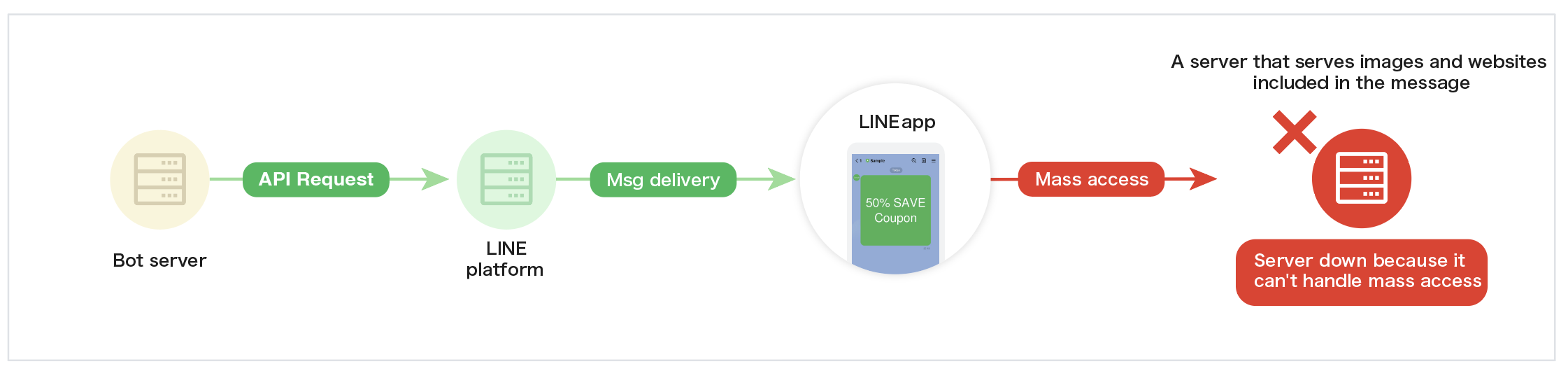
### Dealing with high volume access
Depending on the number of users the messages are sent to, and the content of the messages, a large volume of access may be generated to URLs, images, and other content in the messages.
To prepare for such cases, use load balancing mechanisms such as CDNs or load balancers, or send messages in stages, so that the server from which the content is stored doesn't go down due to a large volume of access.
## Notes on using LINE Login
By using LINE Login, you can implement a login function that uses the user's LINE account information in your web services and native apps.
For example, by incorporating LINE Login in a web app and linking the acquired information with your company's membership information, you can send more personalized messages to users using the Messaging API.
For more information on LINE Login, see [LINE Login overview](https://developers.line.biz/en/docs/line-login/overview/).
### LINE Login authorization and verification process
The process of LINE Login for web apps (web login) is based on the [OAuth 2.0](https://datatracker.ietf.org/doc/html/rfc6749) authorization code grant flow and the [OpenID® Connect](https://openid.net/specs/openid-connect-core-1_0.html) protocol. For more information on LINE Login for web apps, see [Login flow](https://developers.line.biz/en/docs/line-login/integrate-line-login/#login-flow) in the LINE Login documentation.
### About callback URLs
The callback URL (`redirect_uri`) is used as the [Receiving the authroization code or error response with a web app](https://developers.line.biz/en/docs/line-login/integrate-line-login/#receiving-the-authorization-code-or-error-response-with-a-web-app) URL after the user has performed authentication and authorization operations for LINE Login. The callback URL can be set in **LINE Login** in the channel settings of the LINE Developers Console.
For more information on callback URLs, see [Setting a callback URL](https://developers.line.biz/en/docs/line-login/integrate-line-login/#setting-callback-url) in the LINE Login documentation.
**Notes when setting callback URLs**
- Up to 400 URLs can be registered as callback URLs.
- You can register a URL that includes query parameters as the callback URL.
- The `redirect_uri` specified at the time of authorization request is a URL-encoded string of the URL registered as the callback URL. Any query parameter can be added.
- You can register `https://example.com` as the callback URL and specify` https://example.com?key=value` in `redirect_uri` specified at the time of authorization request.
### Get authorization response or error response in web app
When the user's authentication and authorization process is complete, the user is redirected to the callback URL.
When a user grants access to an app, an authorization response containing an authorization code is returned. However, if the user doesn't grant access to an app, an error response is returned. For more information, see [Receiving the authorization response or error response with a web app](https://developers.line.biz/en/docs/line-login/integrate-line-login/#receiving-the-authorization-code-or-error-response-with-a-web-app) in the LINE Login documentation.
### Issue an access token
An access token is issued using the authorization code obtained by the authorization request for LINE Login. For more information on issuing an access token, see [Issue access token](https://developers.line.biz/en/reference/line-login/#issue-access-token) in the LINE Login v2.1 API reference.
**Notes on issuing access tokens**
- The `redirect_uri` parameter specified when issuing an access token must be the same as the value specified during the authorization request.
- Authorization codes can be used only once, regardless of whether or not an access token is successfully issued.
### Verify the ID token
An ID token is included in the [payload](https://developers.line.biz/en/docs/line-login/integrate-line-login/#response) of the token endpoint obtained by an authorization request for LINE Login with `openid` specified in the scope. You can get the user's profile information by verifying the obtained ID token. For more information, see [Get profile information from ID tokens](https://developers.line.biz/en/docs/line-login/verify-id-token/) in the LINE Login documentation.
### Other LINE Login APIs
By using the acquired access token, you can check the friendship between the user and the LINE Official Account, and get the user's profile information. For more information on the LINE Login API, see [LINE Login v2.1 API reference](https://developers.line.biz/en/reference/line-login/).
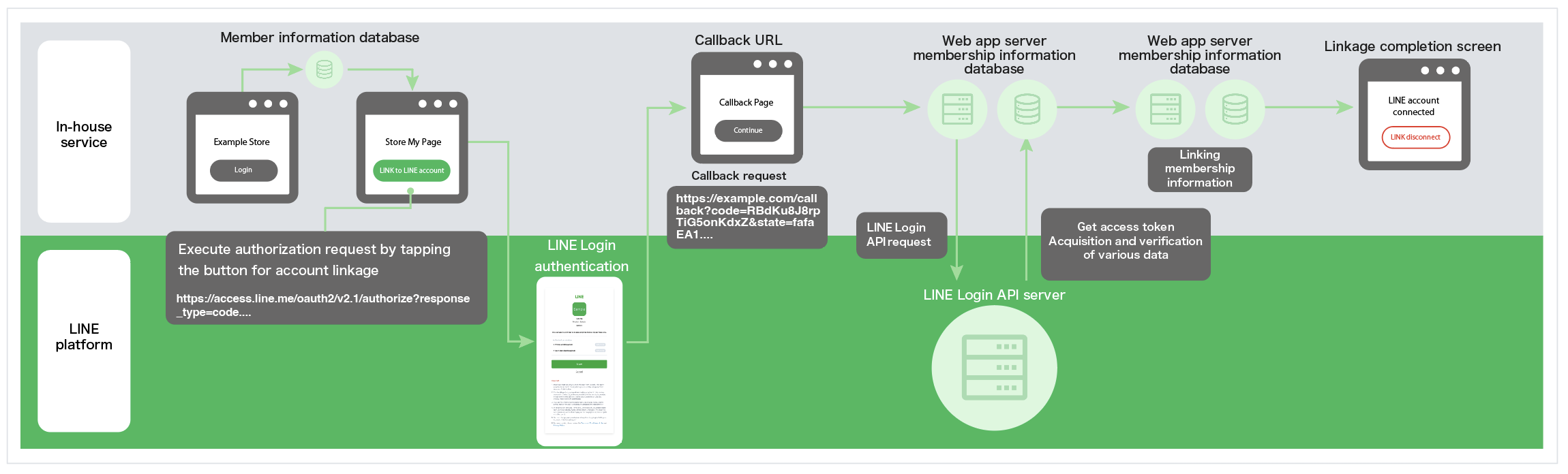
### Linking information obtained through LINE Login with information managed by your company (ID linking)
By linking user information (user IDs, etc.) obtained through LINE Login with member information managed by the company, it's possible to deliver more personalized messages.
**About linking and management with member information**
- LY Corporation doesn't provide a way to link user information obtained through LINE Login with member information managed by the company.
- When linking membership information, etc., design the system with security in mind to prevent spoofing.
- Set up a flow line to unlink user information of the LINE Platform and member information, etc.
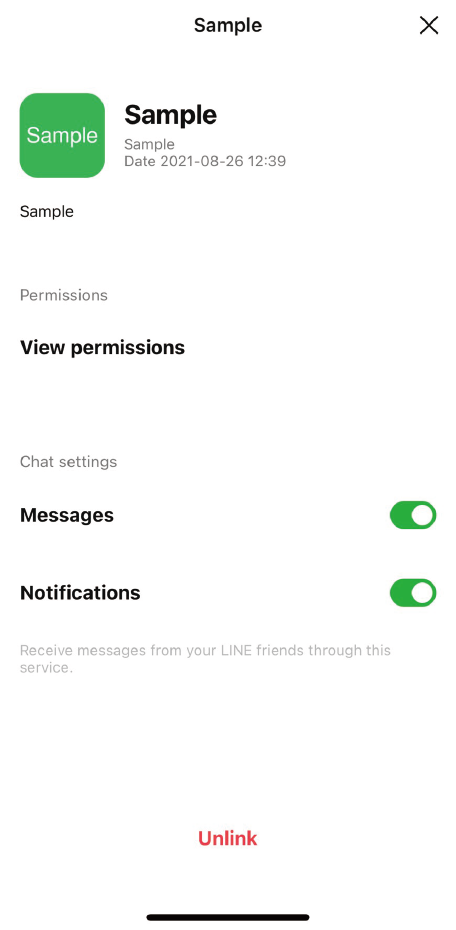
- If you select **Unlink** from **Settings** > **Account** > **Authorized apps** of the LINE app, "Channel consent" of LINE Login will be withdrawn, but the association of user information won't be released. The process of linking information obtained through LINE Login with information managed by the company must be done separately by the customer.
### Add friend option
LINE Login allows you use the option to add your LINE Official Account as friend when users log in. This is called the add friend option. The LINE Official Account used for the add friend option can be set in the LINE Developers Console. For more information, See [Add a LINE Official Account as a friend when logged in (add friend option)](https://developers.line.biz/en/docs/line-login/link-a-bot/) in the LINE Login documentation.
**Notes on using the add friend option**
- The LINE Official Accounts you link to are limited to those related to the LINE Login channel. For example, don't link Company A's LINE Official Account to Company B's LINE Login channel, which isn't related to Company A.
- Changes in settings are reflected immediately, so operate with caution to avoid accidentally setting unintended LINE Official Accounts (for testing, etc).
- If the LINE Login channel is under the certified provider, the **Add Friend (Unblock)** option on the LINE Login consent screen will be selected (checked) by default.
### state verification
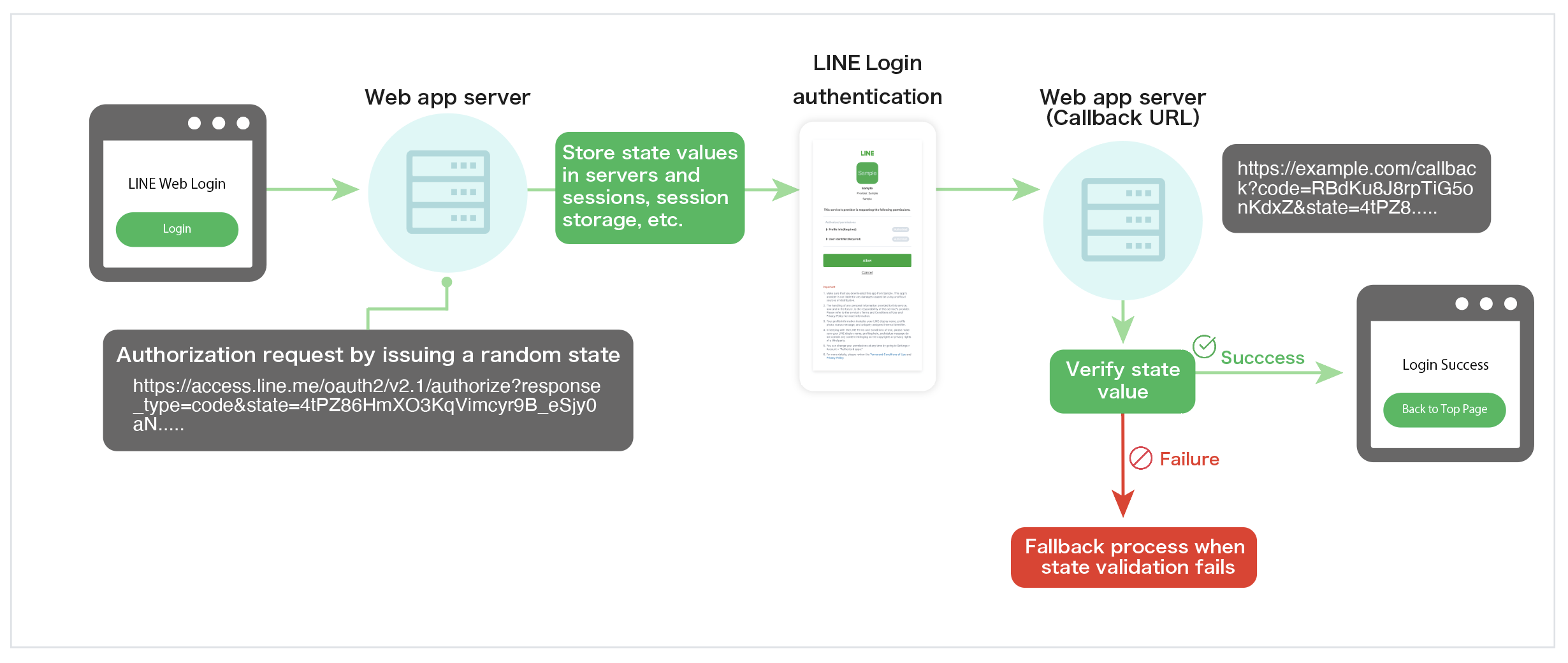
The `state` parameter specified when requesting authorization for LINE Login is required to prevent [Cross-Site Request Forgery](https://en.wikipedia.org/wiki/Cross-site_request_forgery). Randomly generate it in your web app for each authorization request session and validate it when [receiving the authorization response or error response](https://developers.line.biz/en/docs/line-login/integrate-line-login/#receiving-the-authorization-code-or-error-response-with-a-web-app).
## LINE Front-end Framework (LIFF)
LINE Front-end Framework (LIFF) is a web app platform provided by LY Corporation. A web app that runs on this platform is called a LIFF app.
The LIFF app lets you get LINE user IDs and other information from the LINE Platform. The LIFF application can use these to provide functions that utilize user information or send messages on behalf of the user.
For more information on the LIFF app, see [LINE Front-end Framework](https://developers.line.biz/en/docs/liff/overview/).
## Other features
### How to set the destination browser
When accessing a URL from a chat room or from the LINE in-app browser, you can change the browser that opens the URL to an external browser by opening the URL with special query parameters. For more information on query parameters, see [Opening a URL in an external browser](https://developers.line.biz/en/docs/line-login/using-line-url-scheme/#opening-url-in-external-browser).
### About URL schemes
We provide URL schemes that can be used in chat rooms with LINE Official Accounts. For more information on URL schemes, see [Using LINE features with the LINE URL scheme](https://developers.line.biz/en/docs/line-login/using-line-url-scheme/).
### About channel permissions
The status of the LINE Login channel and the LINE MINI App channel is "Developing" immediately after the channel is created. To log in to LINE or access the LIFF app on a channel with the "Developing" status, you need a LINE account with admin or tester privileges on the channel.
For more information on permissions, see [Channel roles](https://developers.line.biz/en/docs/line-developers-console/managing-roles/#roles-for-channel) in the LINE Developers Console documentation.
### Stickers and emojis available in the Messaging API
In the Messaging API, stickers are exchanged using [identifiers such as package IDs and sticker IDs](https://developers.line.biz/en/docs/messaging-api/sticker-list/#sticker-definitions).
#### Send stickers via the Messaging API
For more information about the sticker that can be sent via the Messaging API, see [Stickers](https://developers.line.biz/en/docs/messaging-api/sticker-list/) in the Messaging API documentation.
#### Check the sticker sent by the user
When a user sends a sticker to the LINE Official Account, the package ID and sticker ID of the sent sticker will be sent as a [Webhook message event](https://developers.line.biz/en/reference/messaging-api/#wh-sticker).
We don't disclose the mechanism to get the image of the sent sticker using the sticker ID included in the received Webhook event. We provide this service only when our [Technology Partner](https://www.lycbiz.com/jp/partner/technology/line/) (only available in Japanese) creates a chat tool (CRM tool, etc.) that allows direct interaction with the user, or when LY Corporation deems it appropriate. Contact our representative for details.
#### Sending LINE emojis
You can send LINE emojis when you send a [text message](https://developers.line.biz/en/reference/messaging-api/#text-message) or [text message (v2)](https://developers.line.biz/en/reference/messaging-api/#text-message-v2). For more information on LINE emojis, see [LINE emoji](https://developers.line.biz/en/docs/messaging-api/emoji-list/) in the Messaging API documentation.
#### Getting LINE emojis
When a user sends a LINE emoji to the LINE Official Account, it is stored as an array in the [emojis object](https://developers.line.biz/en/reference/messaging-api/#wh-text) in the text object of the message event.
**Sent LINE emoji may not be included in the emojis property**
- The default LINE emojis sent from LINE for Android won't be included.
- Unicode-defined emojis and older versions of LINE emojis may not be retrieved correctly.