

Set up in-app purchase
This page explains the items to configure after your application to use in-app purchase has been approved.
In the In-app purchase tab within the LINE MINI App channel, you can register the webhook URL and register testers for the test payment.
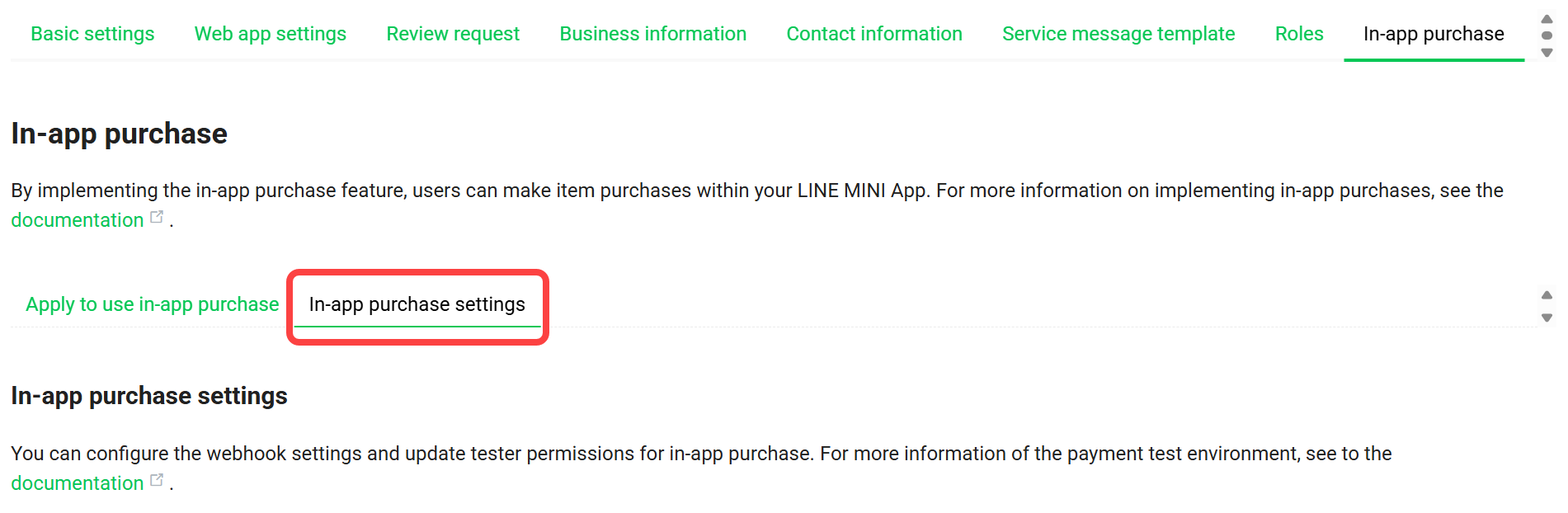
If the In-app purchase settings tab doesn't appear within the In-app purchase tab, your in-app purchase application hasn't yet been approved.
Once the status in the "Workflow in progress" section changes to "Approved", the In-app purchase settings tab will become visible. Please wait until your application is approved.
Register the webhook URL
In-app purchase in LINE MINI Apps uses webhooks to receive payment status changes (such as completion of payment or refund) in real time on the serve-side.
You can also set the same webhook URL for both Developing and Published.
Register the webhook URL for the developing
Register the webhook URL for developing by following the steps below. When you make a test payment using an account with the tester permission, a payment notification is sent to the webhook URL for developing.
- In the LINE Developers Console, select the In-app purchase tab and then select the In-app purchase settings tab.
- In the Webhook URL for developing input field, enter the URL of the server that will receive notifications. The URL must start with
https://. - Click the Update button.
Register the webhook URL for published
Set the webhook URL for published by the following steps:
- In the LINE Developers Console, select the In-app purchase tab and then select the In-app purchase settings tab.
- In the Webhook URL for published input field, enter the URL of the server that will receive notifications. The URL must start with
https://. - Click the Update button.
Use the test payment feature
When integrating the in-app purchase feature into a LINE MINI App, you can use the test payment feature. Test payments can be made in a LINE MINI App channel for Developing.
When an account with a tester permission performs a payment process in a Developing channel, the system treats it as a test payment, allowing you to test the payment flow without executing an actual billing.
To use the test payment feature, you need tester permissions for the LINE MINI App channel.
Tester permissions for the test payment feature
Tester permissions for the test payment feature can be granted to a maximum of 20 accounts that have the Admin role or the Tester role for the LINE MINI App channel.
The validity period of tester permissions is 30 days.
For more information on the actual testing method, see the Test payment guide.
Register testers
The steps for registering testers for the test payment feature are as follows:
- In the LINE Developers Console, select the target LINE MINI App channel.
- Select the In-app purchase tab and click In-app purchase settings.
- From the Select a tester dropdown list in the "Tester permission for the test payment feature" section, select the account you wish to register. The dropdown list displays accounts that have already been added in the Roles tab of the LINE MINI App channel.
- Click the Enable button.
Once registration is complete, the account name, email address, and expiration date are displayed in the list.
Manage tester permissions
You can perform the following operations on registered testers:
- Extend permissions: Click the Extend button in the list to update the expiration date to 30 days from that point.
- Disable permissions: Click the Disable button in the list to immediately prevent the account from making test payments.
If a tester's permission has expired, you can re-enable it by selecting it from the Select a tester dropdown list and enabling it again.