

How to search the LINE Developers site
The LINE Developers site contains documentation for various products, API references, the latest news, and more. When developing, the site search feature is useful for situations such as "checking specific API specifications" or "finding information helpful for implementation".
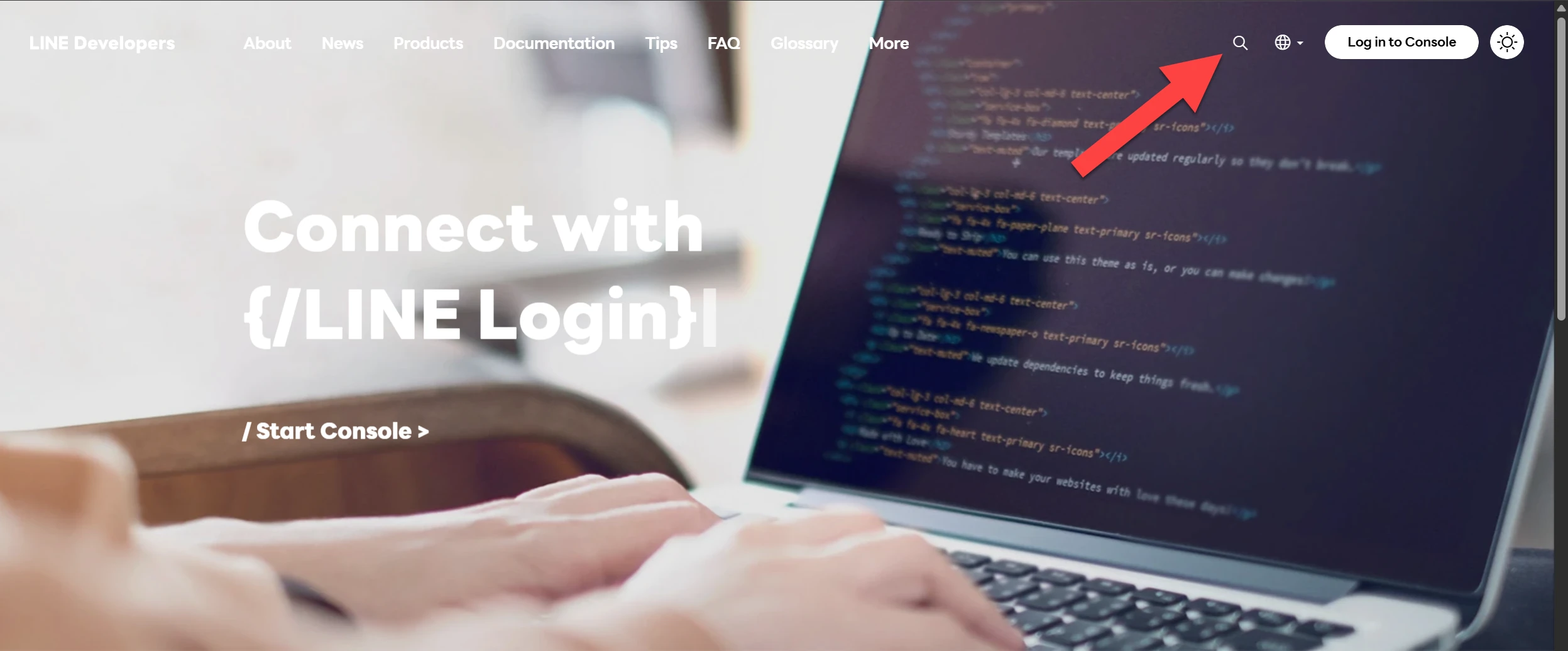
The search button is located in the upper-right corner of the screen
In addition to searching by keywords, you can now filter search results by category using the search feature on the LINE Developers site. This article introduces how to use site search to quickly access the information you need.
Quickly access the documentation by filtering categories
Searching for terms commonly used on the LINE Developers site displays many pages in the search results. Filtering by category is convenient for finding the page you need from among those results.
You can filter the search results by selecting one of the following categories:
- Documentation
- Reference
- News
- Glossary
- FAQ
- Tips (Tips for Developers)
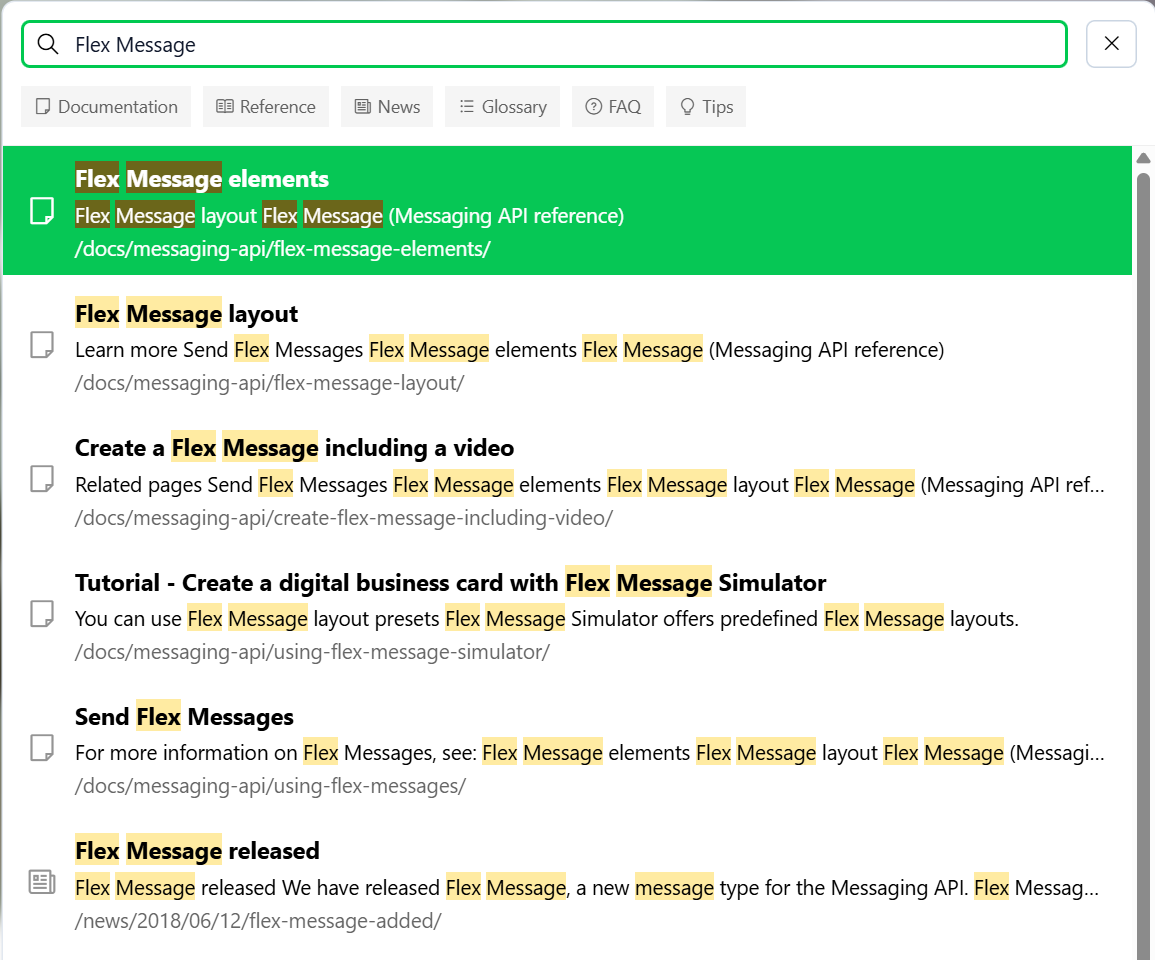
For example, suppose you want to find an article about Flex Messages published in "Tips for Developers". Searching for "Flex Message" without specifying a category displays many pages in the search results.
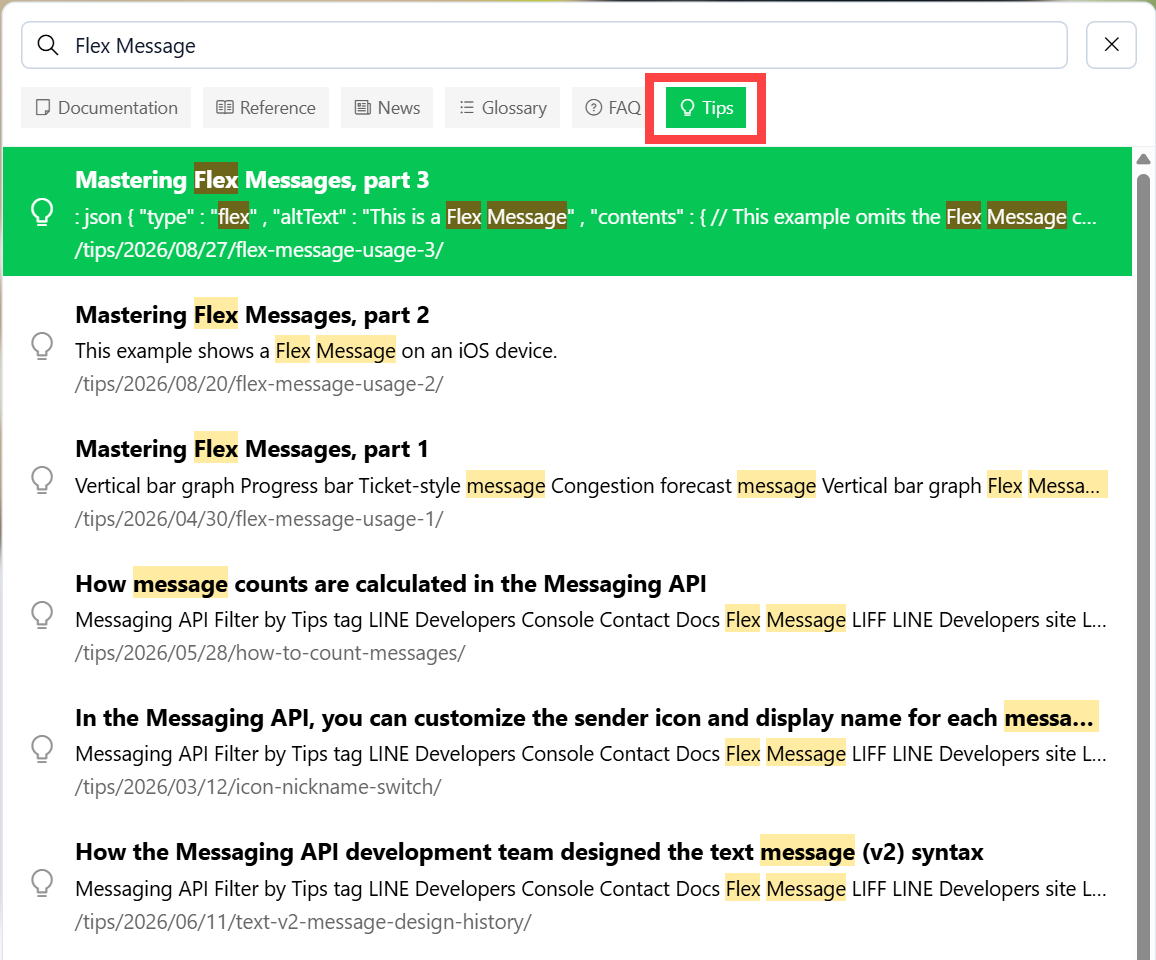
Click the Tips button at the top of the search screen. The search range will be narrowed to "Tips for Developers", making it easier to find the article you are looking for.
| Before filtering | After filtering |
|---|---|
 |  |
Expand all in the Messaging API reference
Though slightly different from the site search feature, here is a tip for finding the information you need in the Messaging API reference.
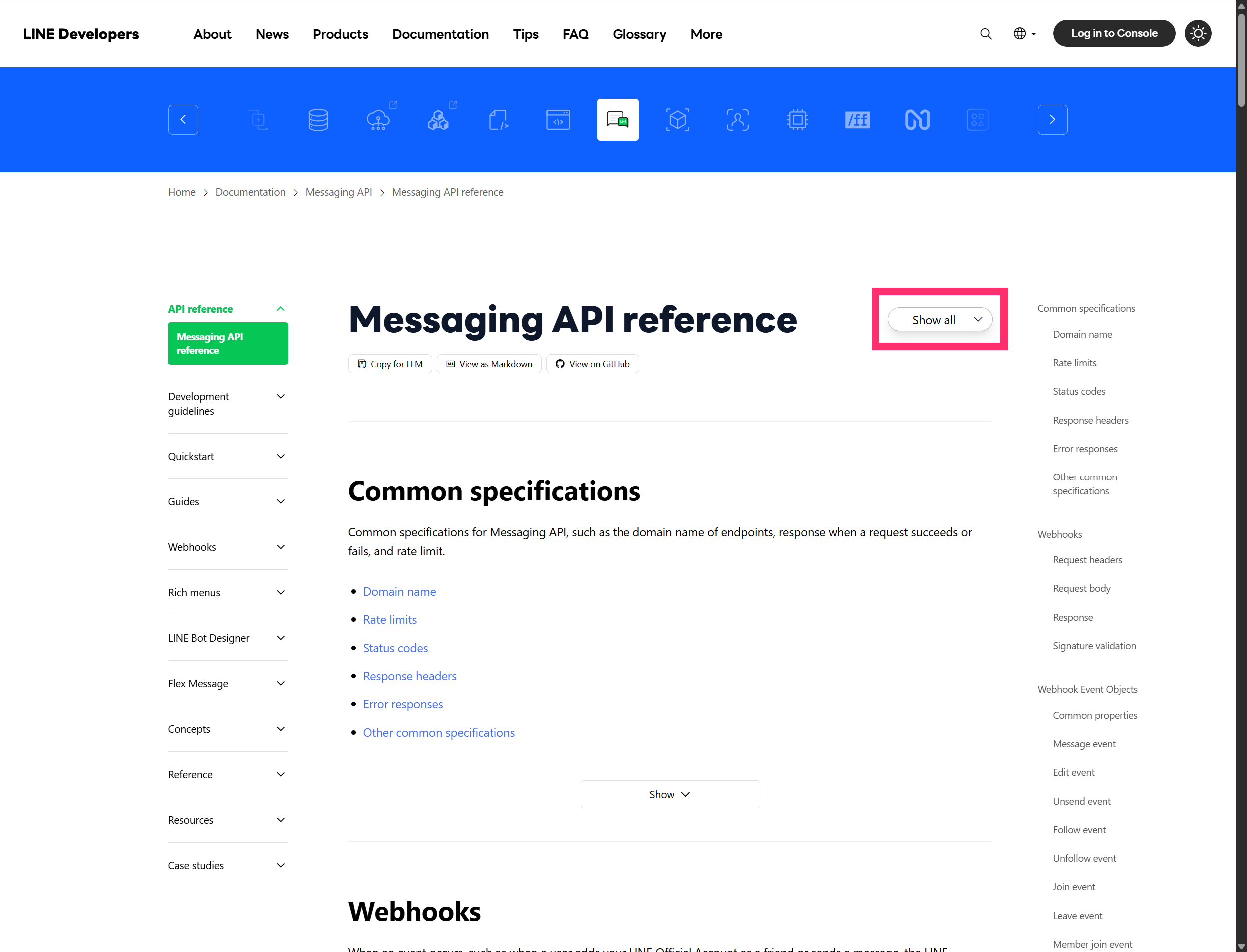
In the Messaging API reference initial view, sections are collapsed by category due to the large amount of information. Clicking the Show button below a category expands that category.
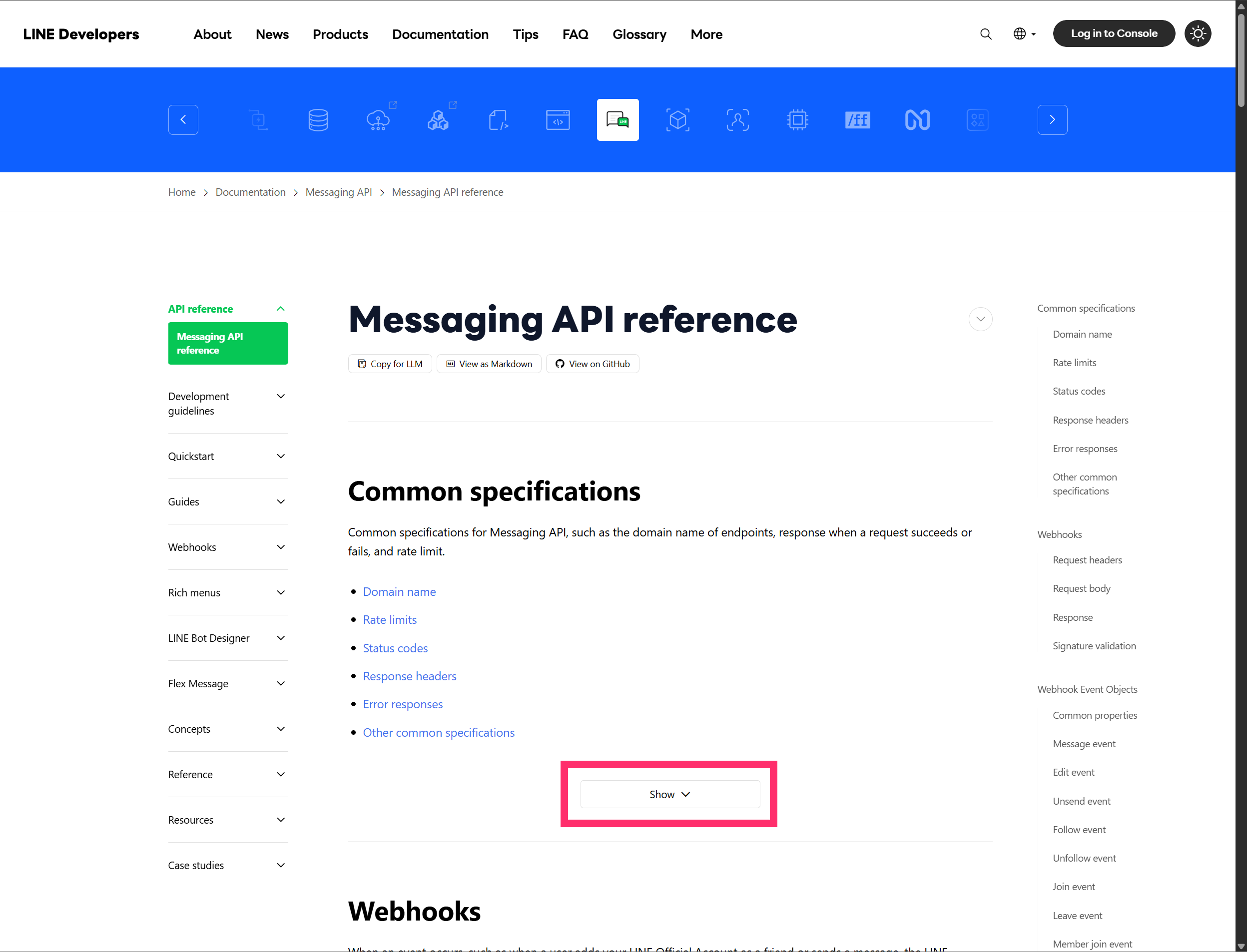
Hover the chevron (∨) icon to the right of the page title, then click Show all to expand all collapsed sections at once.
Expanding all sections allows you to search for parameter names, error codes, field descriptions, and more using page search in your browser (Ctrl + F / Cmd + F).
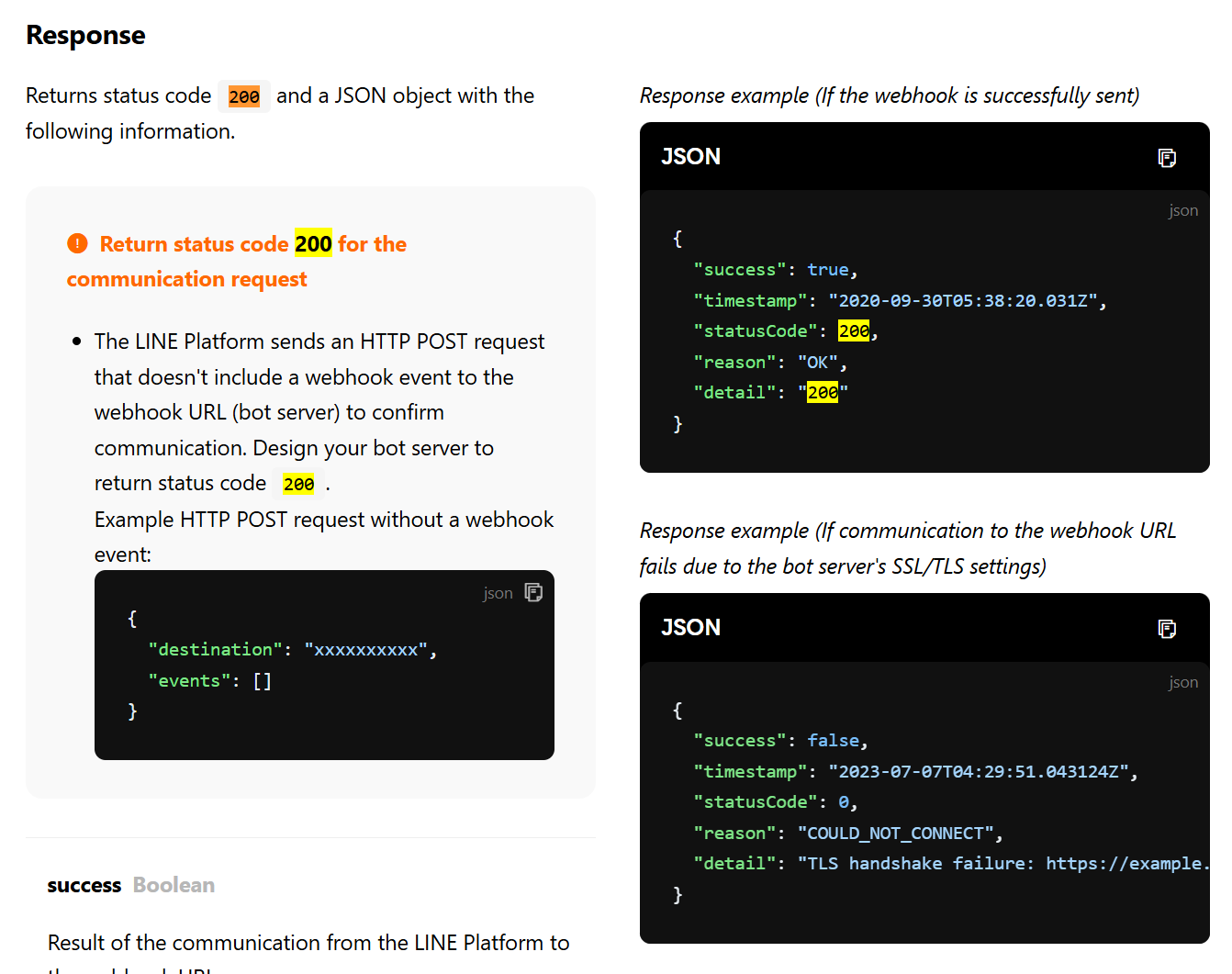
Example: When searching for the keyword "200"
The LINE Developers site is constantly updated to make it more convenient for developers. Please make full use of it.