

How WebP helped us reduce image sizes on the LINE Developers site
Hi, I'm Roman, the lead engineer of the LINE Developers site. Today we'll look at image file sizes and WebP conversion. Documentation needs screenshots and diagrams, but those images take up storage space and add to the data readers download. To reduce both, we recently converted many of our PNG, JPEG, and GIF images to WebP, saving over 200 MB in the process. Here's what WebP is, what we saved, and what to consider when using it on your own site.
What is WebP?
WebP is an image format introduced by Google in 2010. It grew out of the VP8 video codec and supports both lossy compression, which discards some image detail to reduce file size, and lossless compression, which preserves the original detail. WebP also supports transparency and animation. This makes it useful for photos, screenshots, diagrams, and animated images, though the best settings depend on the image.
According to WebDX's WebP compatibility data, Safari 14 added WebP support in September 2020, and WebP has been Baseline Widely Available since March 16, 2023. With broad support across current browsers, WebP is a safe choice for website images today.
What changed on this site?
We found that the LINE Developers site had accumulated images that were several hundred KB each, with some exceeding 1 MB. Between August and September 2026, we converted many of these large images to WebP.
Here are the results:
- Over 200 MB saved by converting over 700 images
- About 78% smaller per file on average, calculated from the individual size reductions
- 471 KB less image data per affected page at the median for pages using at least one converted image
How we choose conversion settings
To convert still images to WebP, we use cwebp, a tool from the open-source libwebp project. It converts images such as PNGs and JPEGs to WebP. For animated GIFs, we use gif2webp from the same project to produce animated WebP files.
We follow these guidelines when converting images:
- For screenshots and photos, we use
cwebp -q 80 -m 6, a lossy encoding. - For diagrams with fine text or lines, we use
cwebp -lossless -m 6to keep edges sharp. - For animated GIFs, we try
gif2webp -min_size -m 6and check that the result still animates. - We keep the original resolution (more on that in the screenshot example below).
These settings are guidelines, not strict rules. If -q 80 causes too much loss of detail, we can use -q 90 or another value instead. If converting an image to WebP does not reduce its file size, we can keep the original format.
A screenshot example
Suppose you want to add a screenshot of the LINE Developers home page to your documentation. We'll compare the screenshot at its original pixel dimensions with a smaller version to show how WebP conversion and downscaling affect file size and image quality.
The original screenshot was taken on macOS. The PNG measured 1736 × 1174 pixels, and its file size was 1.34 MB. That was far larger than acceptable for a documentation page image.
Convert to WebP at the original resolution
I converted the PNG with cwebp -q 90 -m 6. I chose quality 90 to keep the small text in the browser window clear. The WebP kept the original dimensions and shrank to 115 KB, saving about 1.23 MB, or 91%, with no noticeable loss of quality at its displayed size.
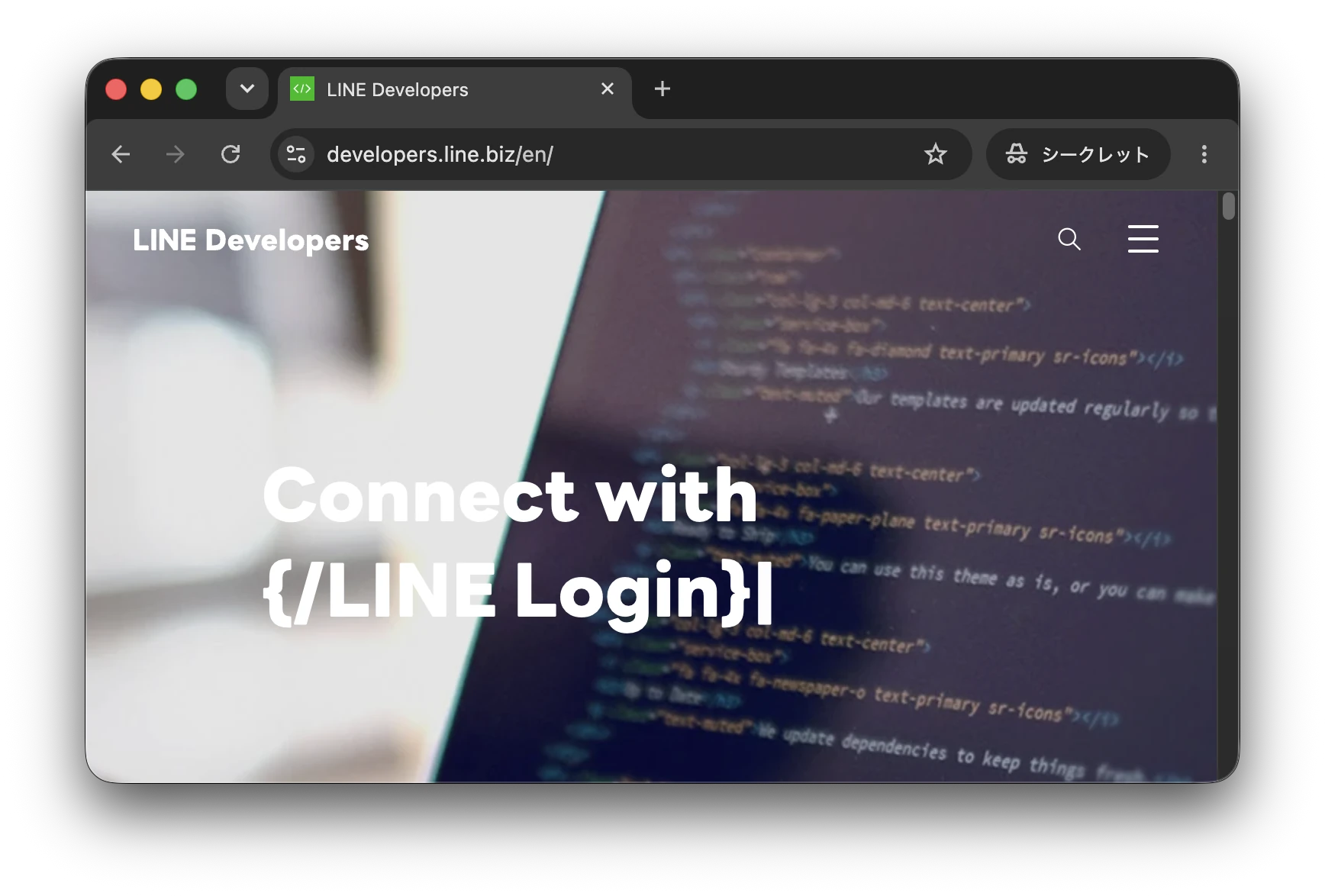 Screenshot converted to WebP at its original resolution: 1736 × 1174 pixels, 115 KB
Try reducing the resolution
As the 1736-pixel-wide image is wider than this page needs for display, I investigated whether reducing its dimensions would help. I made an 800 × 541-pixel version with the same encoder settings. The resized WebP is 34 KB; that is 81 KB smaller than the full-resolution version.
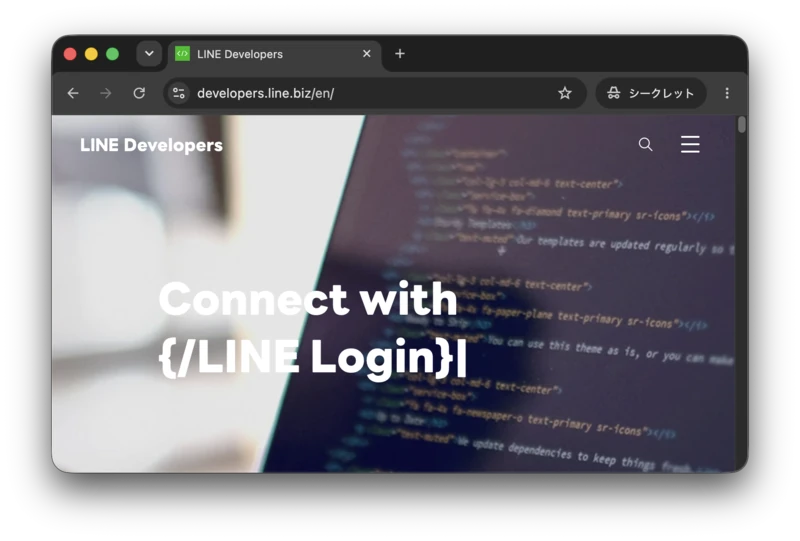 Reduced resolution WebP: 800 × 541 pixels, 34 KB
Compare sharpness up close
When enlarged, the smaller image looks noticeably softer. The close-ups below show the same upper-left corner of the browser window at the same size; the crop from the 800-pixel version has been enlarged to match the original. Compare the window controls, address bar, and site title:
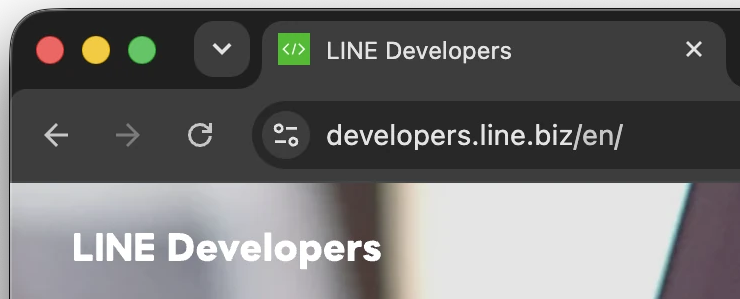 Original resolution
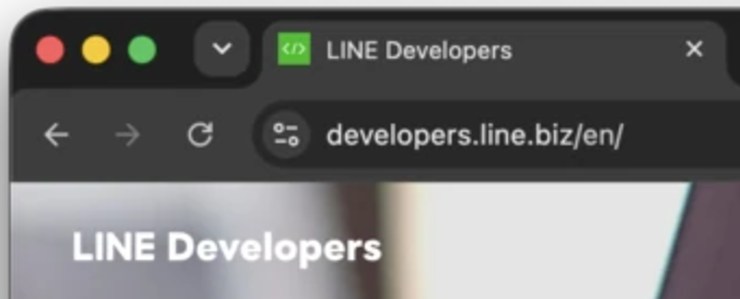 800-pixel version, enlarged
The close-ups show why we decided to generally keep the original dimensions of an image: WebP conversion delivered most of the savings. While resizing saved another 81 KB, there was a clear cost to image sharpness, so we recommend against resizing images.
How we keep new images small
To make image conversion easier in our everyday documentation work, we added a repository-specific image conversion skill for AI coding agents. When writing documentation, we can add screenshots as PNG or JPEG, then run the skill before submitting the change. It updates the image files and their references together.
The skill finds images added or changed on the current branch and, by default, selects those larger than 300 KB. It applies the settings described above, compares each WebP file with its source, and keeps the original format if conversion does not reduce the file size. It then updates references in the documentation, checks that the output is really WebP, and looks for stale image paths. It asks us before removing the original files.
We also added a CI check that flags large image files in pull requests. When it flags an image, we can run the conversion skill and reduce its file size before publication.
Tips for your own images
If your site has image-heavy pages, start by converting a few representative images. For photos and screenshots, we recommend cwebp with lossy compression. Try quality settings from -q 80 to -q 95, then keep these points in mind as you compare the results:
- Inspect each result at its displayed size, especially small text in screenshots.
- Try lossless compression with
cwebp -losslesswhen small text, lines, or diagrams must stay crisp. - Compare file sizes before replacing an image. Keep the original format if it is smaller or looks better.
- Update image references when you change file extensions, and check the page in a browser.
Smaller image files require less storage and can reduce the data readers need to download. When those images load, this should improve page load performance, especially on slower connections.