

Integrate the in-app purchase feature
This page explains how to integrate the in-app purchase feature into your LINE MINI App.
Preparation
Before you start implementing, confirm the following:
- Your LINE MINI App is published as a verified MINI App, or if it's an unverified MINI App, the channel for Developing is available for use.
- Your application to use in-app purchase feature has been approved.
- A server for your LINE MINI App is available.
- A webhook endpoint (webhook URL) is available. (*)
* Register the webhook URL on the LINE Developers Console after your application to use in-app purchase has been approved. For more information on how to register, see Register the webhook URL.
Implementation flow
Integrate in-app purchase with the following flow:
- Check if your environment is compatible with in-app purchase
- Get information about purchasable items
- Obtain user consent for in-app purchase
- Reserve a purchase from your LINE MINI App server
- Start the purchase transaction at the store
- Receive webhook and process purchase completion
1. Check if your environment is compatible with in-app purchase
Call the liff.isApiAvailable() method to determine if your environment supports in-app purchase.
liff.isApiAvailable("iap");
If the user is using an external browser or the version of the LINE app the user is using doesn't support in-app purchase, disable the LINE MINI App or hide the purchase flow.
Even if you confirm that the environment supports in-app purchase using the liff.isApiAvailable() method, in-app purchase can't be used if you can't obtain user consent in "3. Obtain user consent for in-app purchase" or if the consent is revoked later.
2. Get information about purchasable items
Get and display information about purchasable items to users.
Items that can be purchased with in-app purchase are pre-defined by LY Corporation based on Japanese yen. When displaying items available for purchase through in-app purchase to users, use prices and currency values localized to the region of the app store used by the user to avoid degrading the user experience.
Among pre-defined items, items supported by your LINE MINI App can be determined according to the policy of the service provider using in-app purchase. Call the liff.iap.getPlatformProducts() method to get localized prices, currencies, and item names for those items.
const productIds = ["iap_ln_002", "iap_ln_003"];
await liff.iap.getPlatformProducts({ productIds });
Example:
{
  "iap_ln_002": {
    "currency": "JPY",
    "price": 100,
    "productName": "LINE Purchase 100"
  },
  "iap_ln_003": {
    "currency": "JPY",
    "price": 150,
    "productName": "LINE Purchase 150"
  }
}
3. Obtain user consent for in-app purchase
Use the liff.iap.requestConsentAgreement() method to obtain user consent for "Terms of Use: LINE In-App Purchase System".
await liff.iap.requestConsentAgreement();
This process must be completed once per user, not per LINE MINI App. If the user has already agreed to use in-app purchase in another LINE MINI App, re-consent isn't required. If consent has already been obtained for the currently running LINE MINI App, re-consent is also not necessary.
However, if the "Terms of Use: LINE In-App Purchase System" are updated, users may be required to provide consent again. Users who haven't provided consent can't reserve or initiate a purchase. Therefore, when starting in-app purchase, you should always call the liff.iap.requestConsentAgreement() method to confirm the latest consent status.
When the liff.iap.requestConsentAgreement() method is executed, if the user hasn't completed consent and new consent is required, a consent screen is displayed at that time. To avoid user drop-off caused by displaying the consent screen, we recommend requesting consent at an appropriate time.
4. Reserve a purchase from your LINE MINI App server
Before starting the purchase transaction at the app store (App Store, Google Play), reserve the purchase from your LINE MINI App server using the "Reserve purchase" endpoint.
Make the purchase reservation from your LINE MINI App server at appropriate timing, such as when the user taps the purchase button for an item in your LINE MINI App.
Obtain the additional parameters required for purchase reservation:
- For the access token at authentication, get the user access token obtained by the
liff.getAccessToken()method. - For
clientIp, specify the IP address of the user obtained from your LINE MINI App server. - For
clientOs, specify the value obtained by theliff.getOS()method.
At this point, the purchase isn't yet complete. For example, even if the purchase reservation is successful, the actual purchase won't be completed if the user later leaves the LINE MINI App or cancels the purchase transaction in the app store.
The order ID (orderId value) that can be obtained from the response at the time of purchase reservation is also included as a parameter in the webhook sent by the LINE Platform when the payment is completed. Record the orderId value in logs or storage, as it'll be required when inquiring with LY Corporation or for investigations.
Additionally, record the value of the x-line-request-id header included in the response and contact us with the orderId value.
5. Start the purchase transaction at the store
After completing the purchase reservation, start the app store payment from your LINE MINI App.
await liff.iap.createPayment({
  productId,
  orderId,
});
When the purchase transaction succeeds, the LINE Platform verifies that the payment was made correctly by checking with the store. When the payment is verified to be correct, the LINE Platform notifies the webhook endpoint of the purchase completion webhook event. For more information on the webhook event that will be notified, see Purchase complete event in the LINE MINI App API reference.
If the purchase is canceled or the purchase transaction fails, an exception is thrown. Implement error handling as needed.
try {
  await liff.iap.createPayment({
    productId,
    orderId,
  });
} catch (e) {
  // e => { code: "CANCELED", message: "Transaction was canceled." }
  console.error({
    code: e.code,
    message: e.message,
  });
}
6. Receive webhook and process purchase completion
When you receive the purchase complete webhook event notified by the LINE Platform, check the contents on your LINE MINI App server and grant the item to the user. The specific implementation of how to grant items to users depends on the implementation of the LINE MINI App being developed.
Due to the nature of webhook events, the same event may be notified multiple times because of network or application errors. Additionally, even if the LINE MINI App server correctly receives a specific purchase complete event, the same event may be re-notified if the LINE Platform can't confirm that it was received.
Each user purchase is assigned a unique orderId issued at the time of purchase reservation. Determine whether the transaction has already been processed using the orderId. Additionally, grant an item only once for each purchase.
Always determine purchase completion based on the webhook event.
Verify the webhook signature
To prevent forged requests, verify the signature using the x-line-signature request header when receiving webhooks. For more information, see Verify the webhook signature.
Response to webhook
The LINE Platform doesn't verify the content of responses from LINE MINI App servers, allowing the servers to return any payload.
However, if the server successfully receives a webhook, it must return a status code in the 2xx.
If any other status code (e.g., 3xx, 4xx, 5xx) is returned, the LINE Platform treats the request as a failure and attempt webhook redelivery. Redelivery occurs multiple times within 30 minutes.
Get webhook event history
You can use the "Get webhook event history" endpoint to retrieve the history of webhook events that were previously sent.
If you need to perform recovery for webhook events that fail to be received, use this endpoint.
For more information, see Get webhook event history in the LINE MINI App API reference.
Test payment guide
After integrating the in-app purchase feature into your LINE MINI App, test payments become available in the LINE MINI App channel for Developing. With test payments, you can verify a series of operations such as purchasing items and checking purchase history on a LINE MINI App.
When an account with a tester permission performs a payment process in a Developing channel, the system treats it as a test payment, allowing you to test the payment flow without executing an actual billing.
Users performing test payments must meet all of the following conditions:
- Have Admin or Tester roles for the relevant LINE MINI App channel
- Have tester permissions for the test payment feature
LINE MINI App channel roles
To use the test payment feature for LINE MINI Apps, you need the Admin role or the Tester role for the LINE MINI App channel. Set permissions in the Role settings tab on the LINE Developers Console.
For more information on how to set roles, see Adding developers, editing roles, and deleting developers on channel in the LINE Developers Console documentation.
Note that only developers with the Admin role for a channel can add or edit channel roles. For more information on the differences in roles, see LINE MINI App channel in the LINE Developers Console documentation.
Tester permissions for the test payment feature
Tester permissions for the test payment feature can be granted to developers who have the Admin role or the Tester role for the relevant LINE MINI App channel. Set tester permissions in the In-app purchase setup tab within the In-app purchase tab on the LINE Developers Console.
For more information on how to set permissions, see Register testers.
Test payment procedure
With test payments, you can verify the behavior without processing an actual payment.
The test procedure is as follows:
- Register a tester in the relevant LINE MINI App channel.
- Share the LIFF URL of the LINE MINI App for Developing with the tester. The LIFF URL can be confirmed in the Web app settings tab on the LINE Developers Console.
- The tester launches the LINE MINI App from the specified LIFF URL and performs a payment.
Production operation checklist
When operating an in-app purchase service in production, check the following.
User notification on successful payment
When a payment is completed, an automatic message is sent to the user who made the purchase from the LINE Official Account "LINEアプリ内課金お知らせ" (LINE In-App Purchase Notification in Japanese) by LY Corporation. Therefore, no additional action is required on the developer side.
Users can't block this account or change notification settings. However, in rare cases, notifications may not be delivered due to the user's usage environment or server conditions. Thank you for your understanding.
How users check purchase history
Users can check the in-app purchase history by opening In-app purchases on the "Settings" screen of the LINE app, or from messages sent by the LINE Official Account "LINEアプリ内課金お知らせ". Purchase history for up to one year can be confirmed.
In the "In-App Purchases" screen shown below, the values in the red-bordered section reflect the actual prices and currency at the time of applying to use in-app purchase, at the time of purchase reservation request, or when the user purchases from the store.
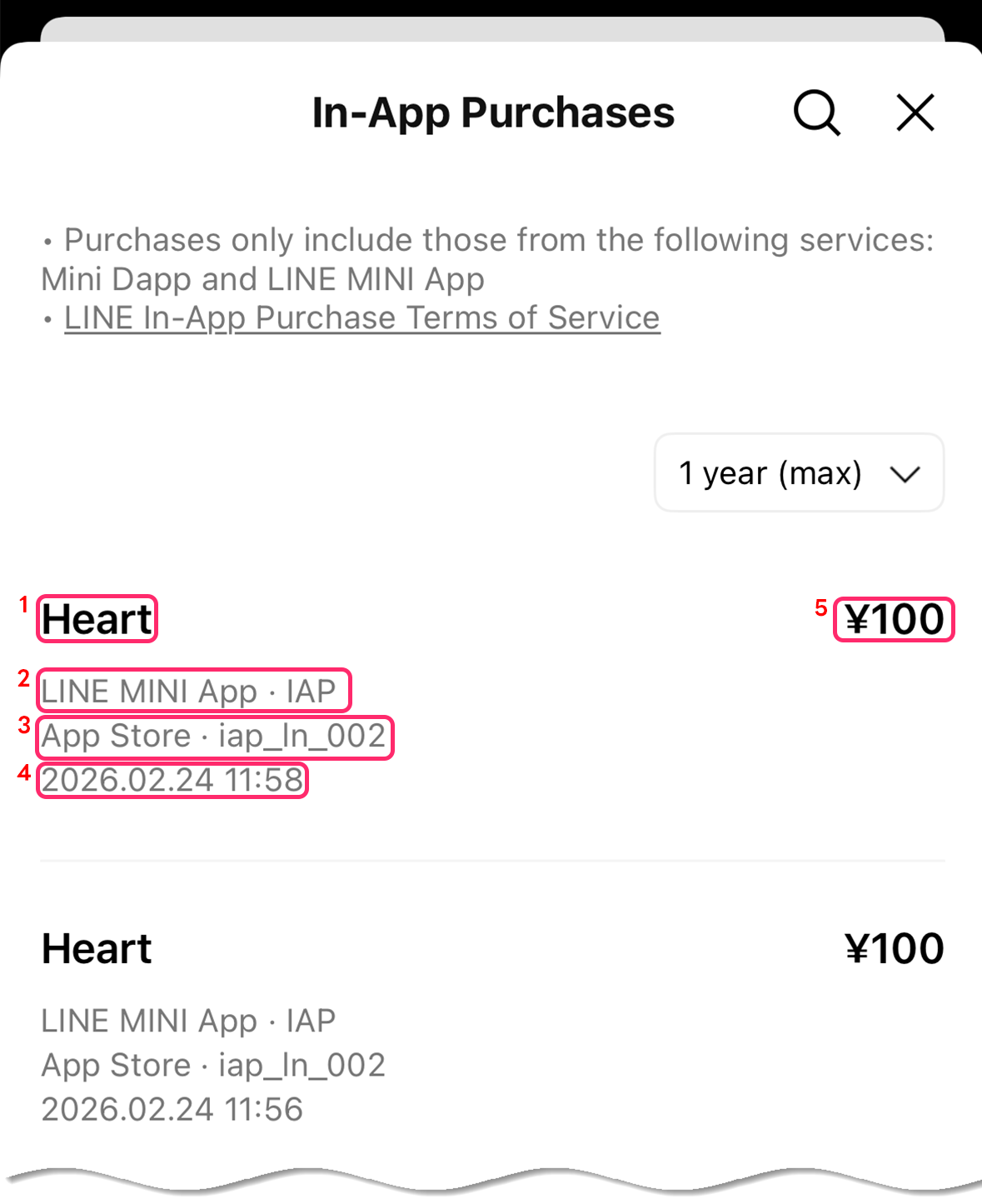
| Number | Details |
|---|---|
| 1 | Displays the item name specified at the time of purchase reservation (shopProductName) as is. Set an appropriate value so that users can recognize the item they purchased. |
| 2 | Displays the name of LY Corporation's service using in-app purchase and the service name of the service provider using in-app purchase. Note that the service provider's service name is not yet available in multiple languages.
|
| 3 | Displays information related to the app store, including which app store (App Store or Google Play) was used for the payment and the item name registered in the app store. |
| 4 | Displays the payment time, which is the time when the LINE Platform confirms the payment after it is processed in the store. |
| 5 | Displays the currency and price at the time of payment. In the app store payment process, the currency is converted based on the region of the app store the user is using, and the actual currency and price paid are displayed. |