

Mastering Flex Messages, part 3
Flex Messages let you create flexible layouts without relying on images. When you focus on appearance, you may overlook how recipients will use the message.
This article shows settings you may overlook when you implement Flex Messages. It also lists checks to run before you use them in production.
- Set specific altText
- Set specific action labels
- Send test messages and check them on actual devices
- Summary
Set specific altText
Include altText in every Flex Message object.
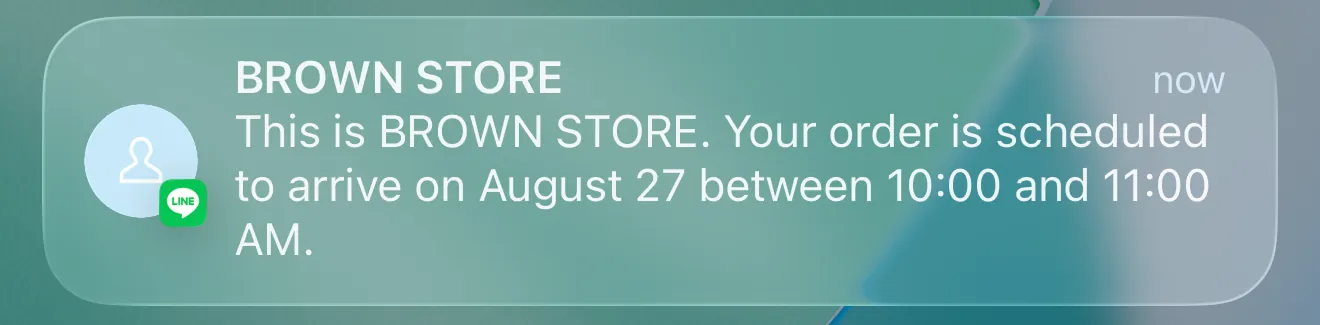
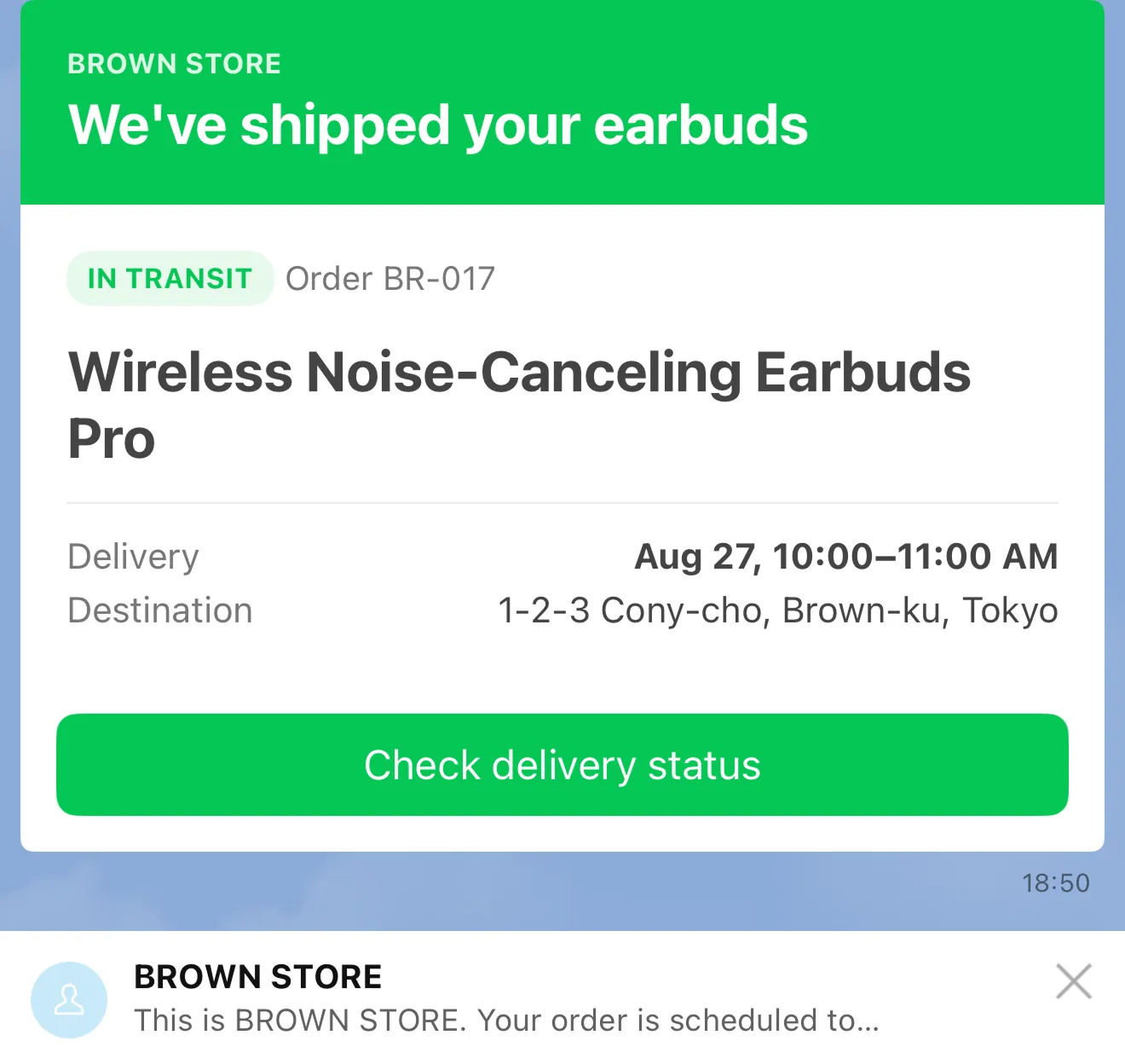
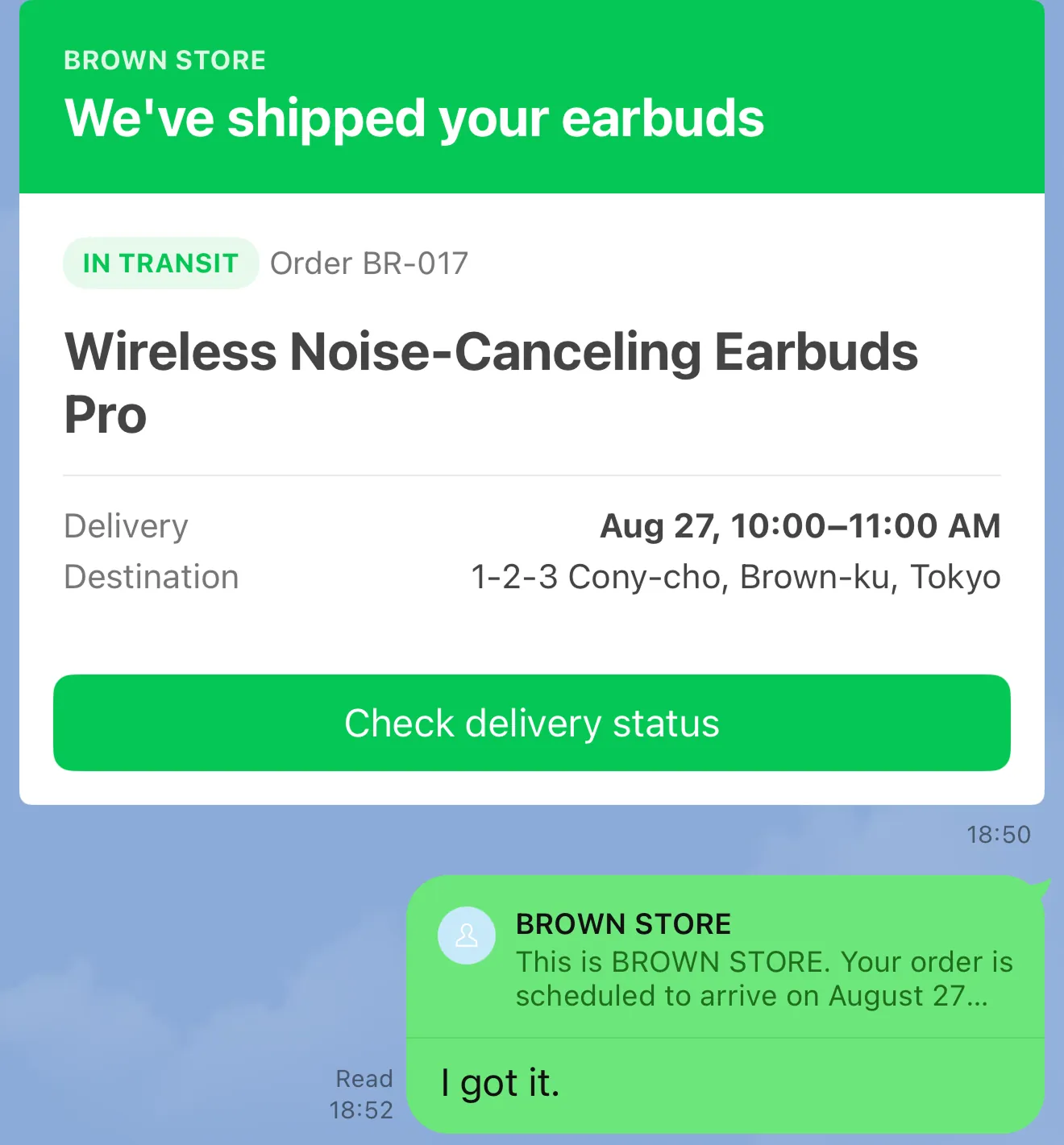
Set altText to text that describes what the Flex Message communicates. altText appears when the Flex Message layout isn't displayed, such as in device notifications, the LINE app's talk list, and quote messages.
Screen readers such as VoiceOver on iOS and TalkBack on Android read altText in device notifications and the LINE app's talk list. To help users who use screen readers understand the message, describe what you want the Flex Message to convey in altText.
Set altText as follows for a delivery update.
Good example:
Bad example:
The following examples show altText in the LINE app's talk list, a device notification, and a quote message.
| Talk list | Device notification | Quote message |
|---|---|---|
 |  |   |
When you write altText for a Flex Message that prompts users to take action, include information like the following to make the message clear:
- What the message is about
- Its current status
- What action users should take next
Include the event name, date and time, and admission instructions for an event ticket. Include the amount due and payment deadline for a billing notice.
Set specific action labels
Use label to describe the result of tapping a button, image, or other component. Avoid generic labels such as "Check" or "Here." They don't explain what happens after a tap.
Include both the target and the action in each label:
- Check delivery status
- Change reservation date and time
- Show ticket
- Check payment method
When you place multiple buttons together, word the labels so users can distinguish the primary action from secondary actions. For example, use "Confirm reservation" for the primary action and "Change date and time" for a secondary action. This helps users choose the action that fits their goal.
Screen readers such as VoiceOver on iOS and TalkBack on Android read an action's label. Use a specific label that describes the result of a tap. This makes the action clear when a screen reader reads it.
Good example:
Bad example:
Send test messages and check them on actual devices
Use Flex Message Simulator to check how a Flex Message looks without sending it. The simulator and the LINE app may render the message differently. Screen width, operating system, version of the LINE app, language settings, and fonts can affect the layout. Send a test message and check it on an actual device.
Check these points on devices with different operating systems and screen widths:
- Check whether users can infer the message content from
altTextin device notifications and the LINE app's talk list. - Check that long text uses the expected number of lines and doesn't hide important information.
- Check that side-by-side text doesn't overlap or get cut off.
- Increase the LINE app's font size and check that important information remains readable. See Font size settings change line breaks in Mastering Flex Messages, part 2 for details.
- Check that each button
labelisn't truncated and lets users infer what happens after a tap. - Check that tappable components are placed where they're easy to identify.
Summary
Flex Messages give you flexible control over appearance, but the settings that shape how recipients experience the message also matter. Set specific values for altText and each action's label. Then send a test message and check it on actual devices. These steps make the content and actions easier to understand.
Check more than the final appearance when you create a Flex Message. Check whether the content remains clear when the layout isn't displayed. Also check whether each tap has a clear result.