

LINE Developers Console account management: 3 important points to keep in mind
Using the LINE Developers Console requires several types of accounts, such as a developer account.
This article covers important points to keep in mind when managing your account using the LINE Developers Console.
Accounts required to use the LINE Developers Console
First, check the accounts required to use the LINE Developers Console. There are mainly three accounts you need:
| Account | Description |
|---|---|
| Developer account | An account used to access the LINE Developers Console. You will create it the first time you log in to the LINE Developers Console. A developer account is linked one-to-one with a Business ID, and through the Business ID it is also linked to a LINE account. |
| Business ID | A common authentication account used to log in to the LINE Developers Console. You can log in in multiple ways, including a LINE account or a business account (email address and password). |
| LINE account (optional) | An account used for the LINE app. A LINE account can be linked one-to-one with a Business ID. |
For more information, see Log in to the LINE Developers Console in the LINE Developers Console documentation.
Important points for account management
As mentioned above, using the LINE Developers Console involves multiple different accounts. Here are three important points to keep in mind to manage your accounts properly:
1. Linking a LINE account and a Business ID
In order to test the functionality of a LINE MINI App under development, or to check the developer's own user ID in the LINE Developers Console, the developer account must be linked to a LINE account. If the intended LINE account isn't linked, you cannot properly verify behavior during development.
Because the developer account and LINE account are linked through a Business ID, check that the intended LINE account is linked to the Business ID. You can check the link status between a LINE account and a Business ID on the Business ID profile page.
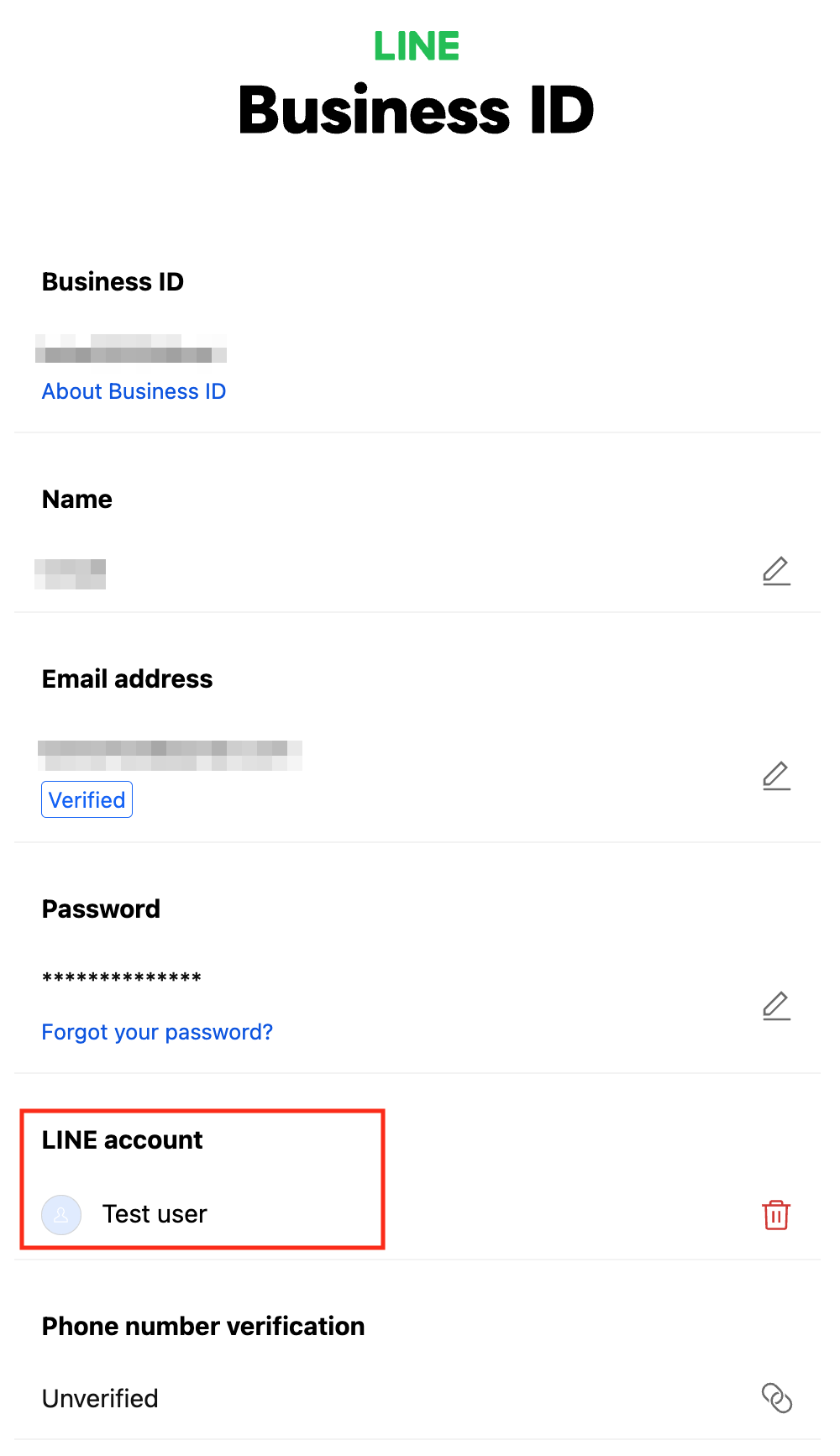
Because a LINE account can be linked to only one Business ID, a single LINE account cannot be linked to multiple Business IDs. If you use multiple Business IDs and LINE accounts separately, you should pay particular attention to ensure the correct account links are in place.
2. Managing email addresses
You can register separate email addresses for a developer account, Business ID, and LINE account. These email addresses are managed separately, so you might have different email addresses set for each account. When entering an email address at login or checking notification emails, use the email address registered to each account.
Here is how to check the email address for each account:
| Account | How to check |
|---|---|
| Developer account | Check it in the profile screen on the LINE Developers Console. The profile screen appears after logging in by clicking the icon in the top-right corner and then clicking account information. |
| Business ID | Check it on the Business ID profile page. |
| LINE account | Check it in the LINE app settings screen. Open in this order: LINE app > Settings (gear icon at top-right) > Account. |
3. Accepting invitation emails
In the LINE Developers Console, when an admin user invites developers to a provider or channel, an invitation email is sent to the email address specified by the inviter. Note that the email address that receives the invitation email doesn't have to match the email address of the developer account that will be granted the permissions.
The permissions granted to the developer account are assigned to the developer account that is logged in when you click Accept the invitation in the invitation email.
To avoid granting permissions to the wrong developer account, check the following before clicking Accept the invitation when you receive an invitation:
- If you aren't logged in to the LINE Developers Console, log in with the developer account that should receive the permissions.
- If you are already logged in to the LINE Developers Console, check that the currently logged-in developer account is the one that should receive the permissions.
For more information, see Managing roles in the LINE Developers Console documentation.
Wrap-up
When developing using the LINE Developers Console, you need to properly manage the developer account, Business ID, and LINE account. I hope this article helps you manage your accounts.
Author
Furuki (Technical Writer): In charge of documentation for the LINE Developers site. Organizes the technical writing community Technical Writing Meetup.