

Use LINE Official Account
This page introduces how to use a LINE Official Account to promote your LINE MINI App. For more information about how to create a LINE Official Account, see Create a LINE Official Account in the Messaging API documentation.
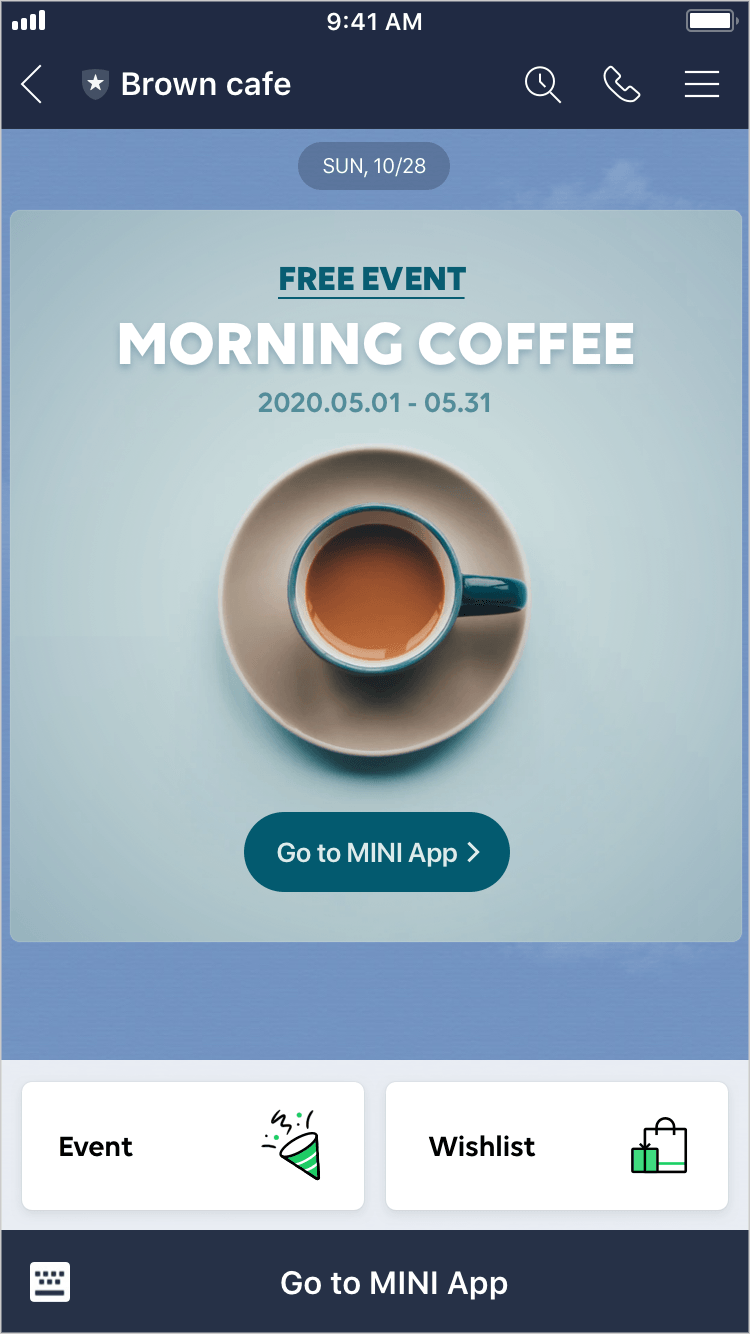
Send rich messages
Sending visually engaging rich messages helps users quickly understand the value of your LINE MINI App and encourages more users to access it.
For more information about rich messages, see Rich messages (only available in Japanese) in LINE for Business.
Set a link to your LINE MINI App in a rich menu
By setting your LINE MINI App's LIFF URL or permanent link in a rich menu, users can easily access your LINE MINI App from the LINE Official Account chat screen.
For more information about rich menus, see Rich menus overview in the Messaging API documentation.
Add the LINE Official Account as a friend on the LINE MINI App (add friend option)
You can display an option to add your LINE Official Account as a friend on the verification screen or the channel consent screen of your LINE MINI App. This is called the add friend option.
To link a LINE MINI App to a LINE Official Account using the add friend option, all of the following conditions must be met:
- The LINE Official Account uses the Messaging API (*1).
- The Messaging API channel linked to the LINE Official Account and the LINE MINI App channel belong to the same provider.
- The account used to perform the operation has both the Admin role for the LINE MINI App channel (*2) and the Administrator role for the LINE Official Account (*3).
*1 For more information about how to use the Messaging API with a LINE Official Account, see Enable the Messaging API for your LINE Official Account in the Messaging API documentation.
*2 You can check the Admin role for a LINE MINI App channel in the LINE Developers Console.
*3 You can check the Administrator role for a LINE Official Account in the LINE Official Account Manager.
How to set the add friend option
- In the LINE Developers Console, click the Basic settings tab of the LINE MINI App channel.
- In the "Linked LINE Official Account" section, click Edit.
- Select the LINE Official Account to link to the LINE MINI App channel, then click Update.
- Click the Web app settings tab of the LINE MINI App channel.
- In the "Add friend option" section, click Edit.
- Select On (normal), then click Update.
If a LINE MINI App channel belongs to a certified provider, the add friend option on the verification screen and the channel consent screen is enabled by default.
Unless users manually turn off the option, the LINE Official Account specified for the add friend option will be added as a friend when users grant authorization on the verification screen or the channel consent screen.