

Link a LINE MINI App channel to a Business Manager organization
You can link a LINE MINI App channel to a Business Manager organization. Once linked, you can integrate with accounts of other services linked to the same organization.
Currently, the only supported integration is with LINE Official Accounts. We plan to expand the available features in the future, including the ability to display information about your LINE MINI App on the business profile of a linked LINE Official Account.
For more information about the Business Manager, see Business Manager (only available in Japanese) in LY for Business.
- Requirements for linking to a Business Manager organization
- How to link to a Business Manager organization
- Account linking review
- Link a LINE MINI App channel to a LINE Official Account
- Related pages (only available in Japanese)
Requirements for linking to a Business Manager organization
To link a LINE MINI App channel to a Business Manager organization, all of the following conditions must be met:
- The LINE MINI App is a verified MINI App.
- Region to provide the service for the LINE MINI App channel is set to "Japan".
- The provider and the service company of the LINE MINI App for Published must match (*).
- Region for the Business Manager organization is set to "Japan".
- Company or owner's country or region for the LINE MINI App channel and Company/business owner's country or region for the Business Manager organization must match.
* On the Business information tab of the published data for the LINE MINI App channel, one of the following conditions must be met:
- Same as the service company in the "Development company information" section is enabled
- Same as the service company in the "Development company information" section is disabled and Provider in the "Provider information" section is set to "Service company"
How to link to a Business Manager organization
Once a LINE MINI App channel is linked to a Business Manager organization, the link can't be removed. However, you can transfer the LINE MINI App channel to another organization in the Business Manager. For more information, see Can I transfer a linked account or channel to another organization? (only available in Japanese) in LINE for Business.
The process for linking a LINE MINI App channel to a Business Manager organization is as follows:
- A developer sends a link request
- A developer sends the link request URL to the Business Manager organization administrator
- The Business Manager organization administrator approves the request
In the following steps, you'll use both the LINE Developers Console and the Business Manager. The LINE Developers Console must be operated by a developer with the Admin role for the LINE MINI App channel, and the Business Manager must be operated by the organization administrator.
1. A developer sends a link request
Open the Business Manager link tab of the LINE MINI App channel.
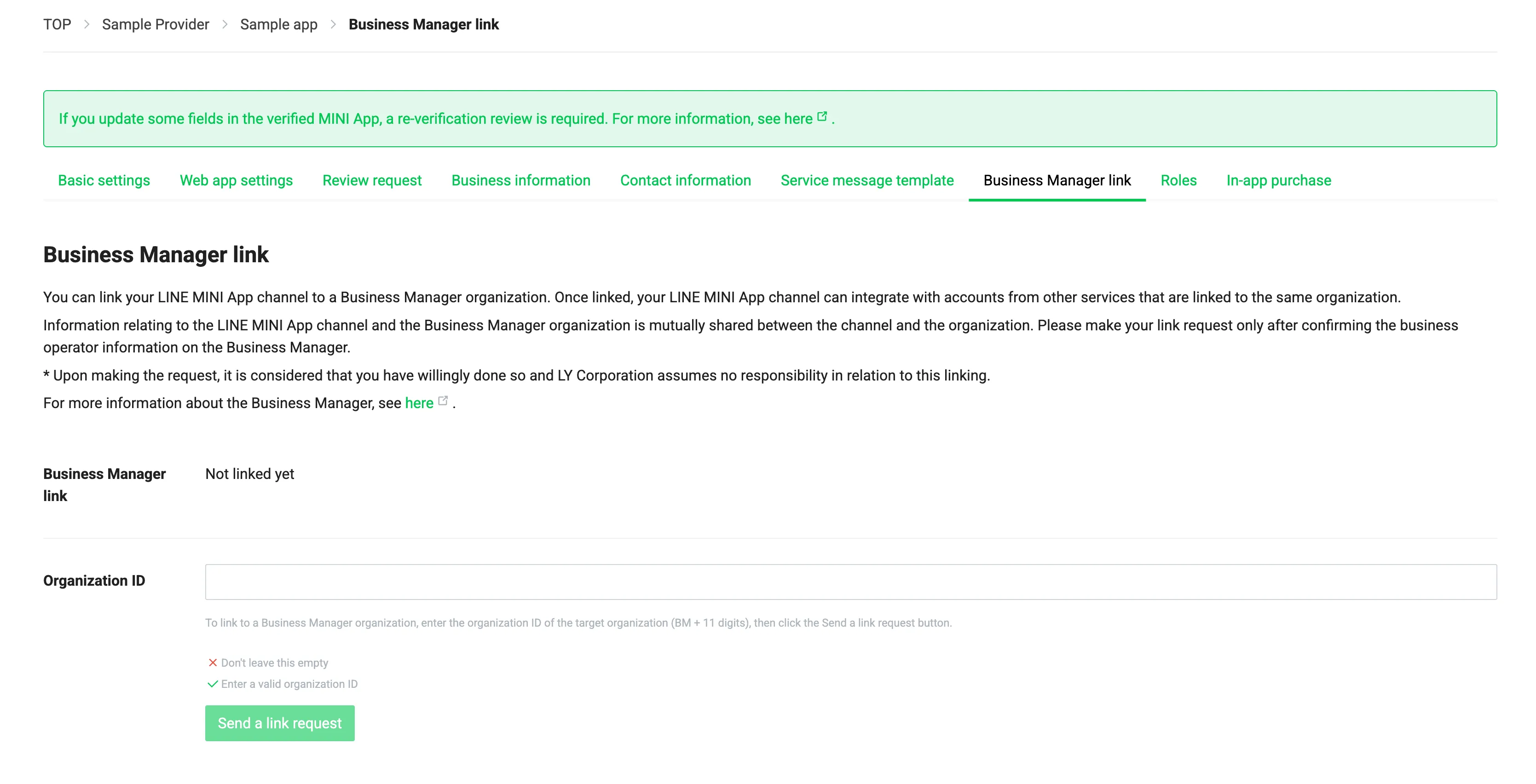
Enter the organization ID of the organization you want to link to (BM followed by 11 digits) in Organization ID, and then click Send a link request.
Ask the organization administrator for the organization ID of the Business Manager organization (BM followed by 11 digits). If you also have access to the organization, you can find the organization ID in the Business Manager header.

2. A developer sends the link request URL to the Business Manager organization administrator
After sending a link request, a link request URL is displayed on the Business Manager link tab.
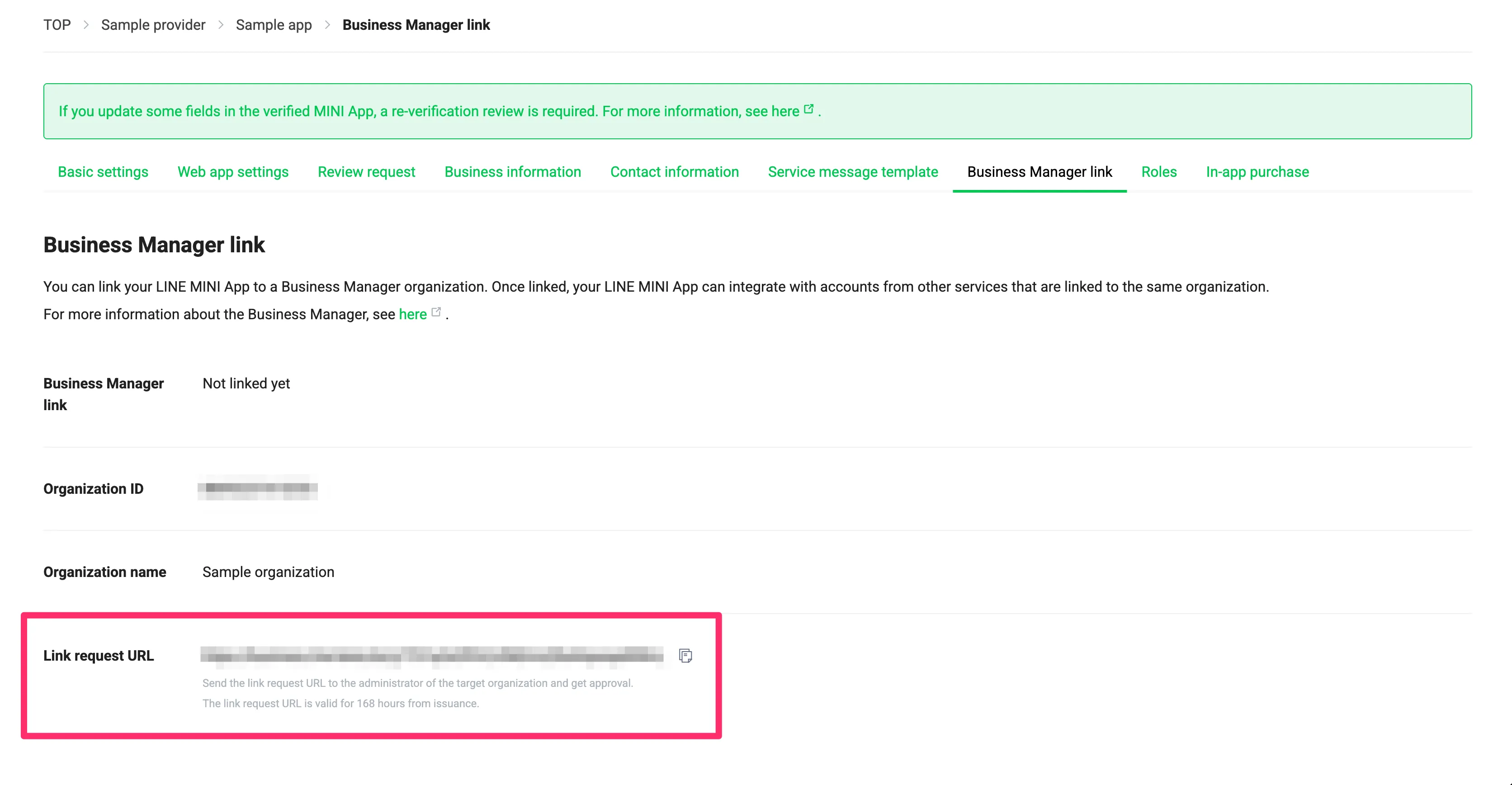
The link request URL is a Business Manager URL. When the Business Manager organization administrator opens the URL and approves the request, the LINE MINI App channel is linked to the Business Manager organization.
Send the link request URL to the Business Manager organization administrator and ask them to approve the request. If the developer is also the Business Manager organization administrator, the link request URL isn't displayed and the request is approved automatically.
The link request URL is valid for 7 days (168 hours) after it is issued. If the URL expires, click Send a link request to send the request again.
3. The Business Manager organization administrator approves the request
When the Business Manager organization administrator opens the link request URL, the request approval screen is displayed.
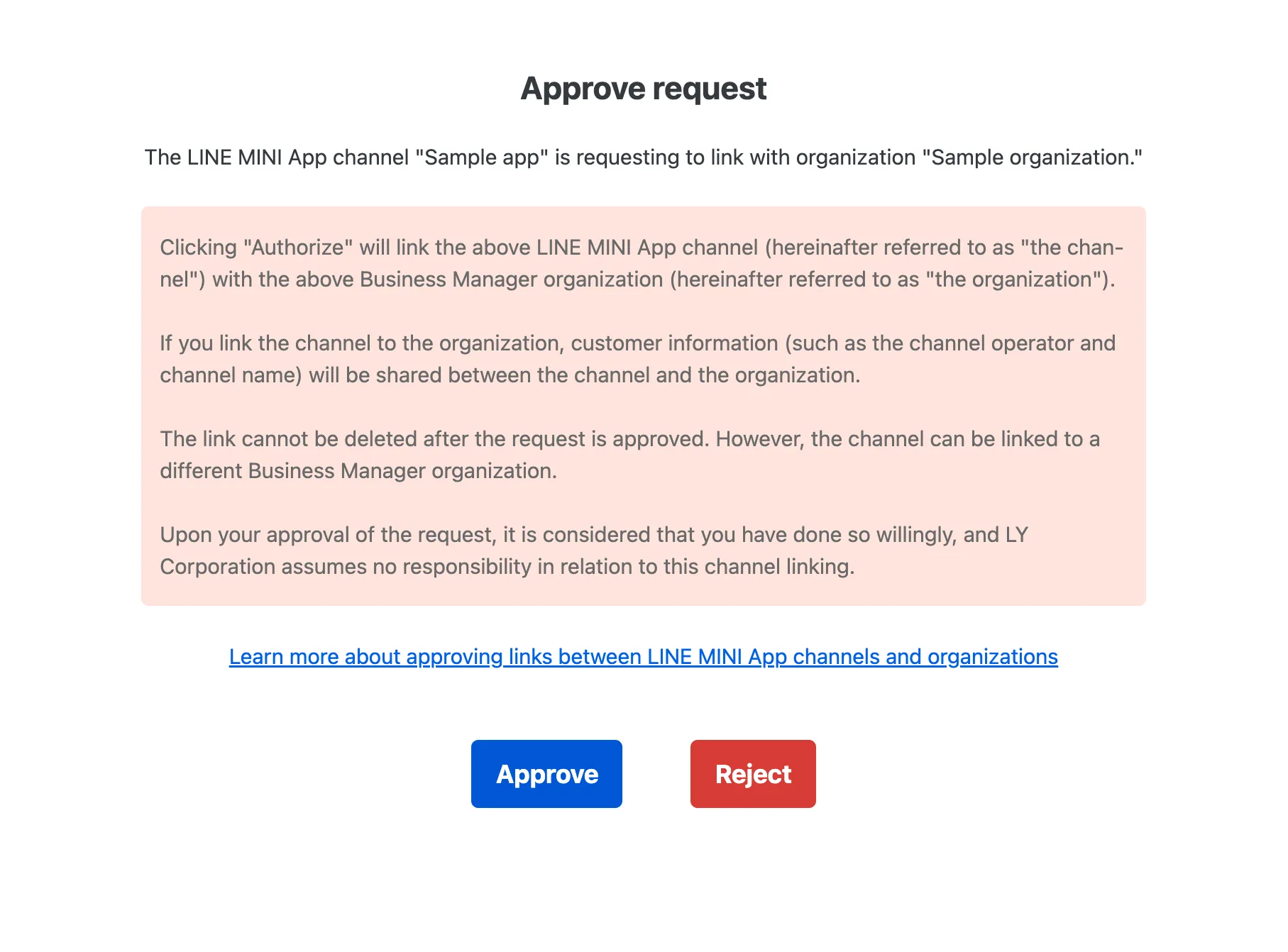
Confirm that the LINE MINI App channel and organization are correct, review the precautions, and then click Approve.
Account linking review
When a LINE MINI App channel is linked to a Business Manager organization, an account linking review is conducted to verify that the owners of the channel and the organization are the same.
Once the account linking review is completed and the status becomes verified, you can integrate with accounts of other services linked to the same organization.
Requirements for starting an account linking review
To start an account linking review, all of the following conditions must be met:
- The LINE MINI App channel is linked to a Business Manager organization.
- The Business Manager organization is verified.
For more information about the Business Manager organization verification review, see 03. Organization verification review (only available in Japanese) in LY for Business and When does the Business Manager review start, what does it review, and how long does it take? (only available in Japanese) in LINE for Business.
If the requirements for starting the organization verification review are met when the LINE MINI App channel is linked to a Business Manager organization, the organization verification review and the account linking review are conducted at the same time.
Exceptions to the requirements for starting an account linking review
Even if the Business Manager organization linked to the LINE MINI App channel isn't verified and doesn't meet the requirements for starting the organization verification review, the account linking review may be conducted and rejected if any of the following conditions apply:
- The business information of the LINE MINI App channel doesn't match the business info of the Business Manager organization.
For more information, see If the account linking review is rejected.
Account linking review status
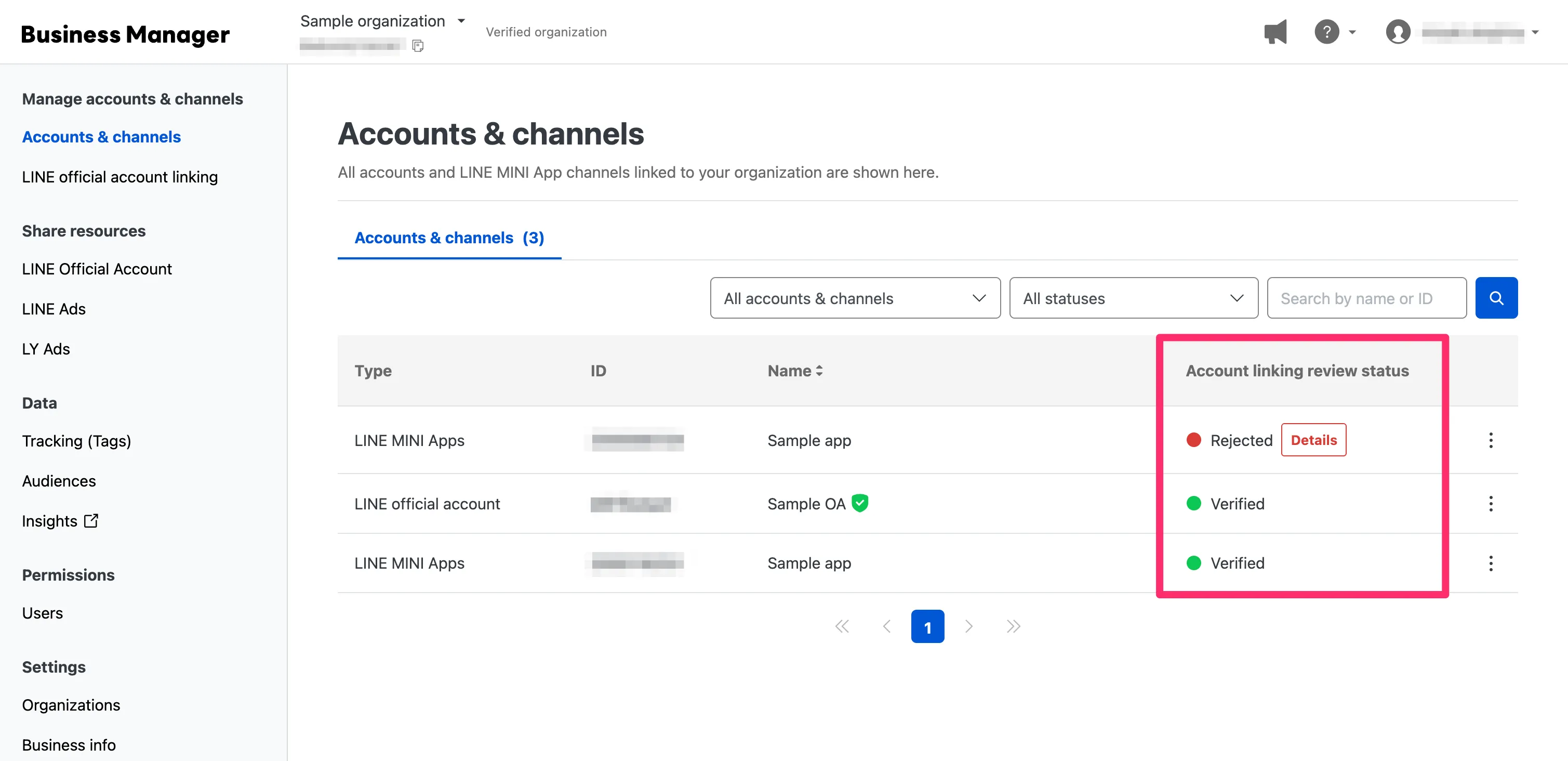
Account linking review statuses are as follows:
| Status | Description |
|---|---|
| Unverified | The requirements for starting an account linking review aren't met. The account linking review starts once the organization verification review is completed and the organization becomes verified. |
| Verified | The account linking review has been completed. |
| Rejected | The account linking review was rejected. For more information, see If the account linking review is rejected. |
How to check the account linking review status
You can check the account linking review status in either the LINE Developers Console or the Business Manager.
In the LINE Developers Console, you can check the status in the "Business Manager link" section on the Business Manager link tab of the LINE MINI App channel.
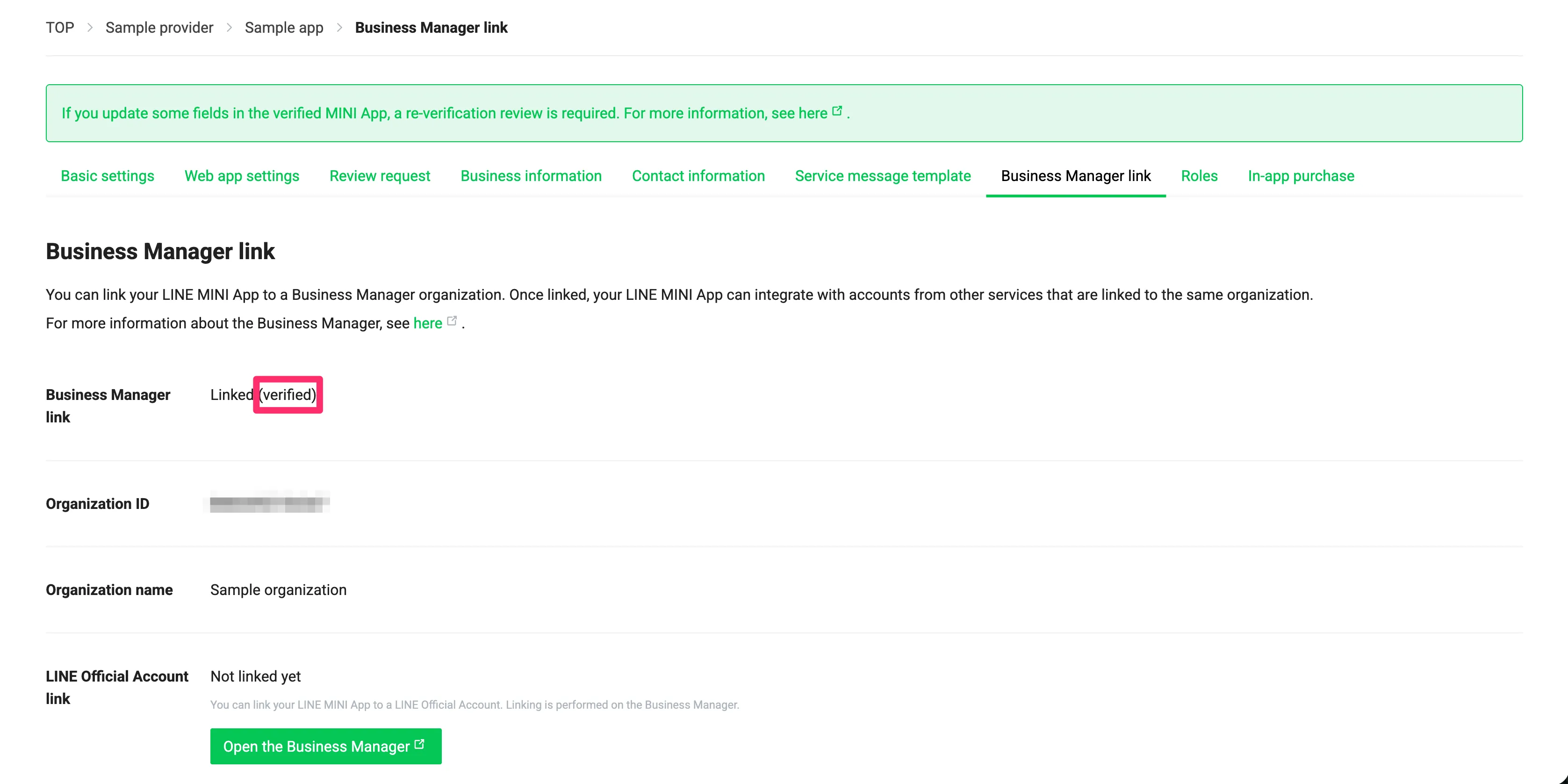
In the Business Manager, you can check the status in "Account linking review status" on the "Accounts & channels" screen.
If the account linking review is rejected
If the account linking review is rejected, possible reasons include the following:
- The business information of the LINE MINI App channel doesn't match the business info of the Business Manager organization.
Check the business information of the LINE MINI App channel and the business info of the Business Manager organization, and then take the appropriate action for your situation.
- If the business information of the LINE MINI App channel is incorrect
- If the business info of the Business Manager organization is incorrect
- If the LINE MINI App channel is linked to the wrong Business Manager organization
If the business information of the LINE MINI App channel is incorrect
Update the business information of the LINE MINI App channel with the correct information. Updating the business information requires a re-review of the LINE MINI App. For more information, see Re-review after updating your verified MINI App.
After the re-review of the LINE MINI App is completed and the updates have been applied to the LINE MINI App channel for Published, request an account linking review resubmission.
If the business info of the Business Manager organization is incorrect
If the Business Manager organization is unverified
If the Business Manager organization is unverified, update the organization's business info with the correct information and complete the organization verification review. For more information about the Business Manager organization verification review, see 03. Organization verification review (only available in Japanese) in LY for Business and When does the Business Manager review start, what does it review, and how long does it take? (only available in Japanese) in LINE for Business.
After the organization verification review is completed, request an account linking review resubmission.
If the Business Manager organization is verified
If the Business Manager organization is verified, you can't change the business info. Create a new organization and transfer the LINE MINI App channel to it. For more information, see Can I transfer a linked account or channel to another organization? (only available in Japanese) in LINE for Business.
After the organization is transferred, the account linking review starts if the destination organization meets the requirements for starting an account linking review.
If the LINE MINI App channel is linked to the wrong Business Manager organization
Transfer the LINE MINI App channel to the correct Business Manager organization. For more information, see Can I transfer a linked account or channel to another organization? (only available in Japanese) in LINE for Business.
After the organization is transferred, the account linking review starts if the destination organization meets the requirements for starting an account linking review.
Account linking review resubmission
Requirements for starting an account linking review resubmission
To start an account linking review resubmission, the Business Manager organization linked to the LINE MINI App channel must be verified. If the account linking review was rejected because it fell under the exceptions to the requirements for starting an account linking review, complete the organization verification review before requesting an account linking review resubmission.
How to request an account linking review resubmission
An account linking review resubmission must be requested by the Business Manager organization administrator. The process is as follows:
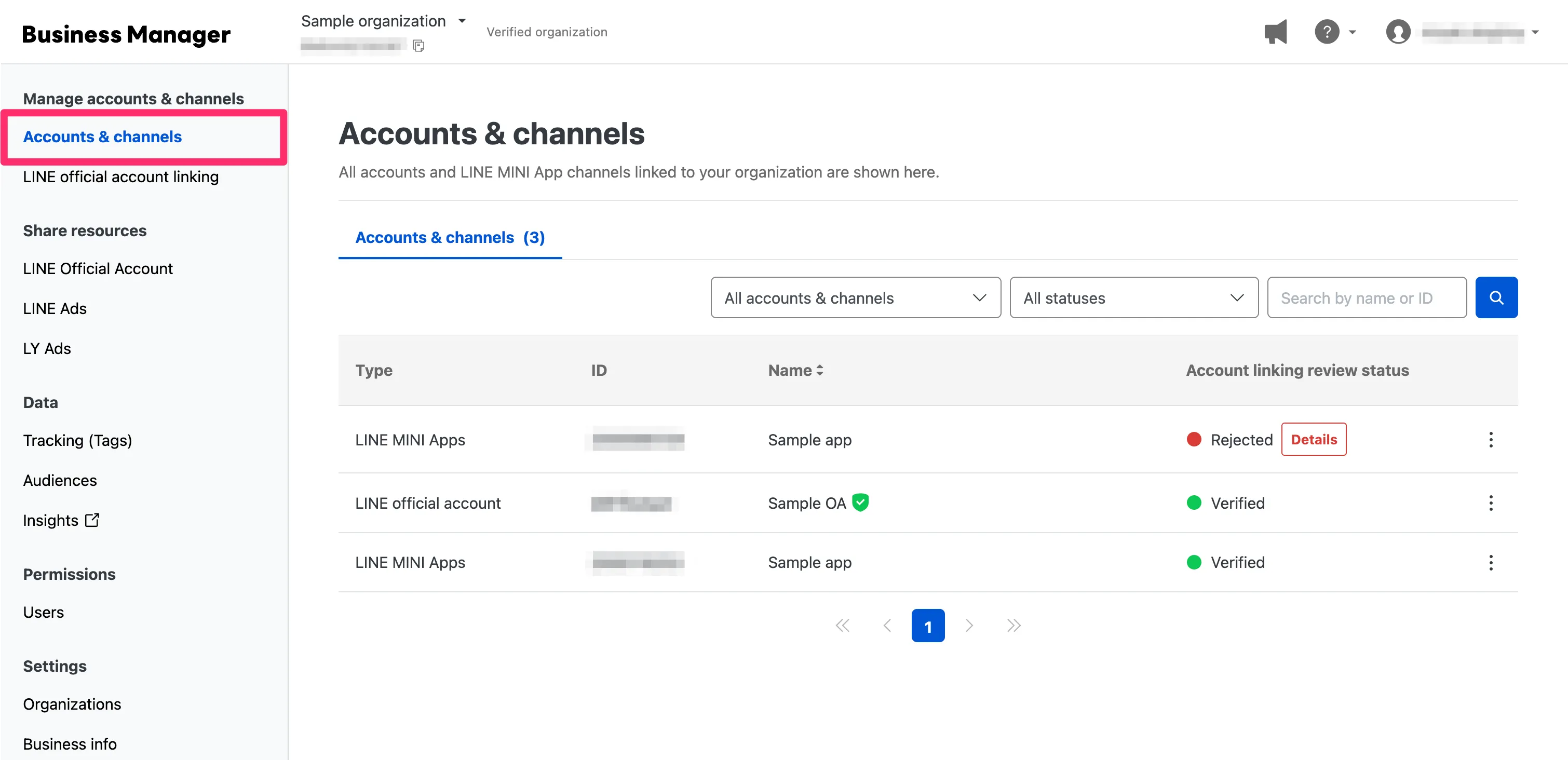
- In the Business Manager menu, click Accounts & channels to open the "Accounts & channels" screen.
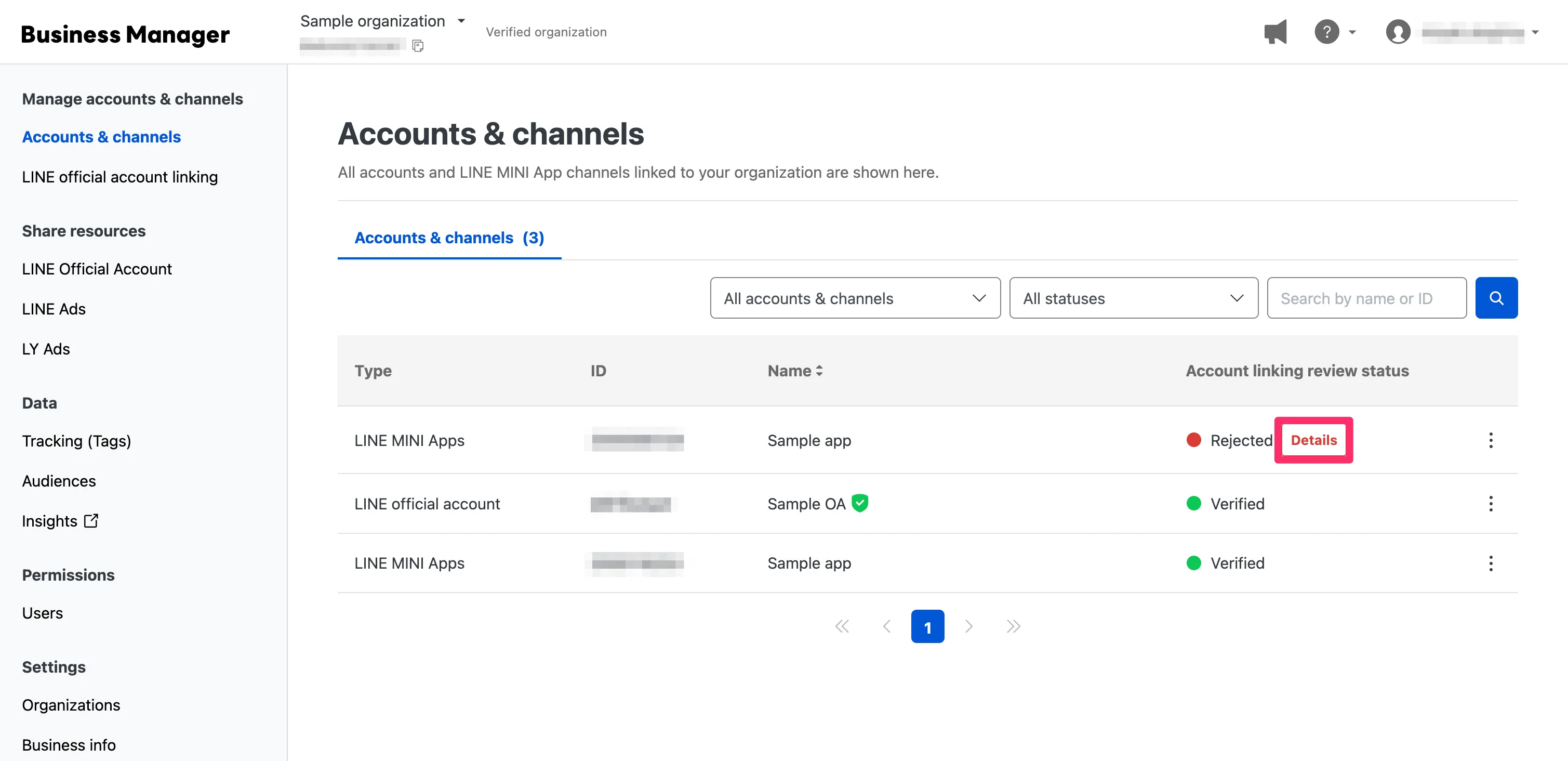
- Click Details for the LINE MINI App channel for which you want to request an account linking review resubmission.
- Click Resubmit request.
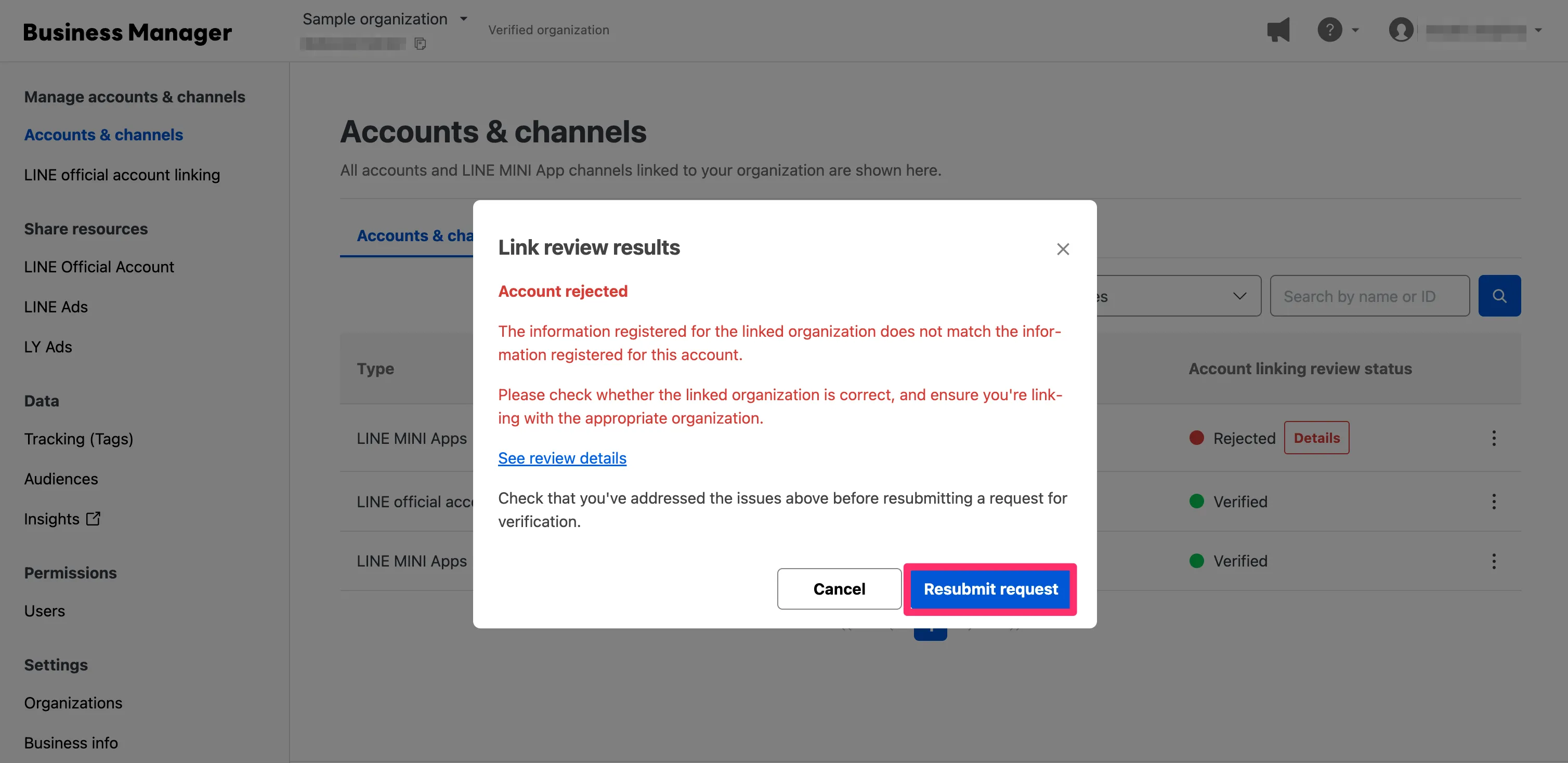
When you request a resubmission, the account linking review starts again.
Link a LINE MINI App channel to a LINE Official Account
You can link a LINE MINI App channel to a LINE Official Account linked to the same Business Manager organization.
Currently, the only supported integration is with LINE Official Accounts. We plan to expand the available features in the future, including the ability to display information about your LINE MINI App on the business profile of a linked LINE Official Account.
Requirements for linking to a LINE Official Account
To link a LINE MINI App channel to a LINE Official Account, all of the following conditions must be met:
- The LINE MINI App channel is linked to a Business Manager organization, and the account linking review status is verified.
- The LINE Official Account is linked to a Business Manager organization, and the account linking review status is verified (*).
- The LINE MINI App channel and the LINE Official Account are linked to the same Business Manager organization.
* For more information on how to link a LINE Official Account to a Business Manager organization, see 02. Link an account to an organization (only available in Japanese) in LY for Business.
How to link to a LINE Official Account
Once a LINE MINI App channel is linked to a LINE Official Account, the link can't be removed.
The process for linking a LINE MINI App channel to a LINE Official Account is as follows:
In the following steps, you'll use the Business Manager. These steps must be performed by the Business Manager organization administrator.
1. Select the LINE Official Account to link
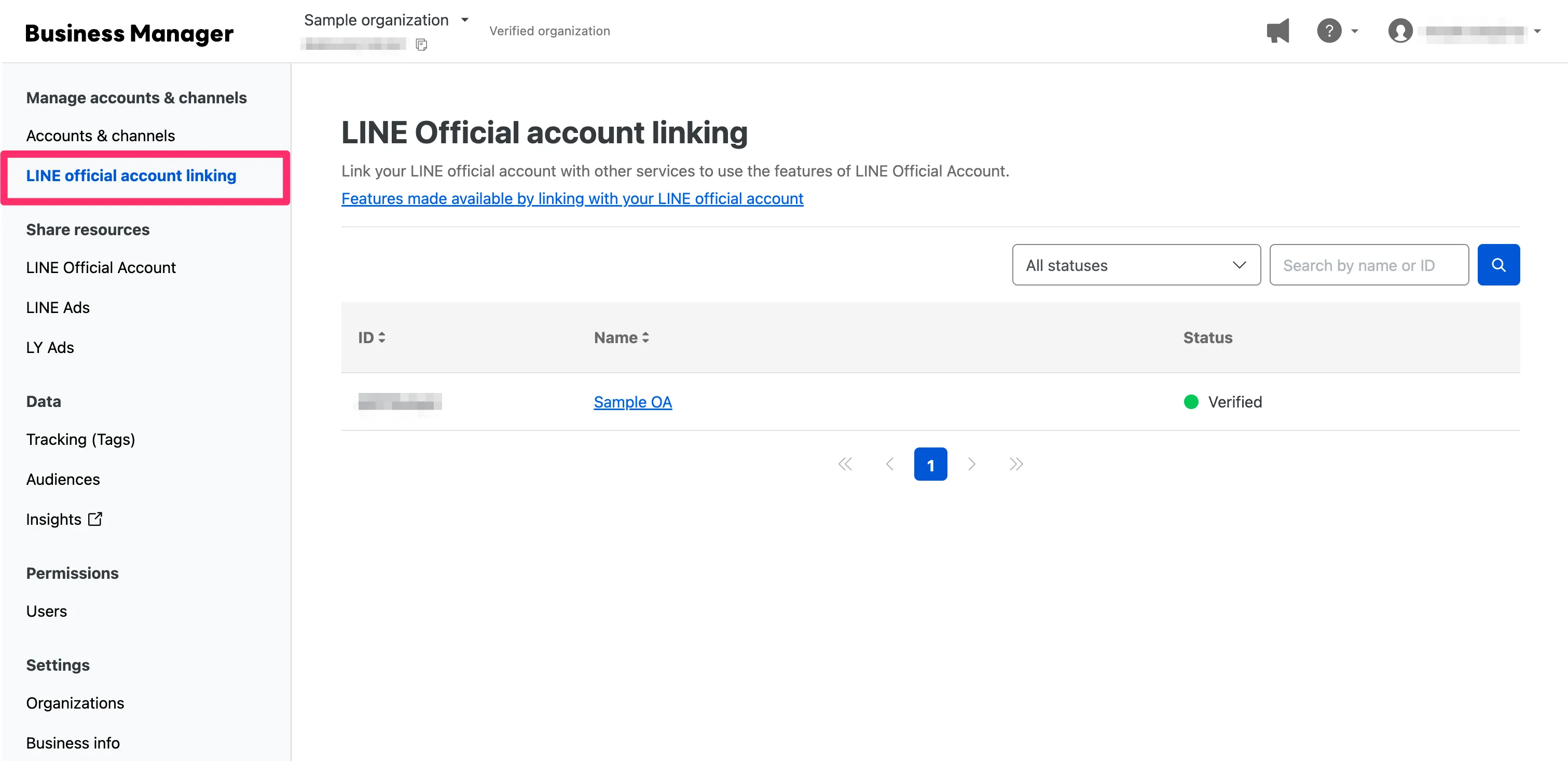
First, select the LINE Official Account to link. In the Business Manager menu, click LINE official account linking to open the "LINE Official account linking" screen.
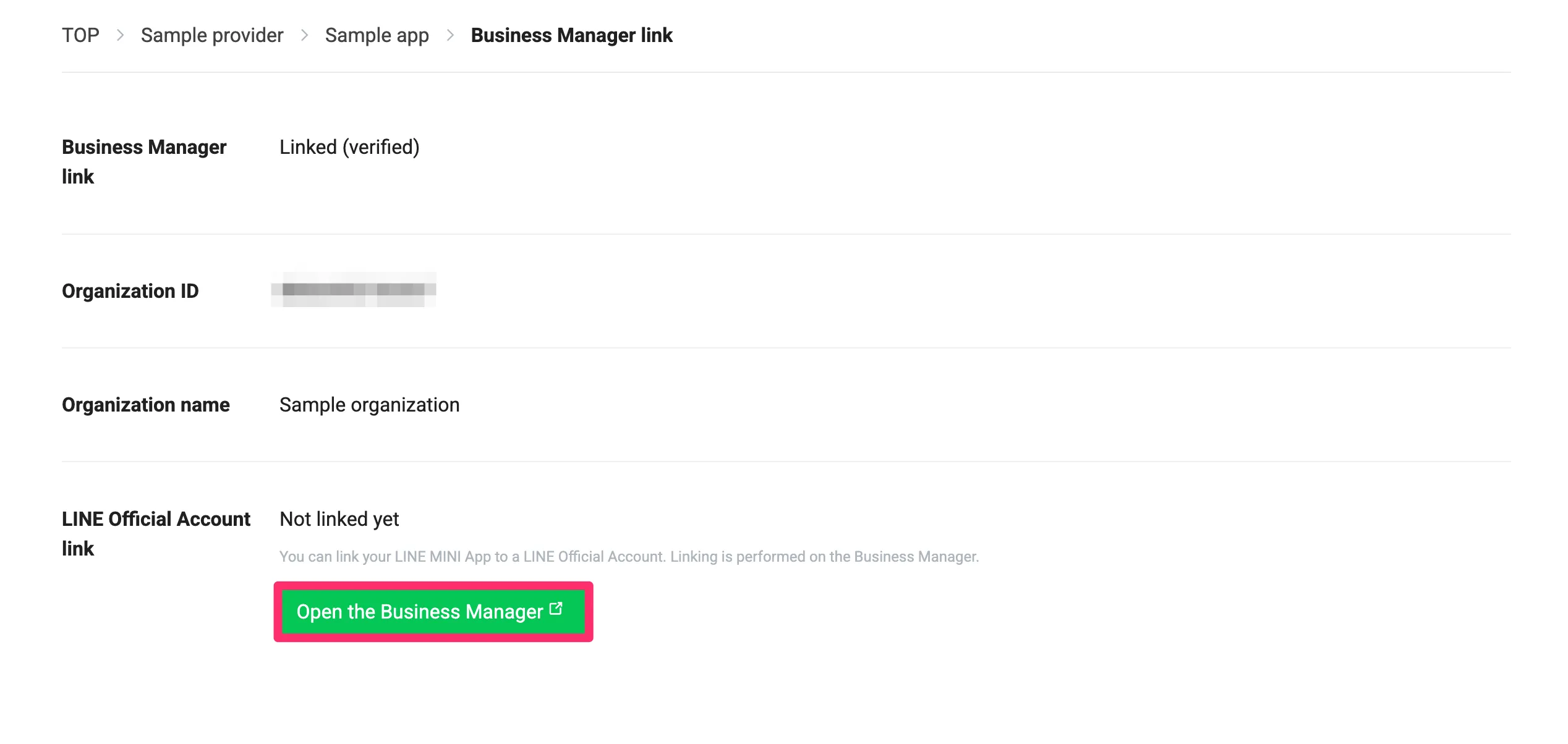
If the developer is also the Business Manager organization administrator, they can open the "LINE Official account linking" screen in the Business Manager from the "LINE Official Account link" section on the Business Manager link tab of the LINE MINI App channel.
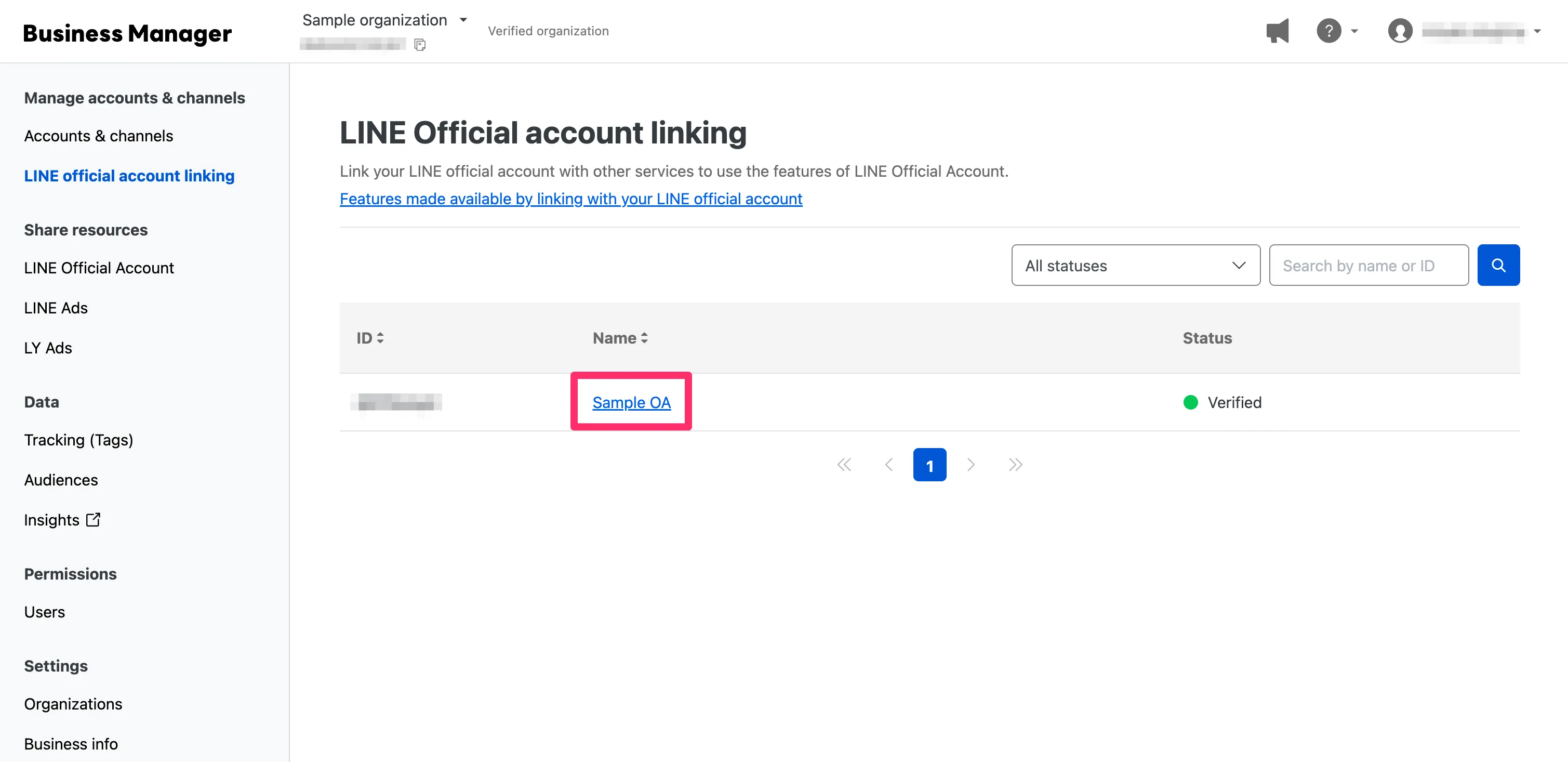
Click the name of the LINE Official Account that you want to link.
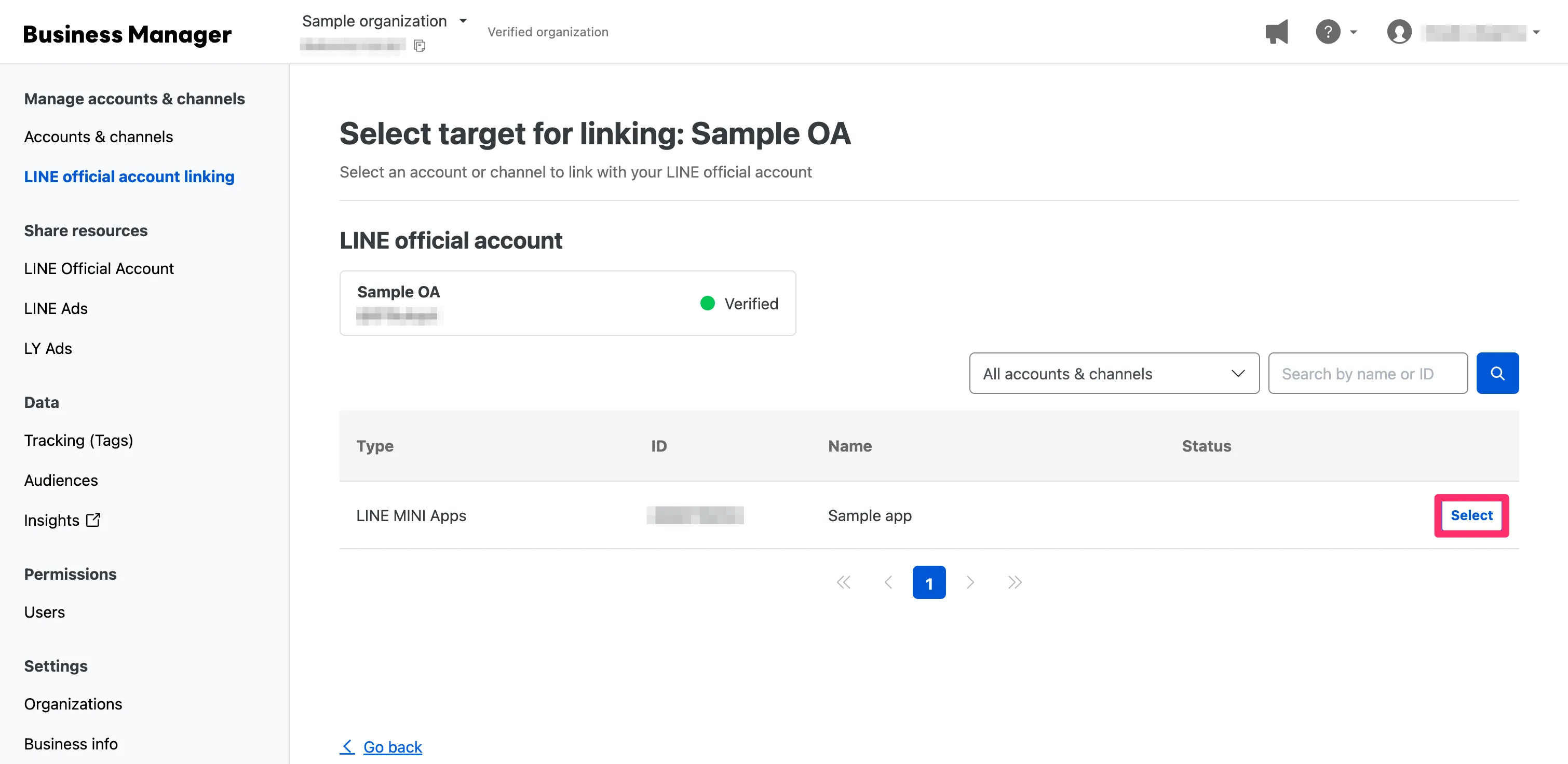
2. Select the LINE MINI App channel to link
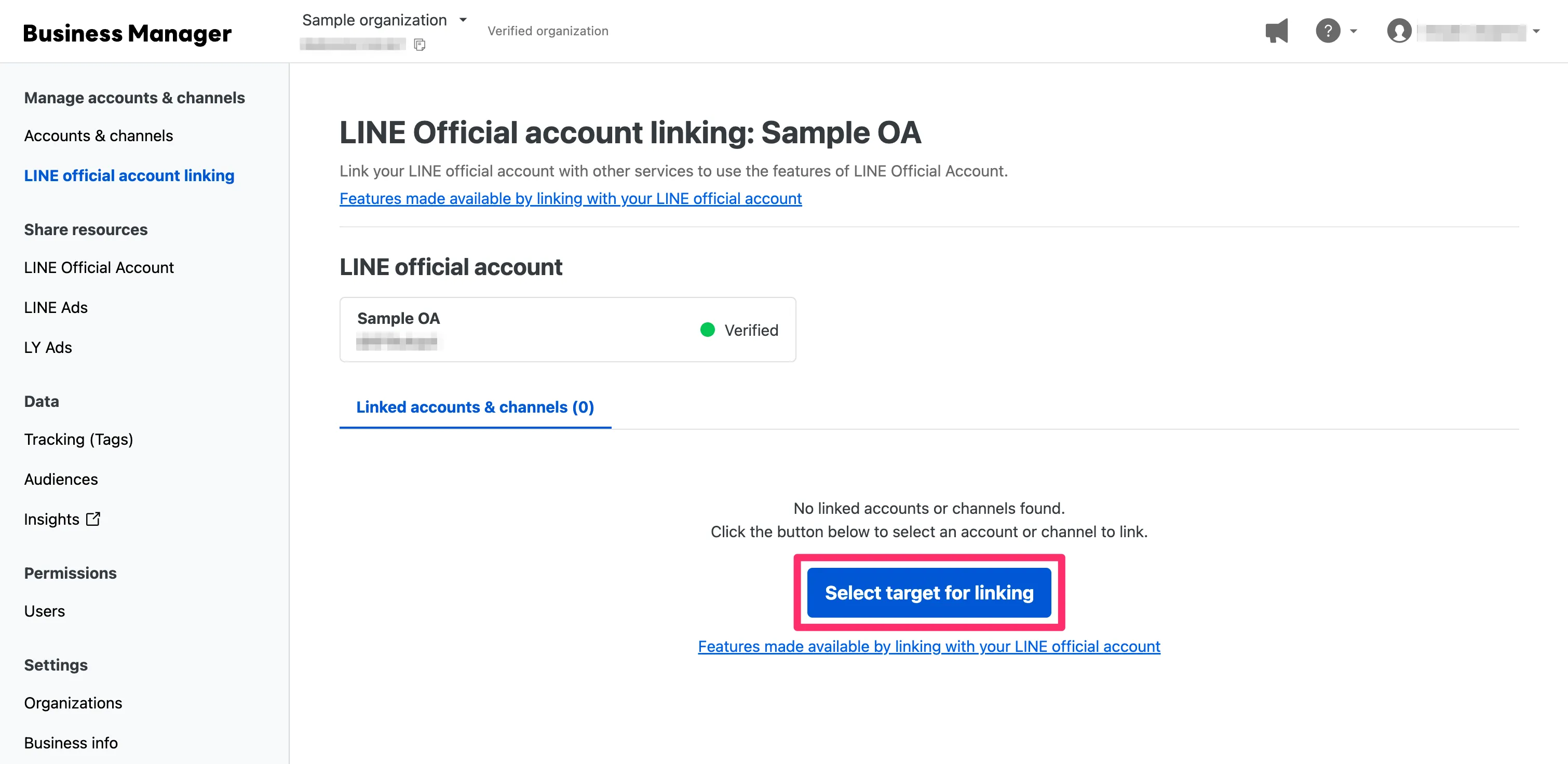
Next, select the LINE MINI App channel to link to the selected LINE Official Account. Click Select target for linking.
A list of accounts and channels linked to the same organization as the selected LINE Official Account is displayed. Click Select for the LINE MINI App channel that you want to link.
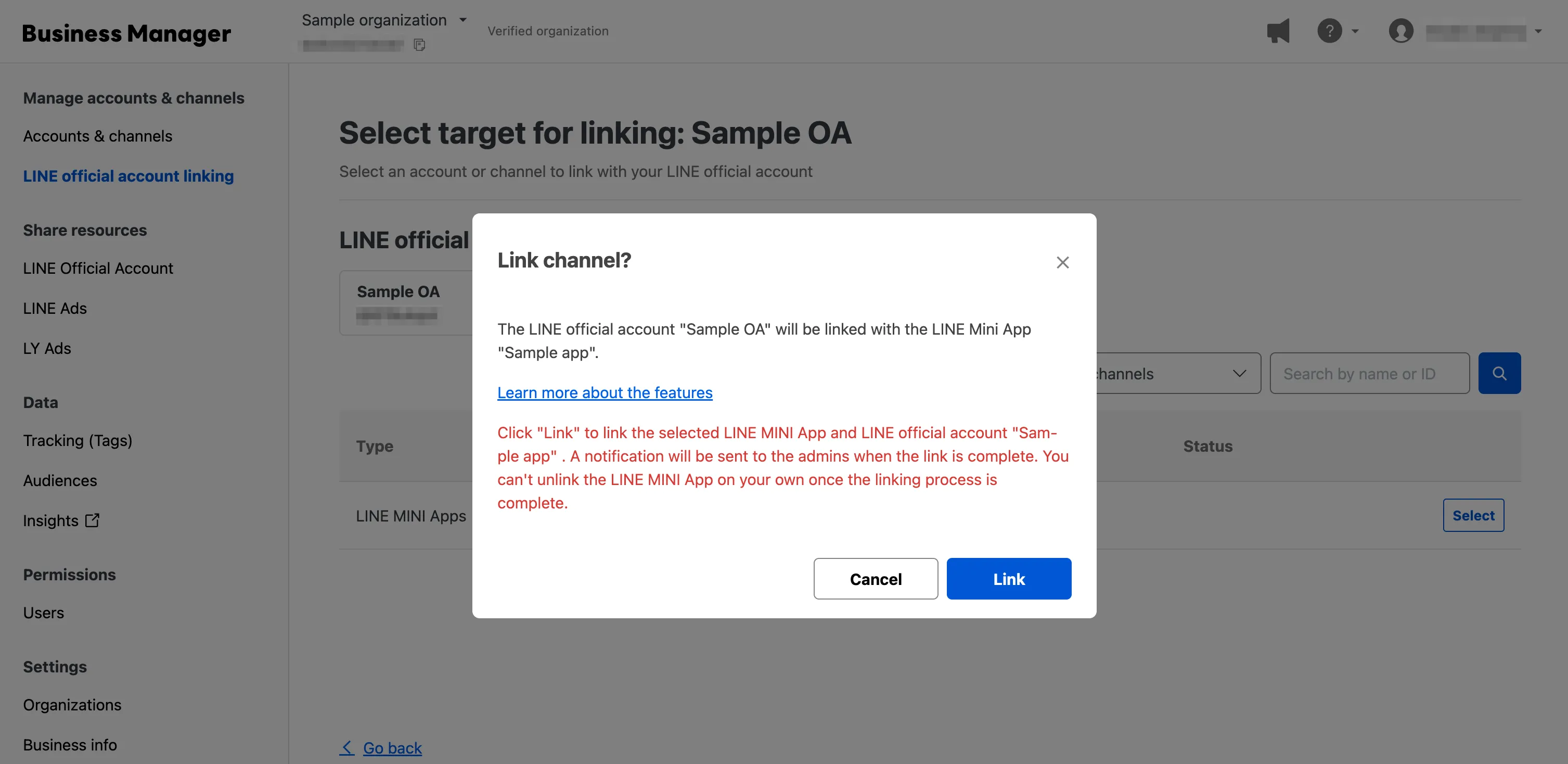
A confirmation screen is displayed. Confirm that the LINE Official Account and the LINE MINI App channel are correct, review the precautions, and then click Link.
Related pages (only available in Japanese)
- Business Manager
- 02. Link an account to an organization
- 03. Organization verification review
- Link other service accounts to a LINE Official Account
- When does the Business Manager review start, what does it review, and how long does it take?
- Can I transfer a linked account or channel to another organization?