

Add a LINE Official Account as a friend in a LINE MINI App (add friend option)
With the add friend option, you can encourage users to add your LINE Official Account as a friend in your LINE MINI App.
What is the add friend option
You can display an option to add your LINE Official Account as a friend on the verification screen or the channel consent screen of your LINE MINI App. This is called the add friend option.
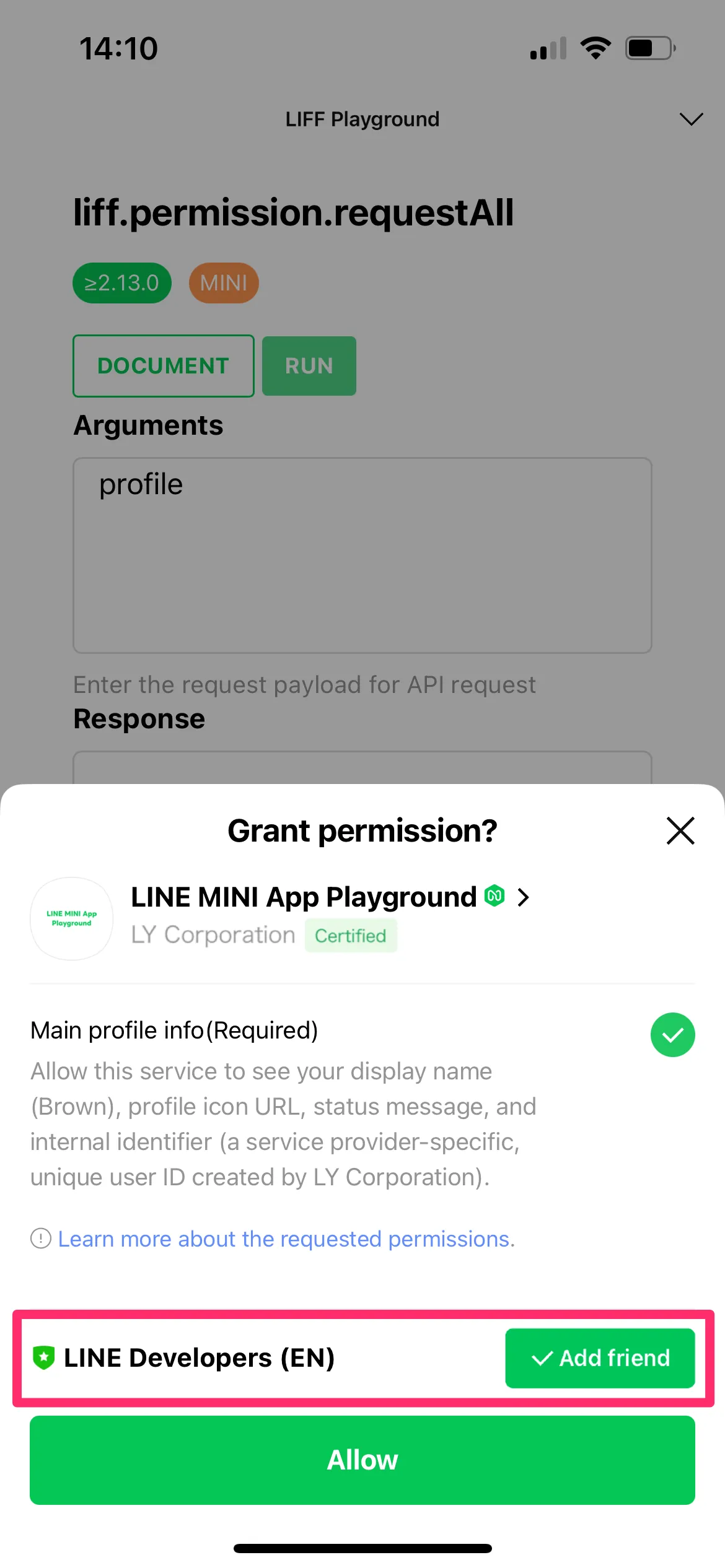
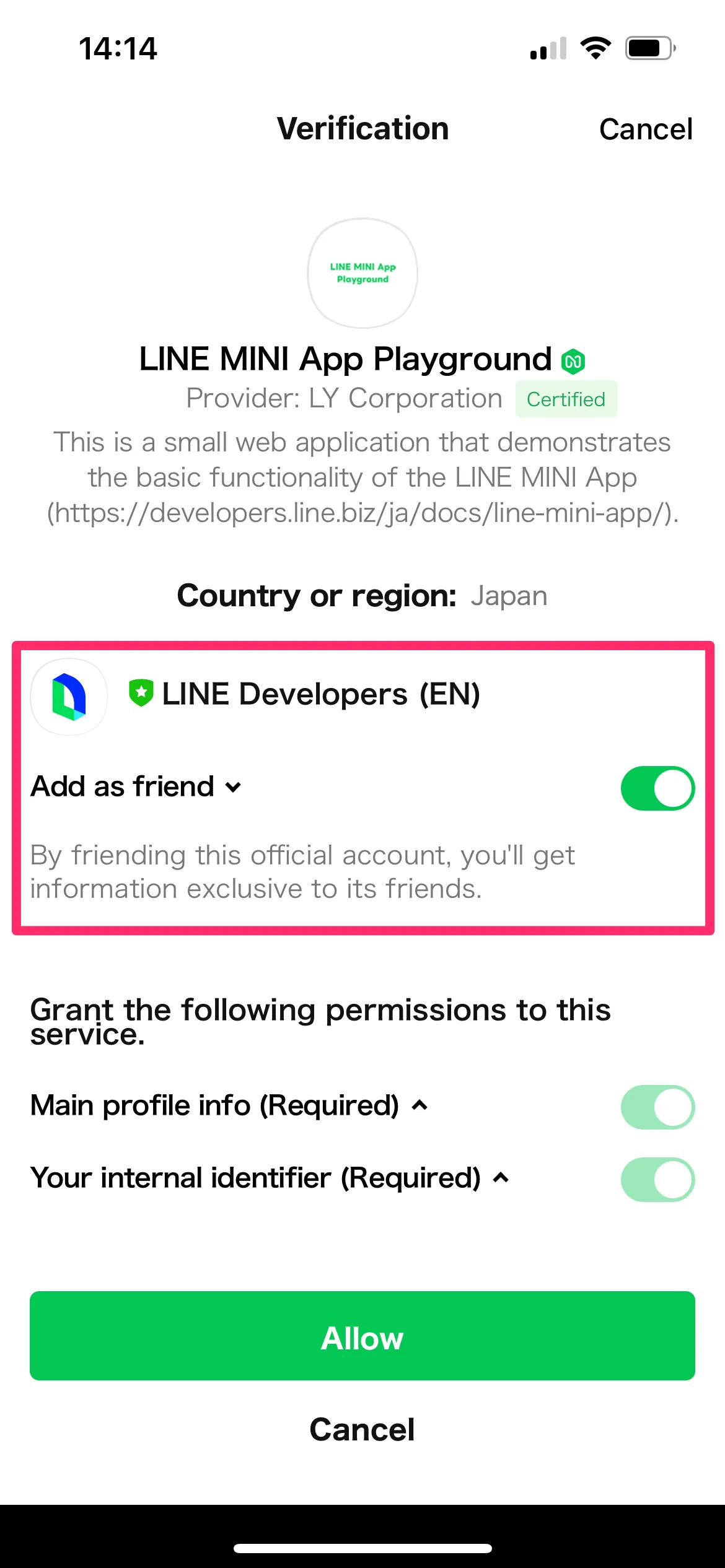
If a LINE MINI App channel belongs to a certified provider, the add friend option on the verification screen and the channel consent screen is enabled by default.
Unless users manually turn off the option, the LINE Official Account specified for the add friend option will be added as a friend when users grant authorization on the verification screen or the channel consent screen.
Requirements for the add friend option
To link a LINE MINI App to a LINE Official Account using the add friend option, all of the following conditions must be met:
- The LINE Official Account uses the Messaging API (*1).
- The Messaging API channel linked to the LINE Official Account and the LINE MINI App channel belong to the same provider.
- The account used to perform the operation has both the Admin role for the LINE MINI App channel (*2) and the Administrator role for the LINE Official Account (*3).
*1 For more information about how to use the Messaging API with a LINE Official Account, see Enable the Messaging API for your LINE Official Account in the Messaging API documentation.
*2 You can check the Admin role for a LINE MINI App channel in the LINE Developers Console.
*3 You can check the Administrator role for a LINE Official Account in the LINE Official Account Manager.
How to set the add friend option
- In the LINE Developers Console, open the Web app settings tab of the LINE MINI App channel.
- Set Add friend option to "On (normal)".
- Open the Basic settings tab.
- In the Default LINE Official Account section, click Edit (*).
- Select the LINE Official Account to link to the LINE MINI App channel, and click Update.
* For LINE MINI App channels in Thailand and Taiwan, click Edit in the Linked LINE Official Account section.
Prompt users to add or unblock a LINE Official Account at any time
You can use the liff.requestFriendship() method to display a subwindow that prompts the user to add or unblock a LINE Official Account at any time.
For more information, see liff.requestFriendship() in the LIFF API reference.
Use multiple LINE Official Accounts with the add friend option
You can also use multiple LINE Official Accounts with the add friend option. With this feature, you can display an appropriate LINE Official Account to add as a friend based on the user's situation, from the LINE Official Accounts added in the allowlist (*) in advance.
For more information about the requirements and usage, see the following sections:
* A list of LINE Official Accounts that can be displayed on the verification screen, channel consent screen, and other screens.
Requirements for using multiple LINE Official Accounts
To use multiple LINE Official Accounts with the add friend option, in addition to the requirements for the add friend option, Region to provide the service for the LINE MINI App channel must be set to "Japan".
How to use multiple LINE Official Accounts
To use multiple LINE Official Accounts with the add friend option, configure and implement the feature as follows:
- Configure the feature to use multiple LINE Official Accounts in the LINE Developers Console
- Switch the LINE Official Account that users are prompted to add as a friend in the LINE MINI App
1. Configure the feature to use multiple LINE Official Accounts in the LINE Developers Console
- In the LINE Developers Console, open the Web app settings tab of the LINE MINI App channel.
- Set Add friend option to "On (normal)".
- Open the Basic settings tab.
- In the Add friend option section, click Use multiple accounts.
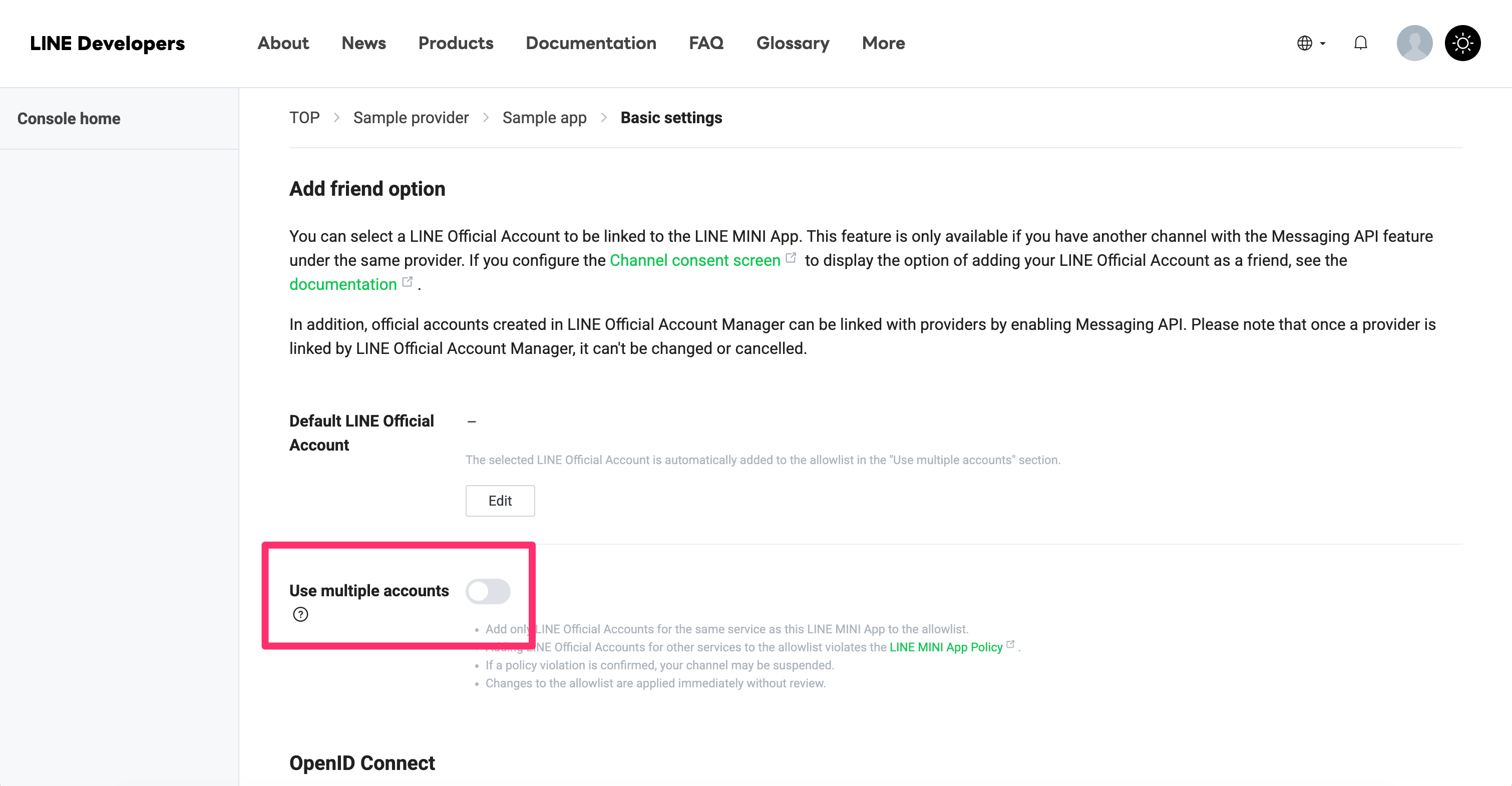
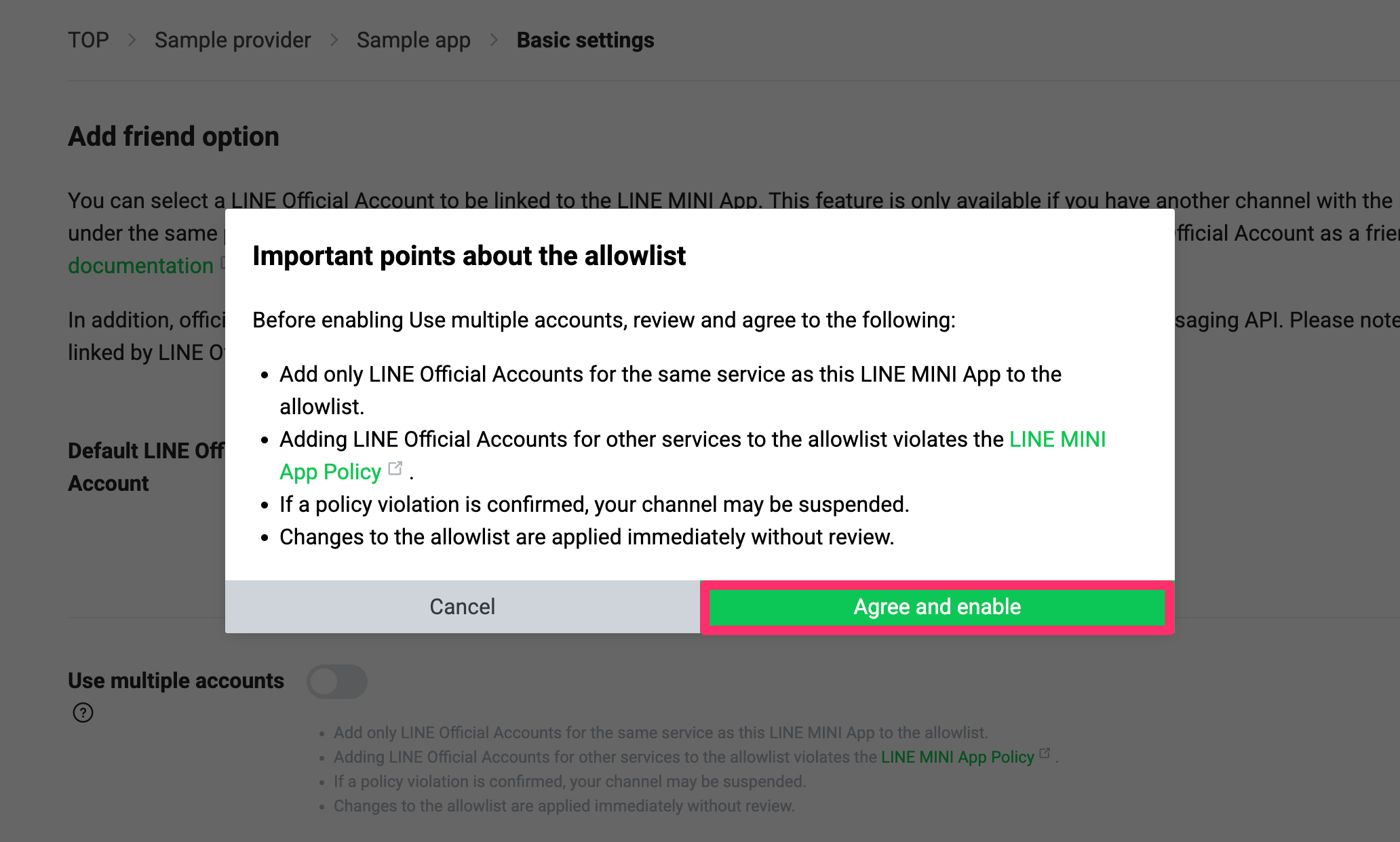
- Important points about the allowlist are displayed. Review the important points, and click Agree and enable.
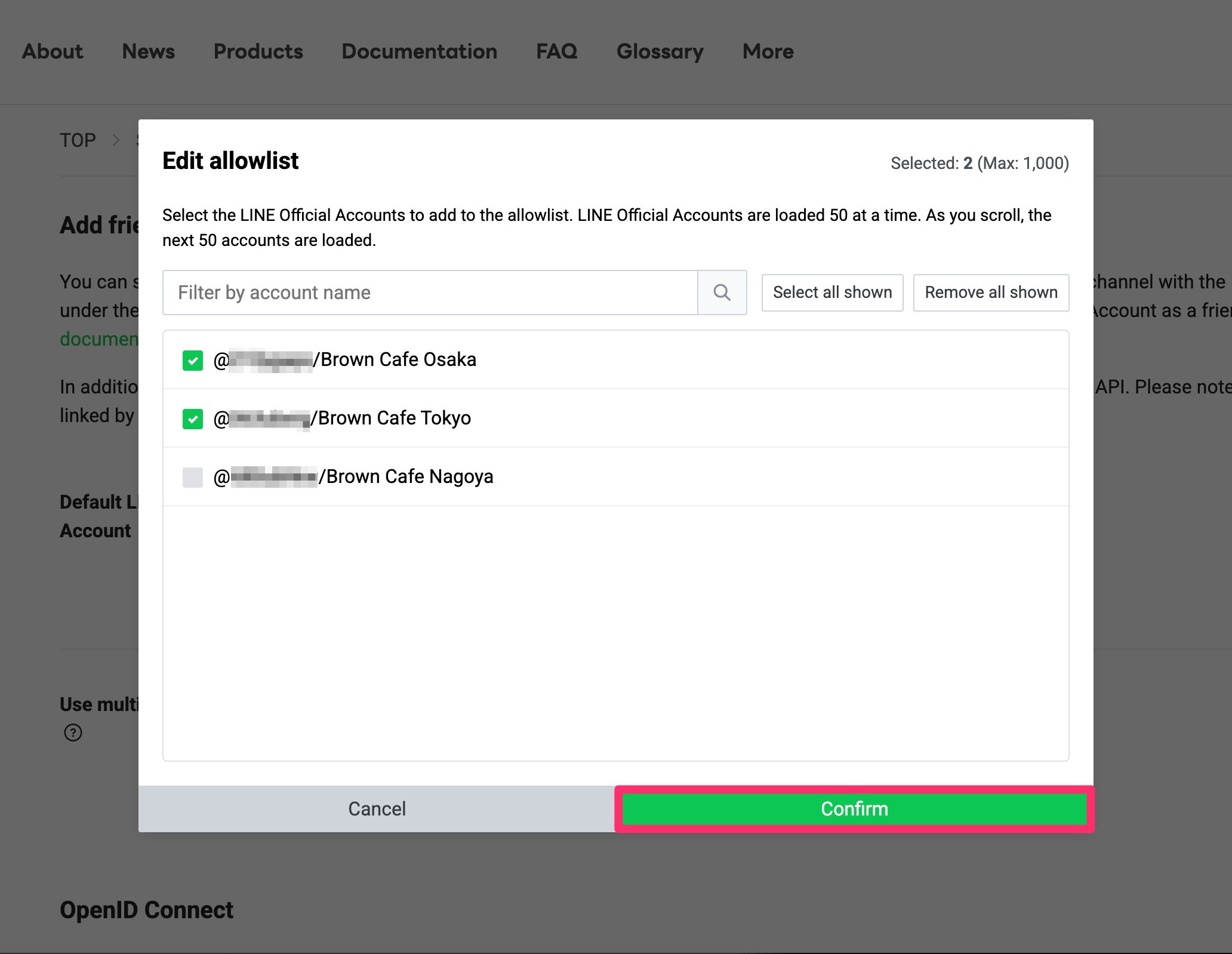
- The allowlist editing screen is displayed. You can add up to 1,000 LINE Official Accounts to the allowlist, including the account set as the Default LINE Official Account. Select the accounts to add to the allowlist, and click Confirm.
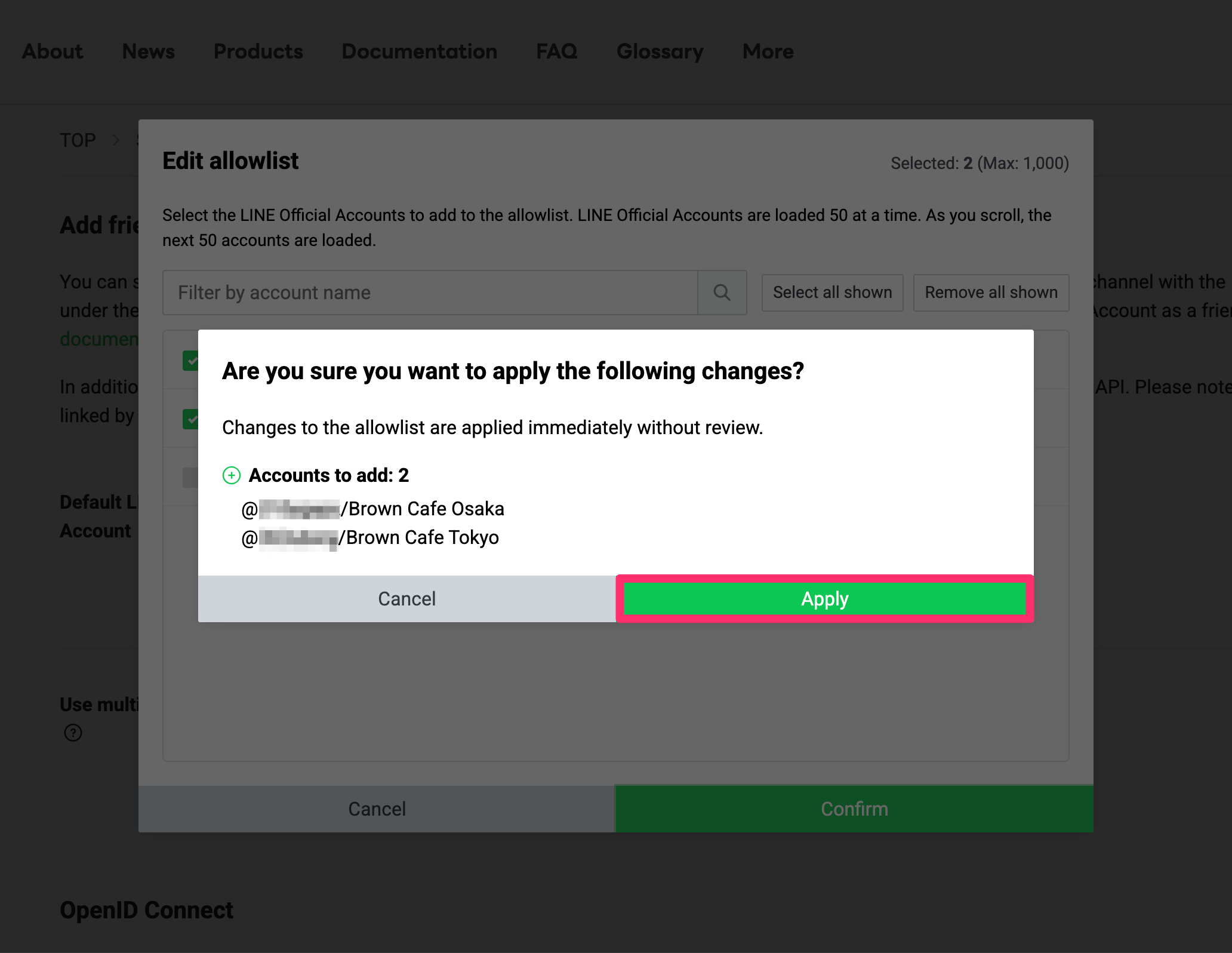
- A confirmation screen is displayed. Make sure the changes are correct, and click Apply.
- Add only LINE Official Accounts for the same service as this LINE MINI App to the allowlist.
- Adding LINE Official Accounts for other services to the allowlist violates the LINE MINI App Policy.
- If a policy violation is confirmed, your channel may be suspended.
- Changes to the allowlist are applied immediately without review.
- If no LINE Official Accounts other than the account set as the Default LINE Official Account are added to the allowlist, Use multiple accounts is automatically disabled.
When using multiple LINE Official Accounts with the add friend option, setting the Default LINE Official Account is optional.
If you set a Default LINE Official Account, it can be displayed as a fallback when the LINE Official Account to display on the verification screen, channel consent screen, or other screen can't be retrieved.
2. Switch the LINE Official Account that users are prompted to add as a friend in the LINE MINI App
- Switch the LINE Official Account displayed on the verification screen
- Switch the LINE Official Account displayed on the channel consent screen
- Switch the LINE Official Account displayed in the subwindow that prompts users to add or unblock the account
Switch the LINE Official Account displayed on the verification screen
To switch the LINE Official Account displayed on the verification screen, specify the officialAccount property in the liff.permission.requestAll() method. LIFF SDK v2.30.0 or later is required to specify the officialAccount property.
For more information, see liff.permission.requestAll() in the LIFF API reference.
The verification screen may also be displayed when you execute a method that requires permissions other than the openid scope. In this case, the LINE Official Account configured as the Default LINE Official Account is displayed. You can’t switch to another LINE Official Account.
Switch the LINE Official Account displayed on the channel consent screen
Due to a technical issue, the feature to switch the LINE Official Account displayed on the channel consent screen is temporarily suspended. For more information, see the news from September 15, 2026.
To switch the LINE Official Account displayed on the channel consent screen, add the prompt_bot_id query parameter to the LIFF URL or permanent link. For the prompt_bot_id query parameter, specify the ID of the LINE Official Account that users are prompted to add as a friend, using its basic ID or premium ID.
Switch the LINE Official Account displayed in the subwindow that prompts users to add or unblock the account
You can use the liff.requestFriendship() method to display a subwindow that prompts the user to add or unblock a LINE Official Account at any time.
To switch the LINE Official Account displayed in the subwindow, specify the officialAccount property in the liff.requestFriendship() method. LIFF SDK v2.30.0 or later is required to specify the officialAccount property.
For more information, see liff.requestFriendship() in the LIFF API reference.
Important points about using the "Channel consent simplification" feature concurrently
If you use the add friend option together with the "Channel consent simplification" feature, the verification screen and the channel consent screen may not be displayed.
For more information, see Important points about using the "Channel consent simplification" feature together with the add friend option.