

Let AI read the documentation on the LINE Developers site: How to use the Markdown display feature
Hi! I’m Okajima, a technical writer in charge of documentation for the LINE Developers site.
On the LINE Developers site, some documentation and references (hereafter collectively referred to as "documentation" below) support display in Markdown format (hereafter referred to as the "Markdown display feature").
On pages that support the Markdown display feature, you’ll see the Copy for LLM and View as Markdown buttons below the page title. By clicking these buttons, you can copy or view the page content in Markdown format.

By combining this feature with AI, you can use the documentation on the LINE Developers site as a primary source for AI.
As one example, this article shows how to upload the documentation in Markdown format to Google NotebookLM and use NotebookLM as an AI research assistant.
What is NotebookLM
NotebookLM is an AI service designed specifically for research. You can add files, websites, and text as sources, and it generates answers and content based only on those sources.
Example of using the Markdown display feature with NotebookLM
In this example, we’ll use the documentation from the "Discover LINE MINI App" category of the LINE MINI App documentation and walk through the process from downloading Markdown files to asking questions in NotebookLM.
1. Download the Markdown files
Download the Markdown files for the following pages. Open each page and click the View as Markdown button below the title.
- Introducing LINE MINI App
- LINE Developers Console Guide for LINE MINI App
- Specifications
- Built-in features
- Custom Features
- LINE MINI App UI Components

Once index.html.md is displayed, save the page content as a file. You can keep the filename as index.html.md, but renaming it to match the page path, such as introduction.md, makes it easier to identify in NotebookLM.
2. Create a notebook
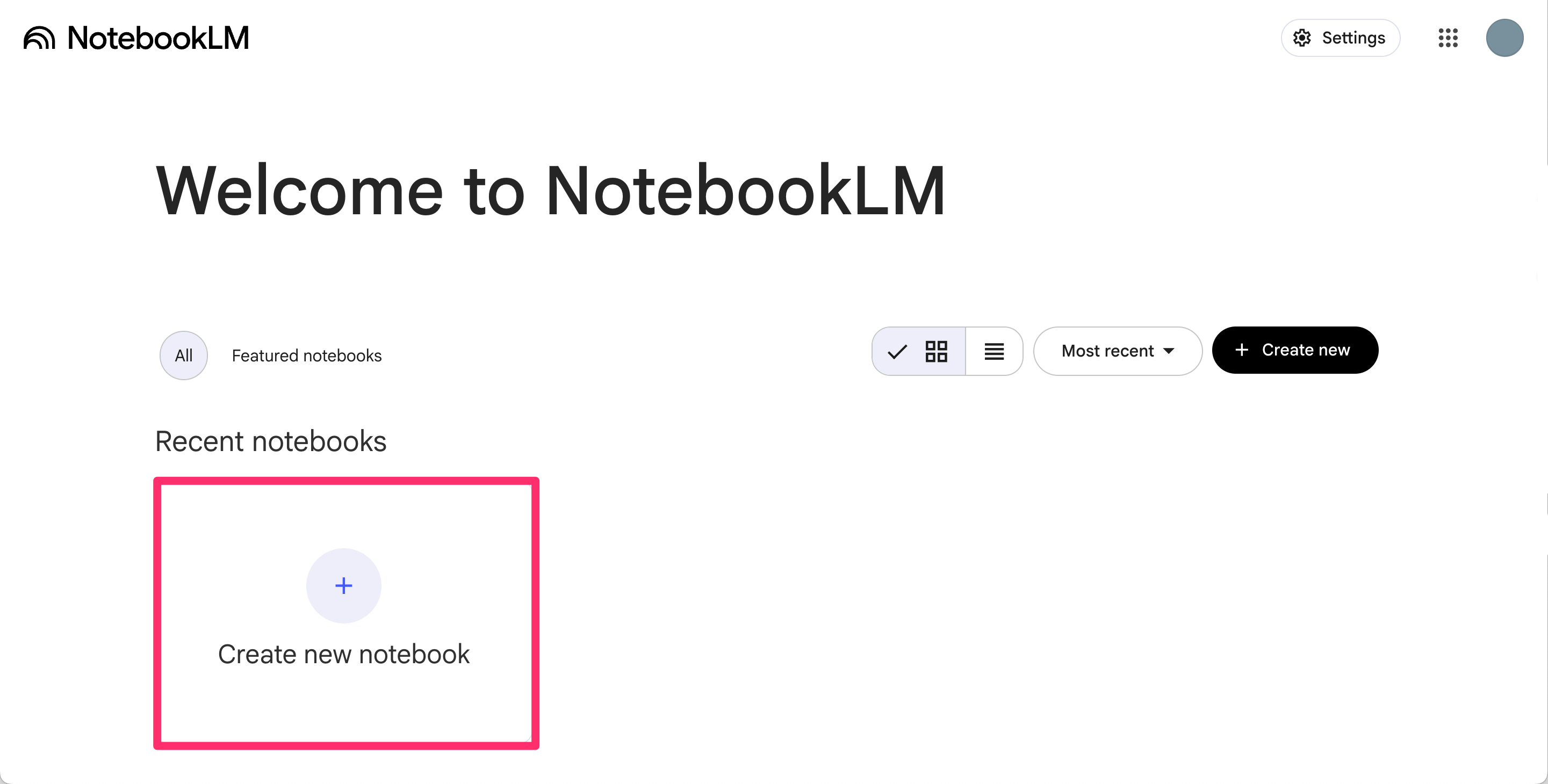
Go to NotebookLM and click Create new notebook.
3. Add the Markdown files to the notebook
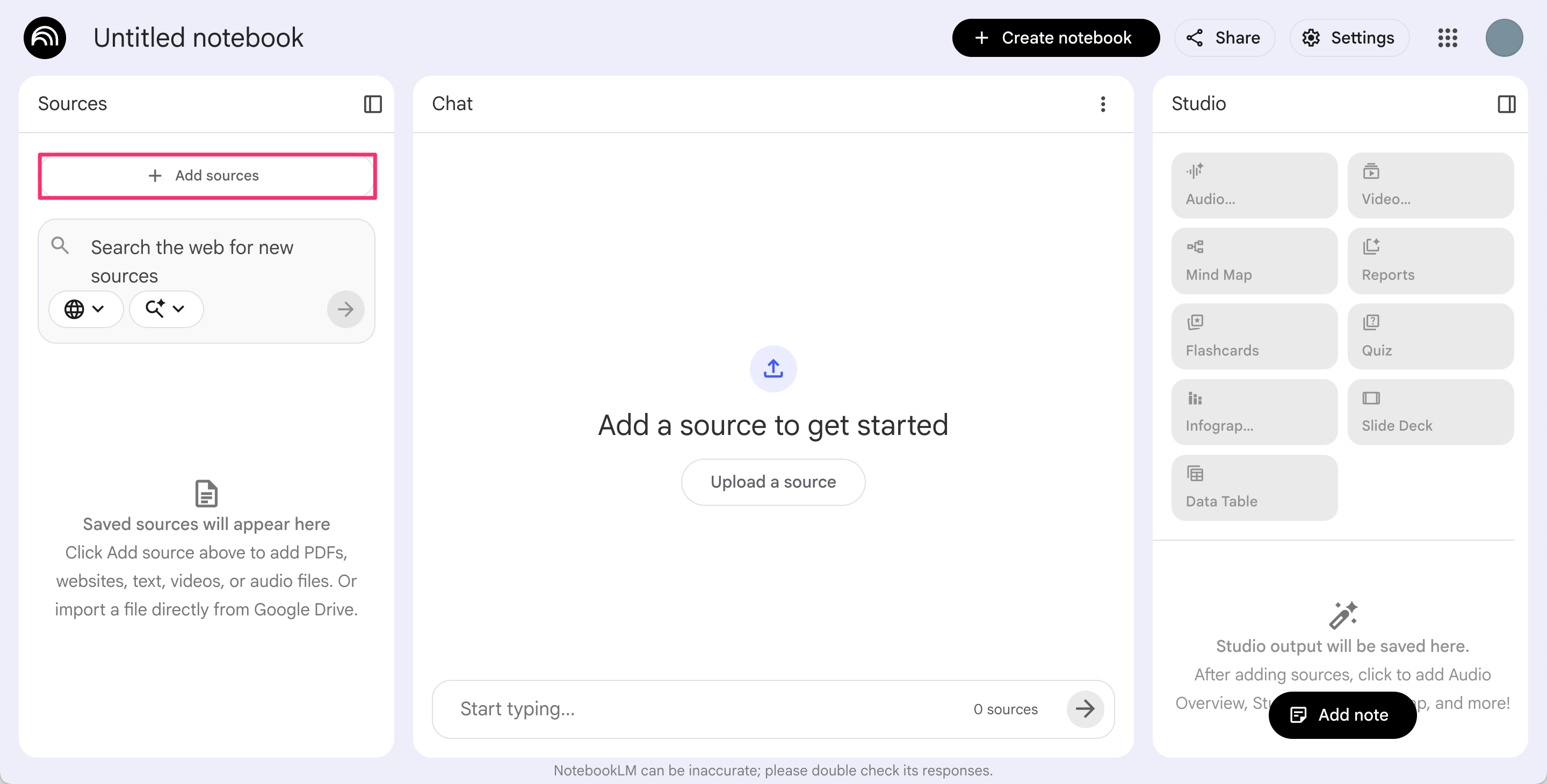
Add the Markdown files as sources in your notebook. In the "Sources" panel, click the Add sources button and upload the Markdown files.
4. Ask a question
After adding the Markdown files as sources, try asking a question about the LINE MINI App in the "Chat" panel.
For example, if you ask, "What are the main differences between LINE MINI Apps and regular LIFF apps?", NotebookLM will generate an answer based on the documentation for the LINE MINI App you added as sources.
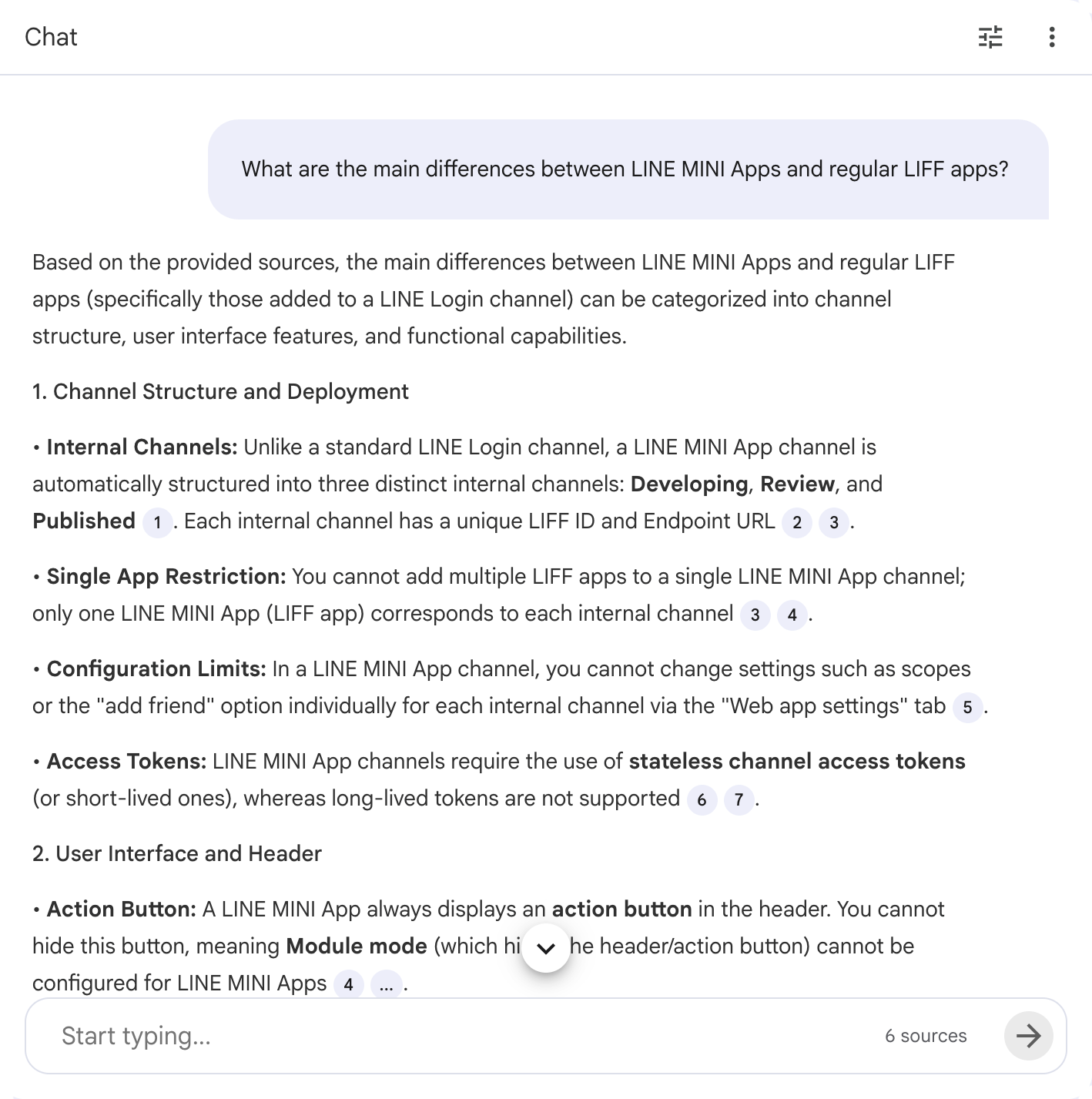
Based on the provided sources, the main differences between LINE MINI Apps and regular LIFF apps (specifically those added to a LINE Login channel) can be categorized into channel structure, user interface features, and functional capabilities.

### 1. Channel Structure and Deployment

- **Internal Channels:** Unlike a standard LINE Login channel, a LINE MINI App channel is automatically structured into three distinct internal channels: **Developing**, **Review**, and **Published**. Each internal channel has a unique LIFF ID and Endpoint URL.
- **Single App Restriction:** You cannot add multiple LIFF apps to a single LINE MINI App channel; only one LINE MINI App (LIFF app) corresponds to each internal channel.
- **Configuration Limits:** In a LINE MINI App channel, you cannot change settings such as scopes or the "add friend" option individually for each internal channel via the "Web app settings" tab.
- **Access Tokens:** LINE MINI App channels require the use of **stateless channel access tokens** (or short-lived ones), whereas long-lived tokens are not supported.

### 2. User Interface and Header

- **Action Button:** A LINE MINI App always displays an **action button** in the header. You cannot hide this button, meaning **Module mode** (which hides the header/action button) cannot be configured for LINE MINI Apps.
- **Header Content:** The header includes specific subtext logic. For "Developing" and "Review" versions, the domain is displayed. for "Published" versions, it displays the domain (if unverified) or the App Name and a verified badge (if verified).
- **Multi-tab/Options:** Tapping the action button opens a multi-tab view or options menu (depending on the LINE version) containing features like Share, Refresh, and Add to Home.

### 3. Unique Functional Features

LINE MINI Apps include specific features aimed at service engagement and retention that are not standard in basic LIFF apps:

- **Channel Consent Simplification:** Users only need to agree to the channel consent screen once. Subsequent access to _other_ LINE MINI Apps will skip this screen.
- **Service Messages:** Verified LINE MINI Apps can send notification messages (Service Messages) to users regarding reservations or service confirmations.
- **Home Screen Shortcuts:** Users can create a shortcut icon for a Verified LINE MINI App directly on their device's home screen.
- **Discovery:** Verified LINE MINI Apps can appear in the "Recently used services" list on the LINE Home tab and are searchable within LINE.

### 4. Future Integration

It is noted that in the future, LIFF and LINE MINI App will be integrated into a single brand, with LIFF being absorbed into LINE MINI App. Therefore, it is currently recommended to create new LIFF apps as LINE MINI Apps.
In this way, simply by telling NotebookLM what information you’re looking for, it will refer to the documentation and generate an answer on your behalf. NotebookLM also shows the sources for its answers, making it easy to verify whether the response is accurate and free from hallucinations.
Wrap-up
In this article, I introduced one example of using the Markdown display feature together with AI: uploading Markdown files from the documentation on the LINE Developers site to NotebookLM and using NotebookLM as an AI research assistant.
Beyond this example, you can also use NotebookLM’s Audio Overview and Video Overview features to quickly catch up on new documentation, or leverage it for onboarding new team members.
We encourage you to try the Markdown display feature on the LINE Developers site and explore new ways to make the most of the documentation.