

Let AI read the documentation on the LINE Developers site: How to use the Markdown display feature
Hi! I’m Okajima, a technical writer in charge of documentation for the LINE Developers site.
On the LINE Developers site, some documentation and references (hereafter collectively referred to as "documentation" below) support display in Markdown format (hereafter referred to as the "Markdown display feature").
On pages that support the Markdown display feature, you’ll see the Copy for LLM and View as Markdown buttons below the page title. By clicking these buttons, you can copy or view the page content in Markdown format.

By combining this feature with AI, you can use the documentation on the LINE Developers site as a primary source for AI.
As one example, this article shows how to upload the documentation in Markdown format to Google NotebookLM and use NotebookLM as an AI research assistant.
What is NotebookLM
NotebookLM is an AI service designed specifically for research. You can add files, websites, and text as sources, and it generates answers and content based only on those sources.
Example of using the Markdown display feature with NotebookLM
In this example, we’ll use the documentation from the "Discover LINE MINI App" category of the LINE MINI App documentation and walk through the process from downloading Markdown files to asking questions in NotebookLM.
1. Download the Markdown files
Download the Markdown files for the following pages. Open each page and click the View as Markdown button below the title.
- Introducing LINE MINI App
- LINE Developers Console Guide for LINE MINI App
- LINE MINI App specifications
- Built-in features
- Custom features
- LINE MINI App UI components

Once index.html.md is displayed, save the page content as a file. You can keep the filename as index.html.md, but renaming it to match the page path, such as introduction.md, makes it easier to identify in NotebookLM.
2. Create a notebook
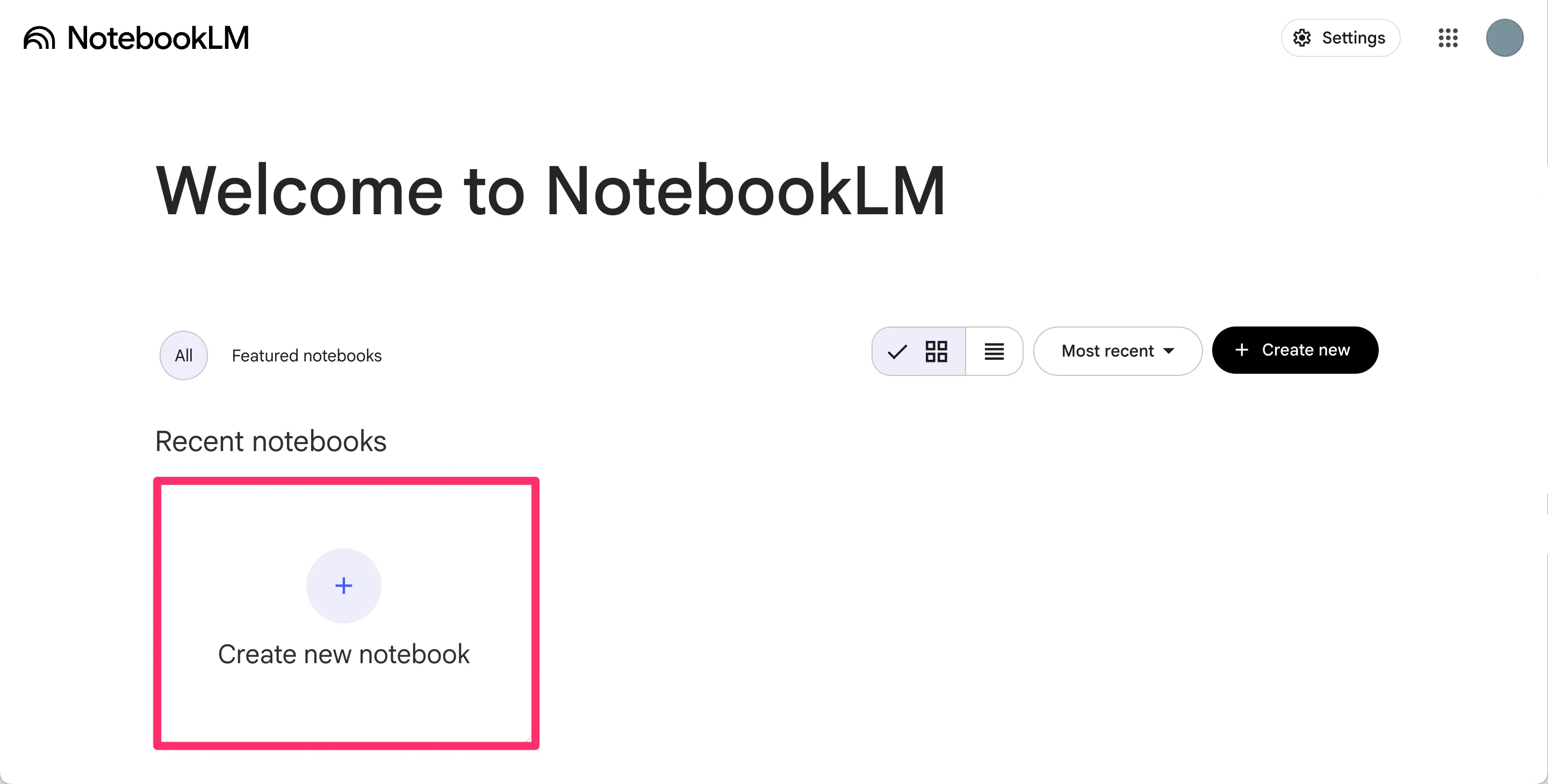
Go to NotebookLM and click Create new notebook.
3. Add the Markdown files to the notebook
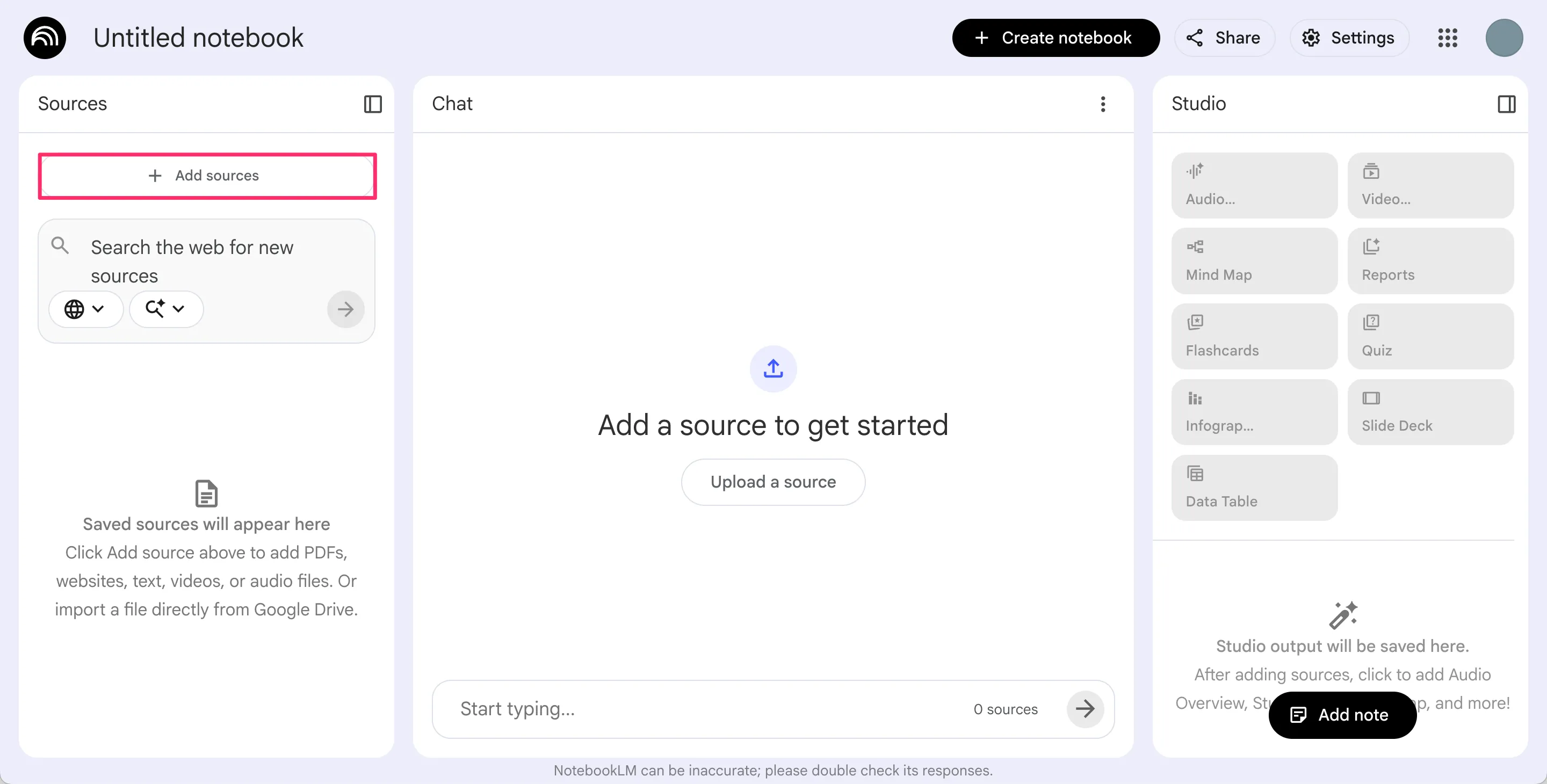
Add the Markdown files as sources in your notebook. In the "Sources" panel, click the Add sources button and upload the Markdown files.
4. Ask a question
After adding the Markdown files as sources, try asking a question about the LINE MINI App in the "Chat" panel.
For example, if you ask, "What are the main differences between LINE MINI Apps and regular LIFF apps?", NotebookLM will generate an answer based on the documentation for the LINE MINI App you added as sources.
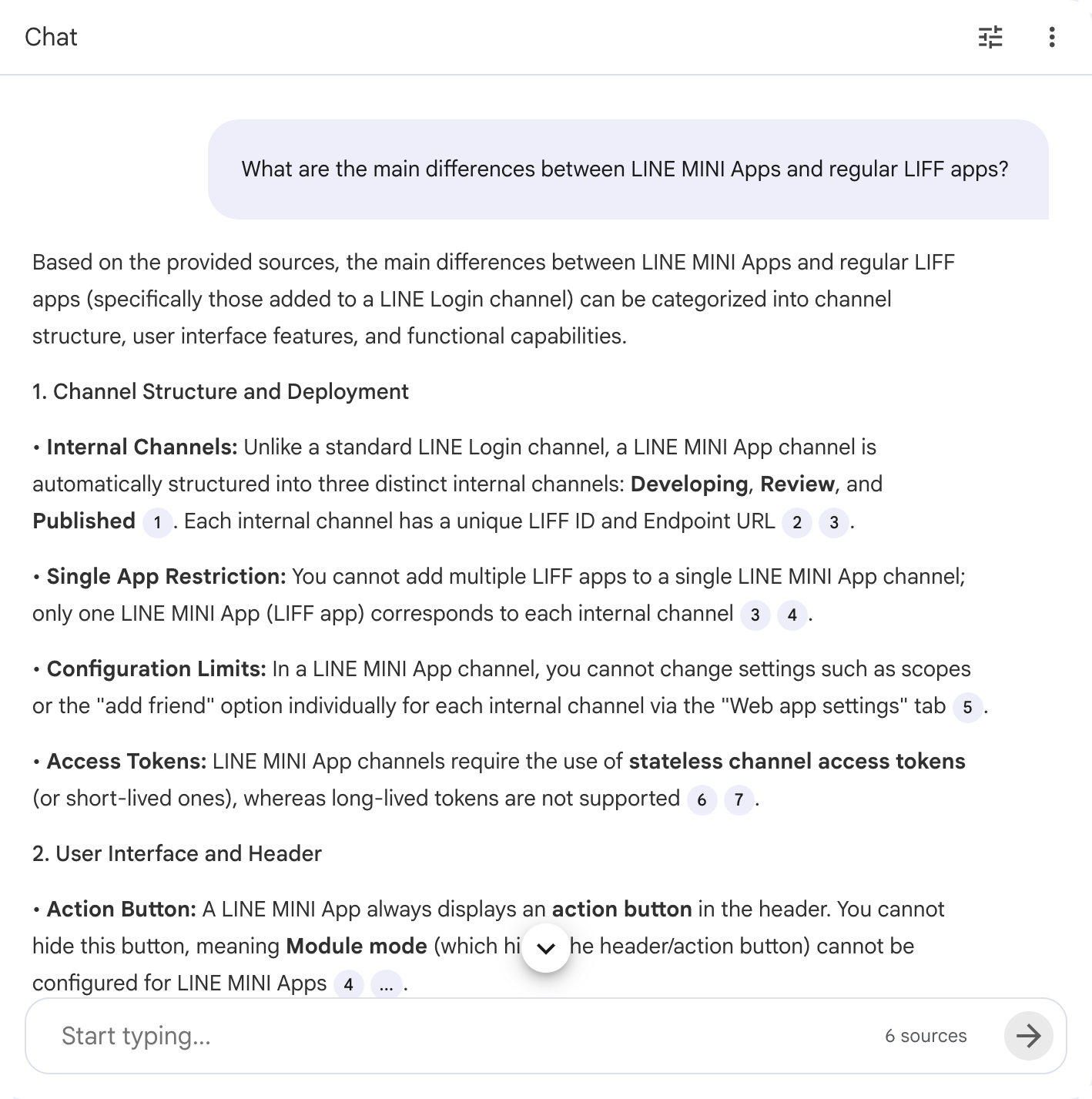
In this way, simply by telling NotebookLM what information you’re looking for, it will refer to the documentation and generate an answer on your behalf. NotebookLM also shows the sources for its answers, making it easy to verify whether the response is accurate and free from hallucinations.
Wrap-up
In this article, I introduced one example of using the Markdown display feature together with AI: uploading Markdown files from the documentation on the LINE Developers site to NotebookLM and using NotebookLM as an AI research assistant.
Beyond this example, you can also use NotebookLM’s Audio Overview and Video Overview features to quickly catch up on new documentation, or leverage it for onboarding new team members.
We encourage you to try the Markdown display feature on the LINE Developers site and explore new ways to make the most of the documentation.